
Create and complete a manufacturing order
Make finished goods from components - the order uses up the parts, adds the product to stock and works out its cost.
Where to find it
ManufacturingOperationsManufacturing Orders
Before you start
- The finished product and every component must exist as products.
- The components must be in stock. Receive them first if they are not.
- If the product has a bill of materials (a saved recipe), choose it in Bill of Materials and the components fill in by themselves. This lesson types the components by hand, which works for any product.
Steps
- Open Manufacturing, point at Operations, choose Manufacturing Orders and click New.
- Pick the Product to manufacture and type the Quantity to produce. A Reference helps you find the order later.
- Click Add component for each part the order will use. Search for the component and type how many.
- Click Save. The order is created as a Draft.
- Click Confirm to release the order for production.
- Click Produce and confirm. The components are used up and the finished goods go into stock. The status becomes Done.
Tip
After producing, look at Cost Summary on the order. It shows the component cost, the operation cost and the cost of each unit made.
Note
Produced by mistake? Open the finished order and use Unbuild (under Operations > Unbuild Orders) to put the components back.
What happens next
See what your production costs: production and cost reports.
Was this lesson helpful?
Thank you for the feedback.
Keep learning
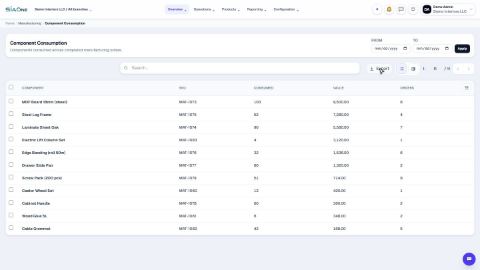
Run the production and cost reports
See what you produced, what each order cost, which components were used, and how busy each work center was.
Sign in to SiaOne
Open your company's SiaOne address, sign in with your email and password, and find where to log out.
Find your way around
The home screen, the app menu bar, breadcrumbs, lists and record pages - the five things every SiaOne screen is built from.
 0:49
0:49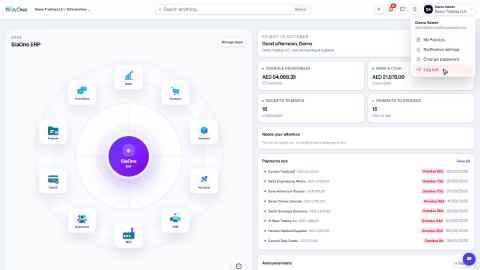 1:28
1:28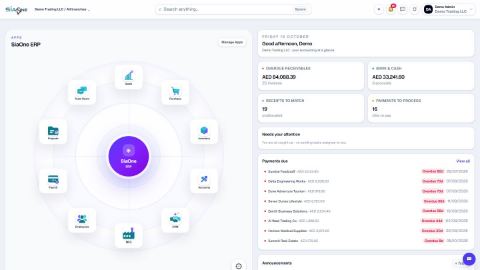 1:41
1:41