
Find your way around
The home screen, the app menu bar, breadcrumbs, lists and record pages - the five things every SiaOne screen is built from.
Where to find it
Home
The home screen
After you sign in you see one tile for each app you can use - Sales, Purchase, Inventory, Accounting, CRM, Employees and so on. You only see the apps your administrator gave you access to.
Steps
- On the home screen, click an app tile, for example Sales. The app opens.
- A dark menu bar runs across the top. Point at a group such as Orders to see everything inside it, then click an entry, for example Sales Orders.
- You are now on a list. Use the search box to find a record. It also opens Filters, Group By and Saved Searches, and the Export button sits next to it.
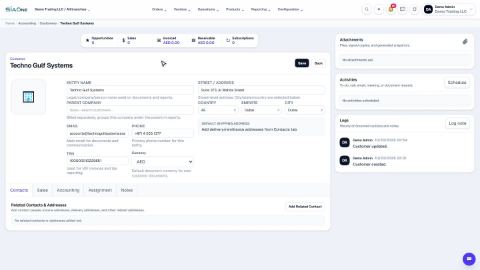
- Click any row to open the record page. The document is on the left and its history (notes, emails, changes) is on the right.
- The breadcrumbs above the page show where you are. Click one, for example Sales Orders, to go back a level.
- Click the SiaOne logo at the top left to return to the home screen from anywhere.
Note
Every list in SiaOne works the same way, and so does every record page. Once you know one app, you know the layout of all of them.
What happens next
If your business has more than one company or branch, learn how to switch company and branch.
Was this lesson helpful?
Thank you for the feedback.
Keep learning
Search anything from the top bar
Find a customer, vendor, invoice, bill, product or payment in seconds, or jump straight to a list or a new record.
Work with lists - search, filters, group by and saved searches
Find records quickly on any list - type to search, filter, group, and save a view you use often.
Choose columns, sort and export a list to Excel
Show only the columns you need, sort the list, and download exactly what you see as an Excel file.
 1:33
1:33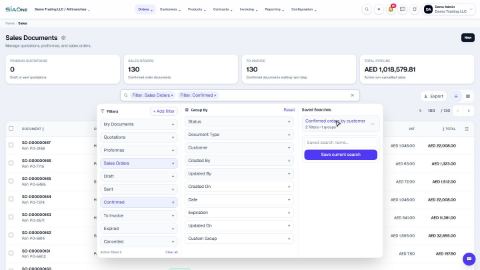 1:12
1:12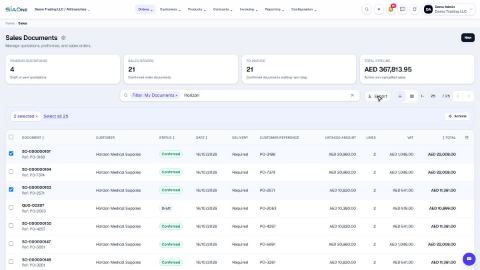 1:05
1:05