
Sign in to SiaOne
Open your company's SiaOne address, sign in with your email and password, and find where to log out.
Where to find it
Your SiaOne addressSign in
Before you start
You need two things from your administrator:
- Your company's SiaOne address. It looks like
yourcompany.siaone.ae. - The email address your user was created with, and your password.
Steps
- Open your company's SiaOne address in Chrome, Edge or Safari. The sign-in page shows your company's name.
- Type your Email and your Password.
- Click Sign in. SiaOne opens on the home screen, where every app you are allowed to use appears as a tile.
- To leave, click your name at the top right and choose Log out. The same menu has My Payslips, Notification settings and Change password.
Note
Forgot your password? Click Forgot password? under the password box, type your email and click Send reset link. SiaOne emails you a link to choose a new password. If no email arrives, ask your administrator to set a new one for you under Settings > Administration > Users. After you sign in, change it to one only you know.
Tip
Bookmark the address after your first sign-in. SiaOne also works in the browser on your phone - the layout adjusts itself.
What happens next
You land on the home screen. Continue with Find your way around.
Was this lesson helpful?
Thank you for the feedback.
Keep learning
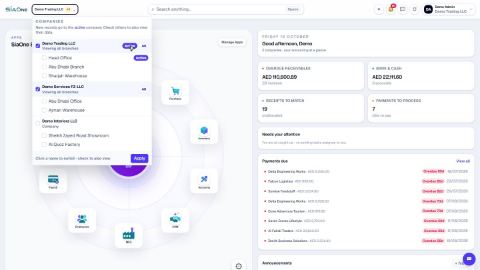
Switch company and branch
Choose which company and branch you are working in, and understand which company a new document is saved to.
Search anything from the top bar
Find a customer, vendor, invoice, bill, product or payment in seconds from any screen, or jump straight to a list or a new record.
Work with lists - search, filters, group by and saved searches
Find records quickly on any list - type to search, filter, group, and save a view you use often.
 1:59
1:59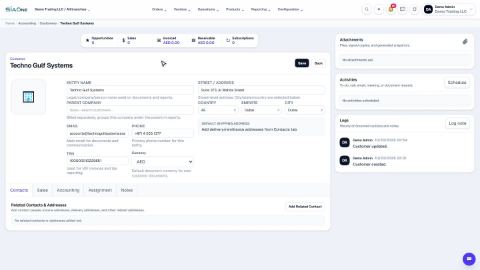 1:22
1:22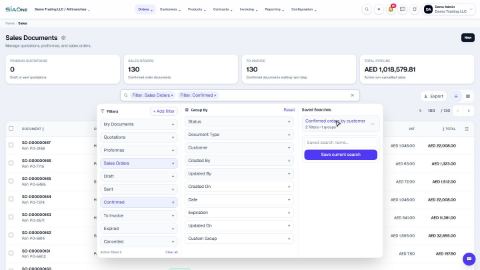 2:17
2:17