
All lessons
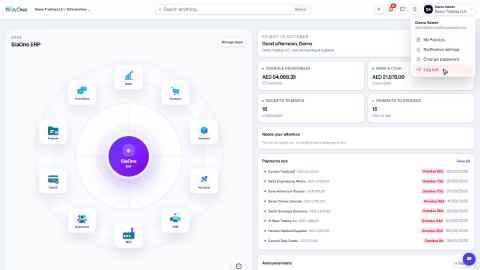
Sign in to SiaOne
Open your company's SiaOne address, sign in with your email and password, and find where to log out.
Find your way around
The home screen, the app menu bar, breadcrumbs, lists and record pages - the five things every SiaOne screen is built from.
Switch company and branch
Choose which company and branch you are working in, and understand which company a new document is saved to.
Search anything from the top bar
Find a customer, vendor, invoice, bill, product or payment in seconds, or jump straight to a list or a new record.
Work with lists - search, filters, group by and saved searches
Find records quickly on any list - type to search, filter, group, and save a view you use often.
Choose columns, sort and export a list to Excel
Show only the columns you need, sort the list, and download exactly what you see as an Excel file.
Read a record page: status bar, smart buttons and actions menu
How every document and record is laid out - the status bar, the next-step buttons, smart buttons, the actions menu and the side panels.
Attach files to a record
Keep the signed copy, a receipt or a supplier invoice on the record it belongs to, so anyone can find it later.
Schedule an activity and follow up
Plan a call, to-do, email, meeting or document request on a record, and tick it off when it is done.
Add a note and read the history of a record
See who did what and when on any record, and leave an internal note for your team.
Change your password
Choose a password only you know - from the menu under your name.
Switch between light and dark theme
One click in the top bar changes how SiaOne looks - a dark screen is easier on the eyes in the evening.
Add a customer
Create a customer once, with its name, email, phone and TRN, so every quotation, order and invoice can use it.
Add contact people and delivery addresses
Keep the people you deal with, and the places you invoice and deliver to, on the customer or vendor record.
Set a customer's default currency and credit days
Make new quotations and invoices for a customer start in the right currency, and record how many days the customer has to pay.
Set a credit limit for a customer
Warn your team, or stop them, when a customer owes more than you agreed or has overdue invoices.
Give a customer or vendor its own receivable or payable account
Post one customer's invoices, or one vendor's bills, to a separate account instead of the shared Accounts Receivable or Accounts Payable.
See what a customer owes from their record
Open a customer and see what they bought, what was invoiced and what is still unpaid - then compare with every other customer.
Add a vendor
Create a vendor once, then use it on every RFQ, purchase order and vendor bill.
See what you owe each vendor (Vendor Due Summary)
See how much you owe each vendor, and how late each amount is.
Create a quotation
Prepare a quotation for a customer, add products and prices, then print it or send it by email.
Print a quotation, proforma or order
Make a PDF of a quotation, a proforma or a sales order to send to the customer or keep on file.
Send a quotation by email
Email a quotation to the customer as a PDF attachment, straight from the document.
Confirm a quotation into a sales order
Turn an accepted quotation into a confirmed sales order with one click. Confirming also prepares the delivery note for the warehouse.
Invoice a percentage or an advance (progress invoicing)
Bill part of an order now - a percentage or a fixed amount - and bill the rest later.
Attach an existing invoice to an order
Already invoiced the customer by hand? Link that invoice to the sales order and check that the two match.
Create an RFQ from a sales order
Need to buy what a customer ordered? Raise the purchase request straight from the sales order, with the customer and the quantities already filled in.
Deliver a sales order and create the invoice
Mark the goods as delivered on the delivery note, then create the customer invoice from the sales order.
Deliver part of an order and keep a backorder
Send only some of the goods now, and keep the rest open on a new delivery note called a backorder.
Deliver and invoice in one step
Use one button on the sales order to deliver all the goods and create the draft customer invoice together.
Return goods from a customer
Take delivered goods back into stock from the delivery note, and prepare a credit note so the customer is not charged for them.
Set up a subscription
Bill a service every month, quarter or year by setting a recurring plan on a quotation. SiaOne then creates each invoice for you.
Create a service contract
Record an agreement with a customer - what you will do, what it is worth, when it starts and ends, and whether it renews.
Set up payment terms and terms & conditions
Save your standard payment terms and your terms and conditions once, then pick them on any quotation instead of typing them again.
Run the sales reports by customer, product and salesperson
See how much you sold, to whom, which products sold best and who made the sales, for any period.
Create a purchase order
Start a request for quotation (RFQ) for a vendor, add the products, then confirm it into a purchase order.
Correct a confirmed purchase order
Wrong quantity or price? Move the order back to draft, fix it, and confirm it again.
Email an RFQ to a supplier
Send the request for quotation to the supplier by email, with the PDF attached.
Buy for a customer and mark the line billable
Buy something on a customer's behalf and flag the cost, so you can charge it on that customer's next invoice.
Receive goods from a vendor (GRN)
Record the goods that arrived against a purchase order. Stock goes up as soon as the receipt is validated.
Receive part of an order
When only some of the goods arrive, receive just what came. The order is marked Partially Received.
Create a vendor bill from a purchase order
Turn a received purchase order into the vendor bill. The lines come across, you only add the supplier's invoice number.
Attach an existing bill to an order
The supplier's invoice came before the order was linked? Attach the bill you already entered to its purchase order and check that they match.
Bill an order in parts
Bill only the goods that have arrived. Each vendor bill covers what was received since the last one.
Return goods to a vendor
Send damaged or wrong goods back. Stock goes down, and a debit note records what the vendor owes you.
Run the purchase reports
See what you bought and how much you spent - by vendor, by product and by buyer - and save the report as PDF or Excel.
Check stock on hand
See how much of each product you have and what it is worth, find a product quickly, and see how its quantity got there.
Create a product
Add a stock item with its type, category, code and prices, so you can buy it, sell it and count it.
Choose a product type: storable, consumable or service
The Product Type decides whether SiaOne counts the stock, receives it, delivers it and values it.
Create product variants (size, colour)
Set up attributes such as Size and Colour once, then generate every combination of a product in one click.
Buy by the box, sell by the piece (units of measure)
Define a box (or dozen, or kilogram) once, buy in it, and let stock stay counted in the product's own unit.
Count stock
Count what is on the shelf, type it in, and let the system correct the quantity and the books.
Track lots, serial numbers and expiry dates
Track stock batch by batch or item by item. Receive goods with a lot number and an expiry date, then see every lot in one list.
Transfer stock between locations
Move goods from one stock location to another. The total stays the same; only the place changes.
Add freight and customs to stock cost (landed costs)
Share a freight, customs or handling cost across the goods you received, so each product's stock cost shows what it really cost to get to your shelf.
Scrap damaged stock
Write off goods that are damaged, expired or lost, so your stock and its value stay true.
Add a stock location
Create a shelf, room or shop where stock can be kept, so you can move goods to it.
Set a reordering rule
Set a minimum and a maximum for a product, and get a flag when stock runs low.
Allow or block negative stock
Decide whether a delivery may take stock below zero. Find the setting and see what it does.
See what your stock is worth (Stock Valuation)
See what your stock is worth today or on an earlier date, and how each product's cost was built move by move.
Trace stock with the Stock Ledger and Movement Summary
See what came in and went out of each product over a period, and the full line-by-line history.
Find aged and slow-moving stock
Find the products that have not moved for a long time, and how much money is tied up in them.
Register a fixed asset and run depreciation
Add an asset such as a vehicle, see its depreciation board, confirm it, and post the depreciation each month.
Create a customer invoice
Create a tax invoice for a customer, save it as a draft, then confirm it so it is posted to the accounts.
Record a manual journal entry
Post your own debit and credit lines for something no invoice, bill or payment covers - such as a bank charge or a correction.
Record a vendor bill
Enter a bill you received from a supplier - for expenses or for products - and confirm it so it is posted.
Manage the chart of accounts and account groups
See the list of ledger accounts, add a new account, and see how account groups organise the accounts into the reports.
Set up journals
The sales, purchase, bank, cash and general journals - what each one is for and which accounts it uses.
Pay a vendor bill
Record the money you sent to a vendor, straight from the bill it pays - in full or in part.
Record a customer payment
Record money received from a customer by cash, bank transfer, card or cheque, straight from the invoice it pays.
Issue a post-dated cheque to a vendor
Pay a vendor bill with a cheque that carries a future date, and mark it cleared when the bank pays it.
Record a post-dated cheque (PDC)
Record a cheque with a future date, clear it when the bank pays it, and handle a cheque that bounces.
Set up taxes (VAT rates)
Where the UAE VAT 5% rate is set up, which accounts it posts to, and how to add another tax rate.
Add billable expenses to a customer invoice
Mark a supplier cost as billable to a customer, then pull it onto that customer's next invoice so you get the money back.
Set up payment methods
The methods offered on customer and vendor payments, what each one does, and how to add your own.
Record a cash purchase
Record something you paid for straight away from cash or the bank, when there is no vendor bill to enter.
Issue a credit note
Credit a customer for returned goods or a billing mistake, straight from the posted invoice, and refund the money if needed.
Refund a customer
Pay a customer back from the bank or cash, against a posted credit note.
Issue a debit note
Reduce what you owe a vendor for returned goods or a billing mistake, straight from the posted bill.
Set up currencies and exchange rates
See the currencies you trade in and their rates against the dirham, change a rate, and add another currency.
Record an advance payment and allocate it later
Save money a customer paid before the invoice exists, then set it against the invoice when it is ready.
Enter opening balances
The one-time screen that brings your balances from your old books into SiaOne when you start.
Unallocate a payment
Detach a payment from the wrong invoice, so the invoice is open again and the money is free to use.
Reset a posted invoice to draft
Take a posted invoice back to draft, correct it, and post it again with the same number.
Run a Profit and Loss report
See your income, cost of goods sold, expenses and net profit for any period, and compare it with the year so far or the same dates last year.
Run a Balance Sheet
See what the company owns, what it owes and what is left for the owners on any date, and compare it with last month.
Run the Cash Flow report
See where your cash came from and where it went in a period, split into operating, investing and financing activity.
Run a Profit and Loss by Job
See income, cost of goods sold and net profit side by side for each customer or job, and compare only the ones you choose.
Check the books with the Trial Balance and General Ledger
Use the Trial Balance to see every account's balance and check that debits equal credits, then open the General Ledger to see the entries behind any account.
See who owes you money (Aged Receivable)
Use the Aged Receivable report to see every unpaid customer invoice by how overdue it is, then filter it, open an invoice and export the report.
See what you owe vendors (Aged Payable)
Use the Aged Payable report to see every unpaid vendor bill by how overdue it is, then filter it, open a bill and export the report.
List open invoices and unpaid bills
See every unpaid customer invoice grouped by customer, and every unpaid vendor bill grouped by vendor, with the days overdue.
See customer and supplier balances at a glance
One line per customer or vendor showing what was charged, what was settled and what is still due.
See everything for one customer or vendor (Partner Ledger)
List every invoice, bill, payment and credit note for a customer or vendor in date order, with a running balance.
Run the Tax Report
List the VAT on every sale and purchase for a period, split into VAT you charged and VAT you paid, with a link to each document.
List all payments with the Payment Register
See every customer receipt and vendor payment in a period, with its method, status and how much is allocated to invoices.
See which customers make you money
List every customer with revenue, tracked expenses, profit and margin for a period.
Understand FX Revaluation at period end
See what foreign-currency balances are worth at a closing rate, what gain or loss that creates, and when to post it.
Close the month: the reports to run, in order
The reports to run at the end of every month, in the order that catches problems early, with what to look for in each.
Add a lead
Write down a new enquiry - who is asking, what they want and roughly how much it is worth - so it can be followed up.
Convert a lead to an opportunity
Move a promising lead from the inbox into the pipeline and fill in the details of the deal.
Move an opportunity through the pipeline
Drag a card to the next stage, or use the stage buttons on the opportunity, so the pipeline always shows where each deal stands.
Mark an opportunity won or lost
Close a deal as won, or record why it was lost so you can learn from it.
Create a quotation from an opportunity
Turn a deal in the pipeline into a draft quotation with one click, with the customer and the amount already filled in.
Set up pipeline stages, lead sources and lost reasons
Adjust the lists CRM uses - the columns of the pipeline, where leads come from, and the reasons for losing a deal.
Submit an expense report
Record what you spent, attach the receipts and send the report to your manager for approval.
Approve and post an expense report
Review a submitted expense report, approve or refuse it, and post it to the books in the right VAT period.
Reimburse an employee
Pay an employee back for a posted expense report - one report at a time, in instalments, or several reports in one payment.
Run a petty cash box
Create a petty cash box, top it up, pay small expenses from it, count the cash and read its statement.
Create and complete a manufacturing order
Make finished goods from components - the order uses up the parts, adds the product to stock and works out its cost.
Set up work centers
Set up the places where production happens - a machine, a bench or a team - each with an hourly cost rate.
Run the production and cost reports
See what you produced, what each order cost, which components were used, and how busy each work center was.
Add an employee
Create the record for a new team member - personal details, job, manager, bank account and joining date.
Track visa, Emirates ID and other document renewals
See which employee documents are about to expire or have expired, and record the renewed one.
Set up departments, designations and employment types
Keep the three lists that employee records choose from - departments, job titles (designations) and employment types.
See who reports to whom (org chart)
See who reports to whom, open anyone's record from the chart, and change a reporting line.
Set up salary components and salary structures
Define the earnings and deductions that appear on a payslip, then set each employee's fixed monthly pay.
Run payroll for the month
Generate the payslips for a month, check them, and move the run from Draft to Confirmed to Paid.
Adjust and print payslips
Add an overtime line or change an amount on a draft payslip, then download it as a PDF to print or email.
Record a loan or salary advance
Lend an employee money and let payroll take it back in monthly instalments, automatically.
Download the WPS file (SIF) for the bank
Enter your employer details once, then download the Wage Protection System (SIF) file that your bank or exchange house needs to pay salaries.
Calculate end-of-service gratuity
See how much end-of-service gratuity the company owes each employee, on today's date or any date you choose.
Create a project and add tasks
Start a client project, then break the work into tasks you can assign and track.
Log timesheets
Record the hours worked on a task so you can bill the client and see what the job really costs.
Set up project and task stages
Choose the columns your project board and your task boards use, and which column means finished.
See what a project earned (project profitability)
See what each project earns, what it costs in staff time, and what is still waiting to be invoiced.
Start a channel or a direct message
Create a shared channel for a group, or chat privately with one person.
Share an invoice, order or customer in a chat
Attach an invoice, bill, order, customer, vendor or product to a message so your colleagues can open it with one click.
Import customers from Excel
Bring a list of customers in from an Excel or CSV file. Download the template, match your columns, check the file and import it.
Match your columns and fix import errors
Check a file before it is imported: match its columns to SiaOne fields, read the errors, fix the file and try again.
Undo an import
Remove every record that one import created, in a single step, when you imported the wrong file.
Export customers to Excel
Download a list of customers as an Excel file, choosing which fields to include and the order of the columns.
Add a user and set access rights
Create a login for a colleague, choose the companies they can work in, and set their access level for each app.
Understand access levels: None, Own Documents, Manager
What None, User: Own Documents and Manager mean for each app, and how they differ from the Administrator role.
Add a branch
Add a head office, branch, warehouse, store or office to a company, so users and documents can be tied to a location.
Change the date format and decimal places
Show dates and amounts the way you read them - day first or month first, and how many decimals.
Change document and journal numbering
See how quotation, order, invoice, bill, payment and journal numbers are built, and where to change the prefix, format and starting number.
Create an approval rule
Hold documents - for example large vendor bills - until the right person approves them.
Customise a document template (logo, stamp, signature)
Choose the style, colours, stamp, signature and watermark of your printed quotations, invoices and other documents.
Set up email so documents can be sent
Connect your mailbox so quotations, invoices and statements can be emailed from SiaOne.
See which apps are installed (Apps Manager)
See which apps your company uses, their versions and what each app needs.
Set up country accounting (localization)
Where the country accounting set-up lives, and what a company looks like once it has been applied - chart of accounts, taxes and journals.
Add a custom field
Add your own field to contacts, products or invoices - for example a loyalty tier - and decide whether it prints on invoices.
Review the Sales, Purchase and Inventory settings
A tour of the switches that decide how selling, buying and stock work in your company.
Let Sales and Purchase managers post invoices and bills
Allow Sales and Purchase managers to post invoices and bills into the books without full Accounting access.
Email templates and merge fields
Write an email once and let SiaOne fill in the document number, customer name, total and sender for every message.
 1:16
1:16 1:14
1:14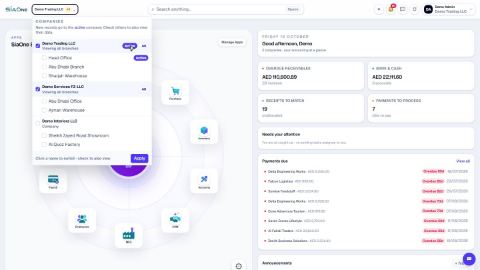 1:14
1:14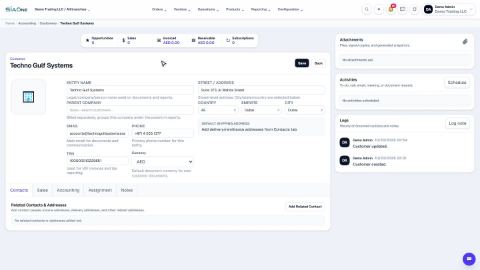 1:33
1:33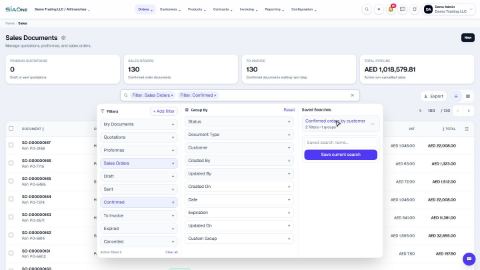 1:12
1:12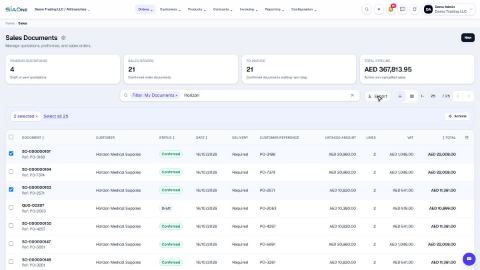 1:05
1:05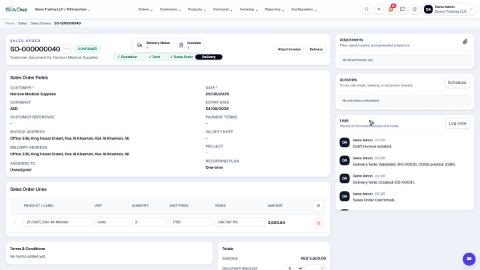 1:15
1:15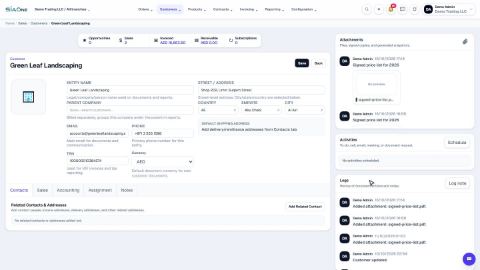 0:51
0:51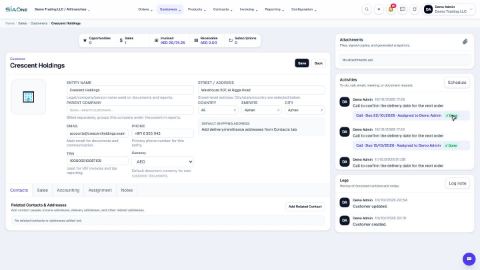 0:58
0:58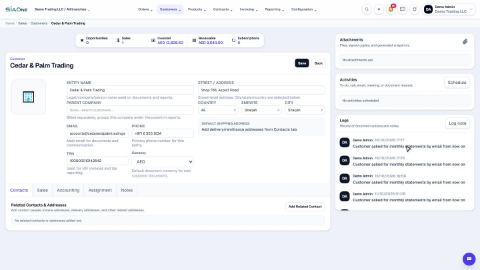 0:54
0:54 1:28
1:28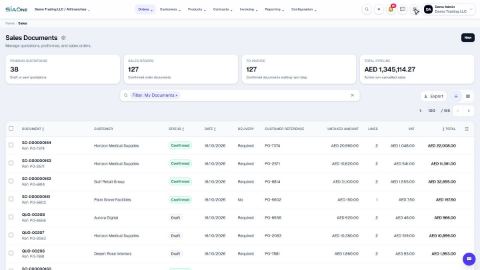 0:47
0:47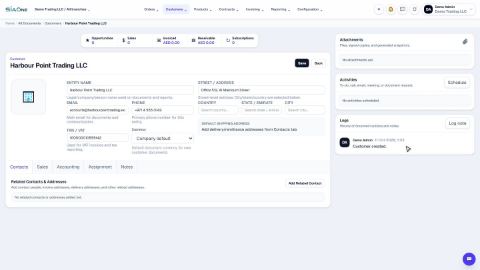 1:02
1:02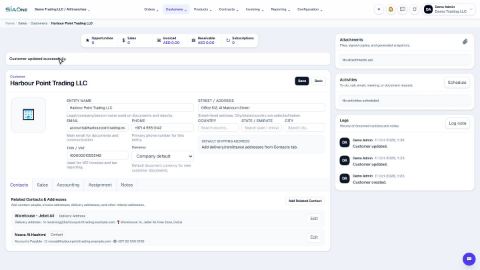 2:08
2:08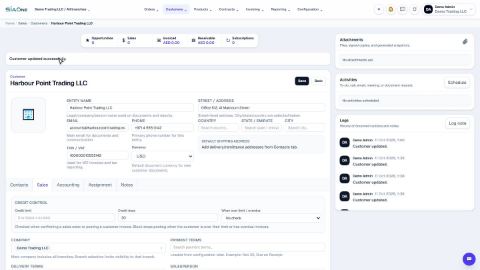 1:03
1:03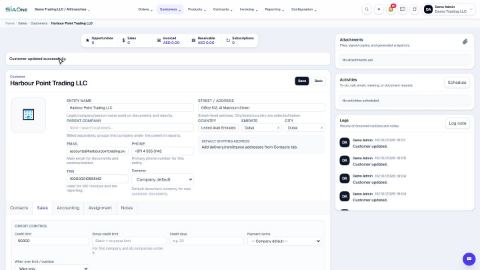 0:59
0:59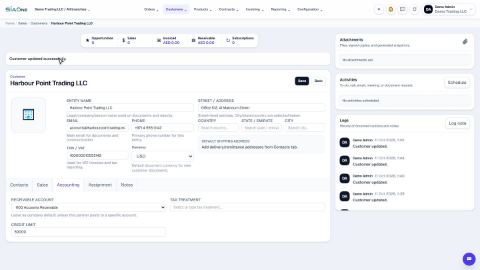 0:48
0:48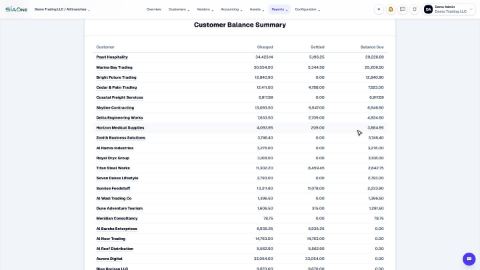 1:40
1:40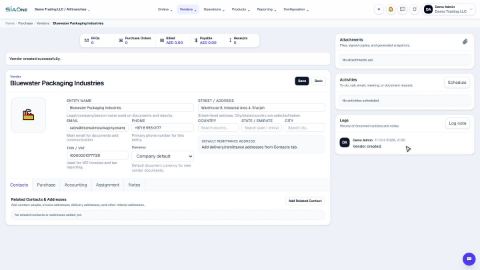 1:11
1:11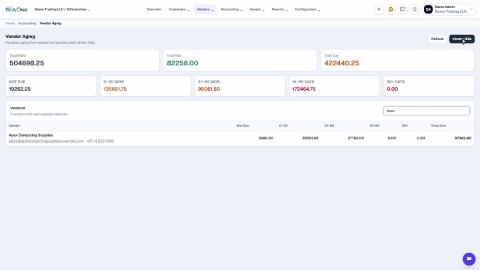 0:46
0:46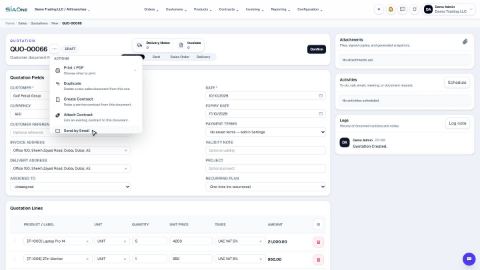 1:11
1:11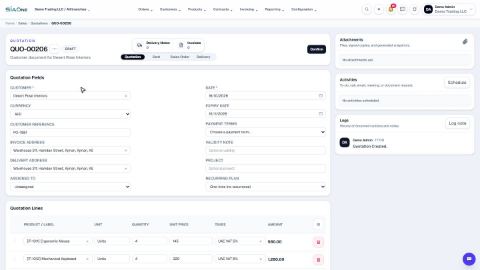 1:05
1:05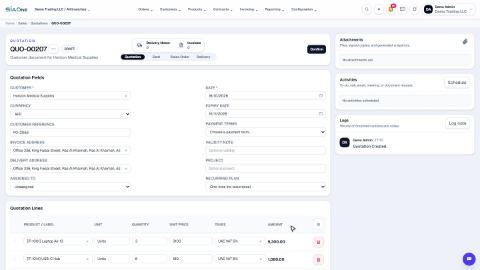 1:08
1:08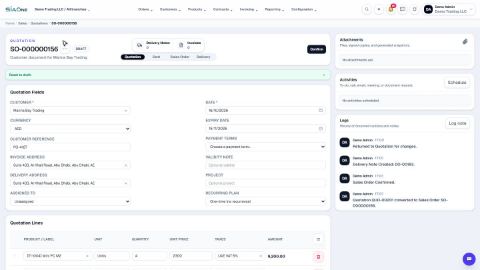 0:53
0:53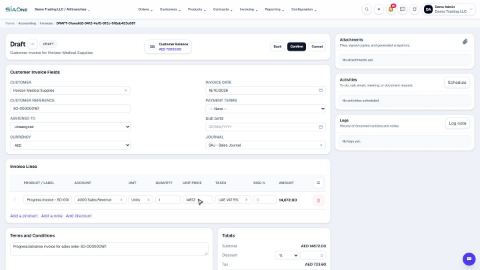 1:56
1:56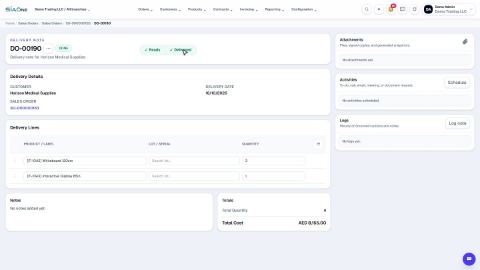 1:06
1:06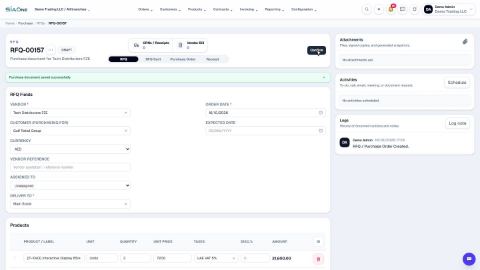 1:22
1:22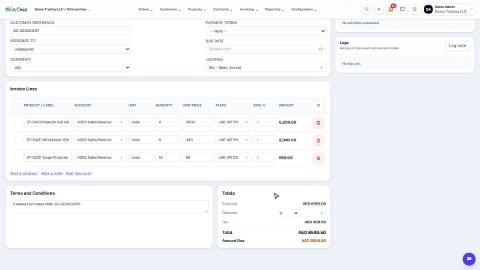 1:15
1:15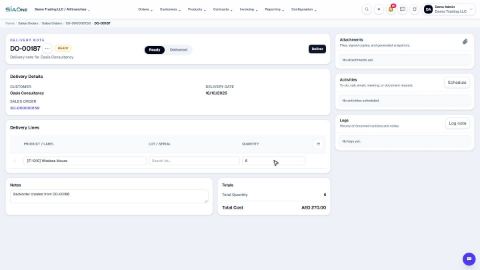 1:28
1:28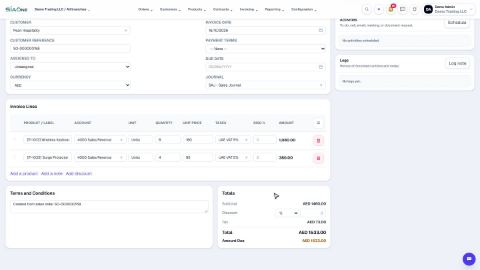 1:45
1:45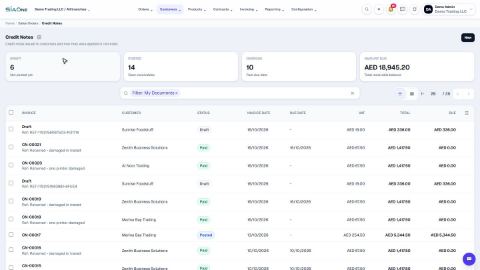 1:13
1:13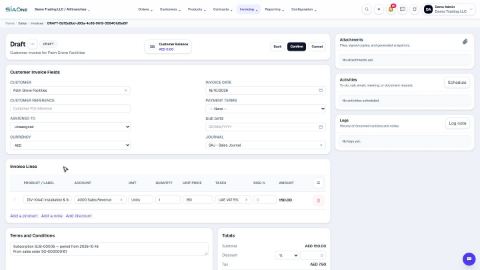 1:39
1:39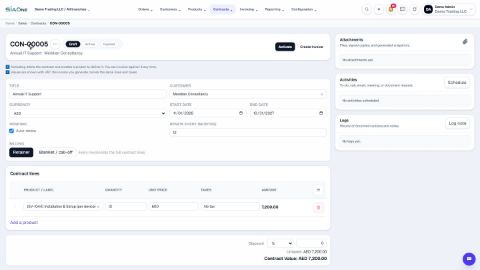 1:24
1:24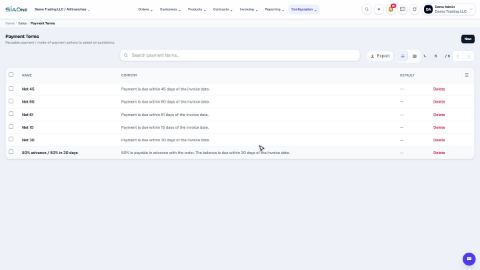 1:42
1:42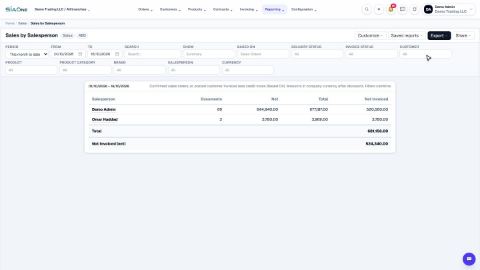 1:18
1:18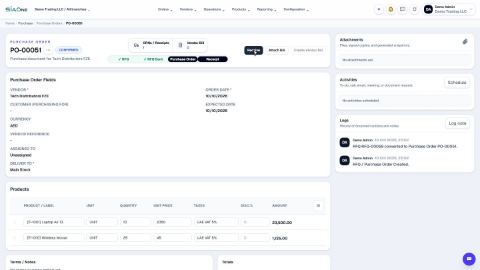 1:25
1:25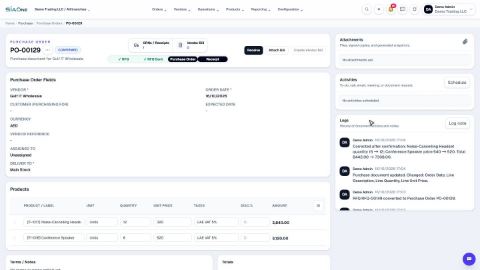 1:23
1:23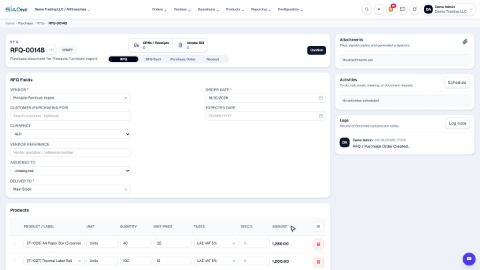 1:09
1:09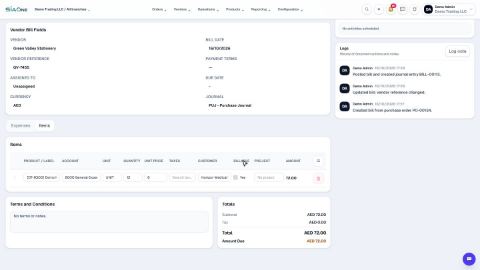 1:28
1:28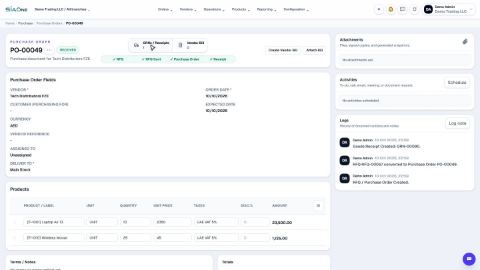 1:08
1:08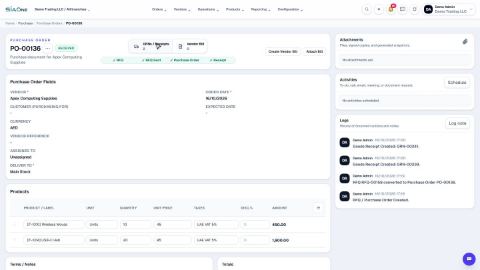 1:14
1:14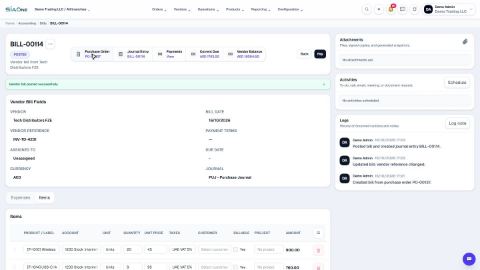 1:44
1:44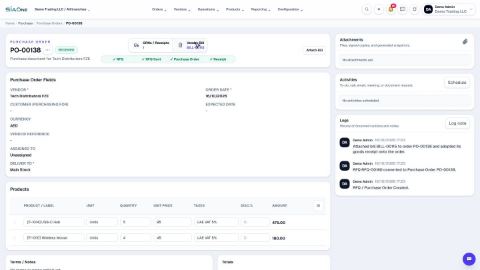 1:09
1:09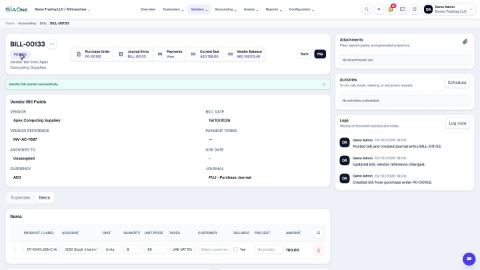 1:42
1:42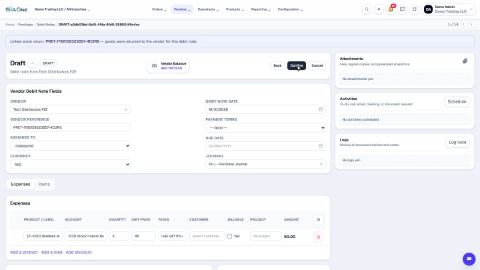 1:32
1:32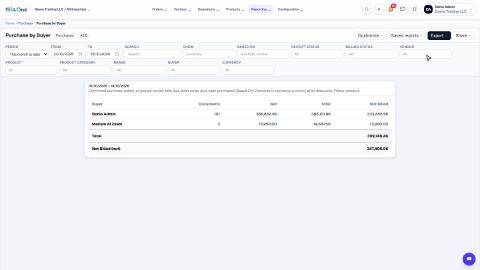 1:46
1:46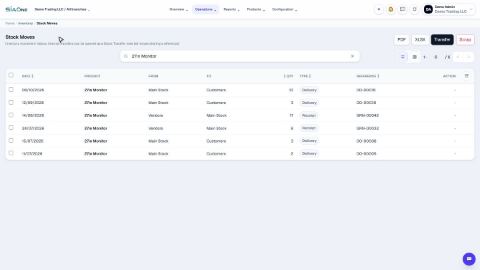 1:22
1:22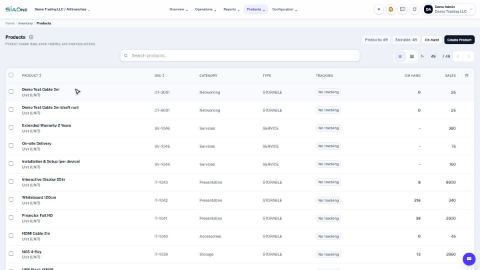 1:27
1:27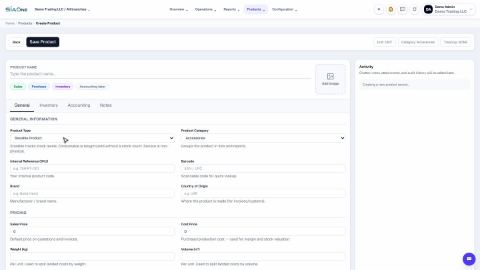 1:31
1:31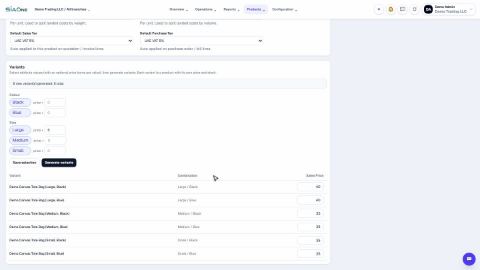 1:38
1:38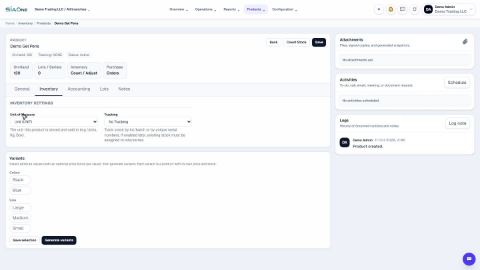 2:16
2:16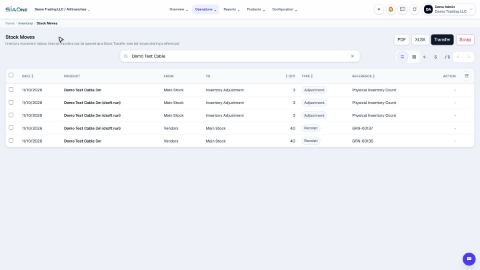 1:19
1:19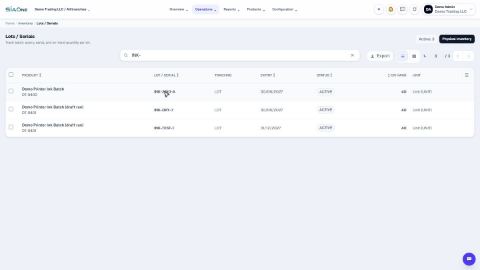 1:55
1:55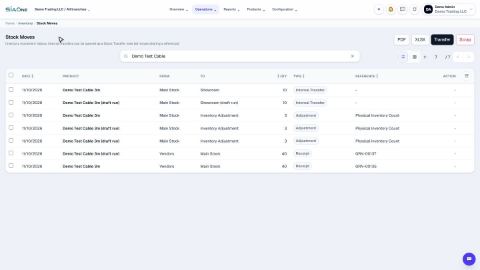 1:19
1:19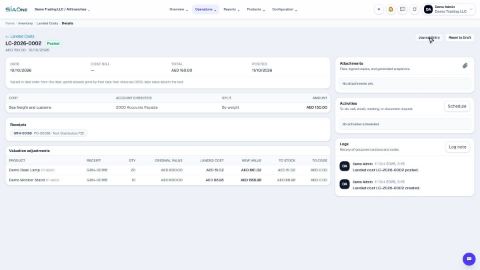 1:34
1:34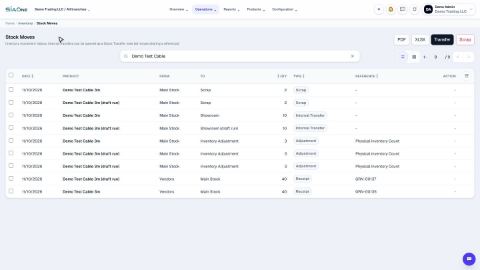 1:26
1:26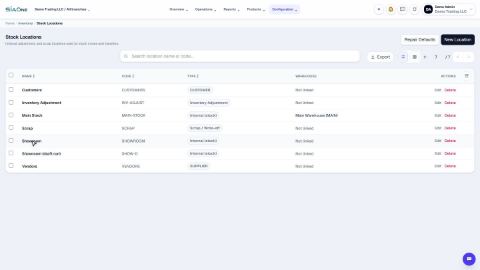 1:06
1:06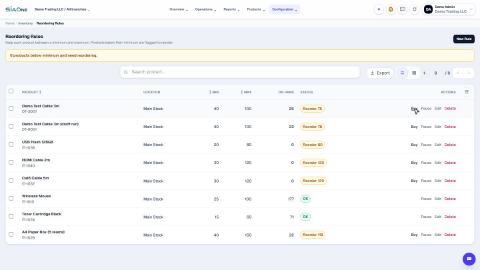 1:26
1:26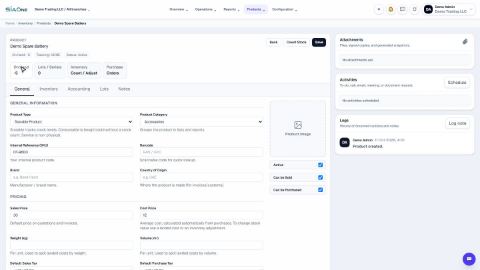 1:43
1:43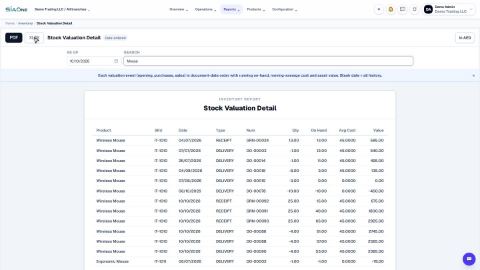 1:56
1:56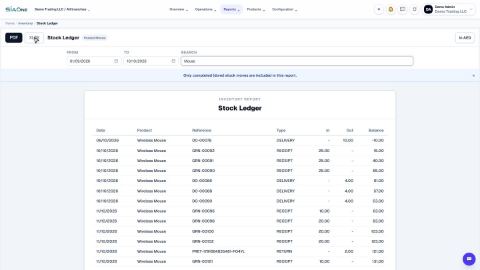 1:32
1:32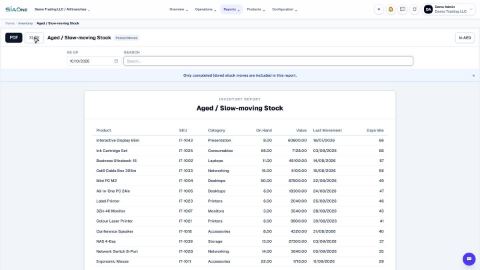 1:14
1:14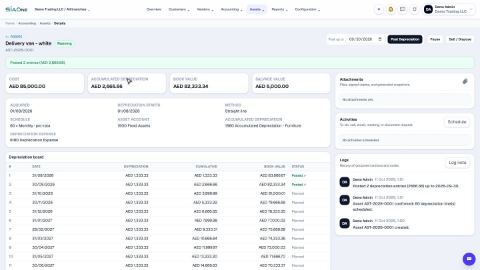 2:18
2:18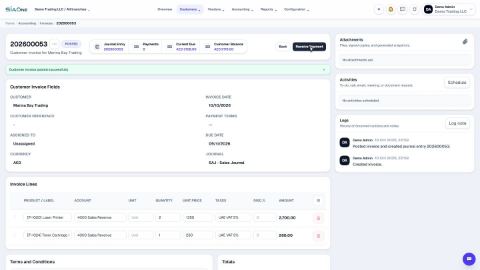 1:33
1:33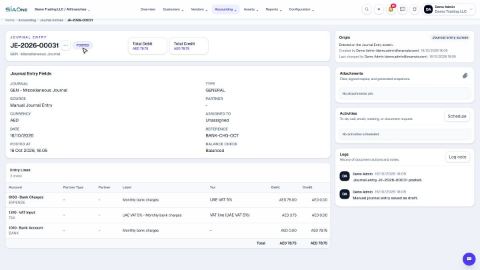 1:38
1:38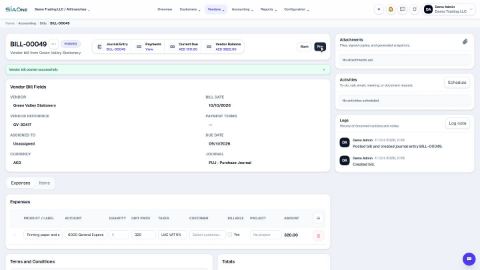 1:57
1:57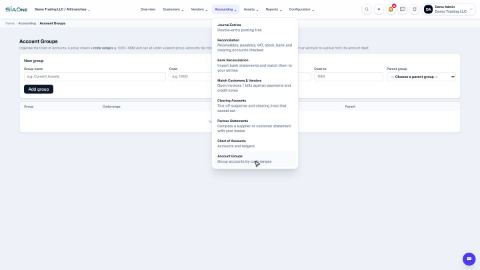 1:26
1:26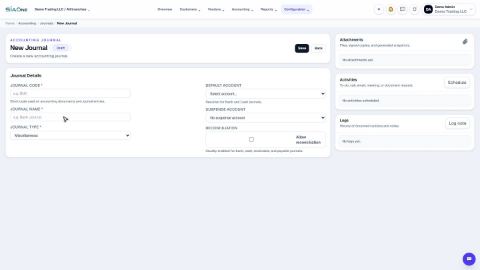 1:02
1:02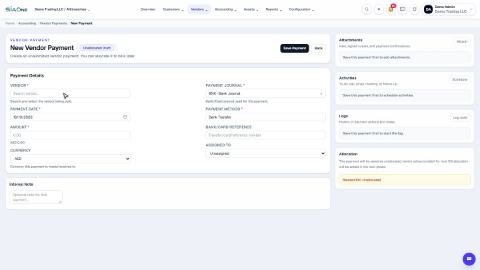 1:30
1:30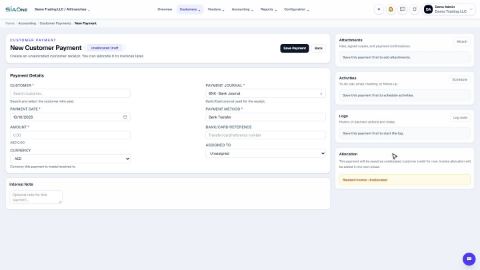 1:33
1:33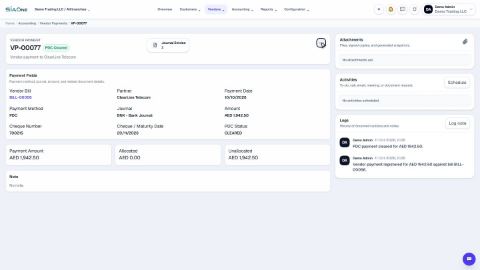 2:04
2:04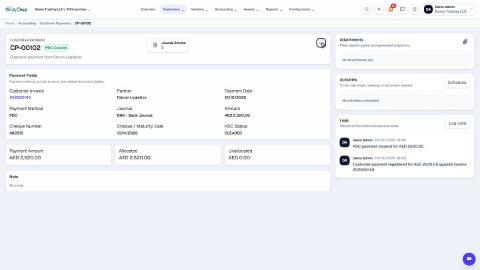 1:45
1:45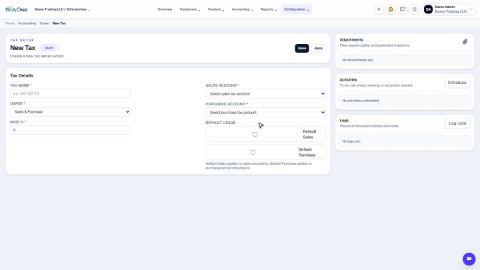 1:14
1:14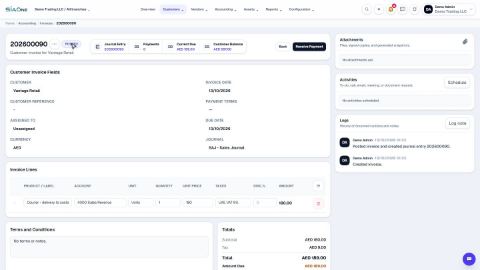 2:28
2:28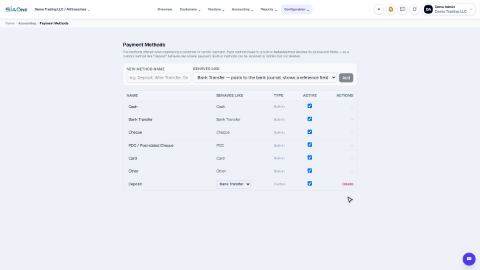 1:10
1:10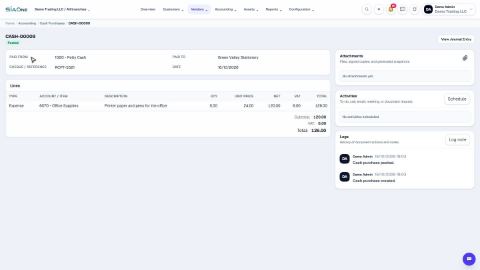 1:10
1:10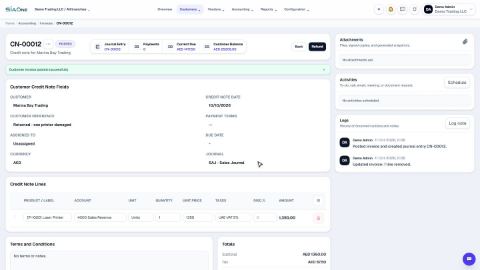 1:25
1:25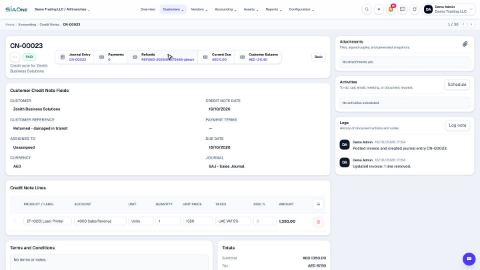 1:00
1:00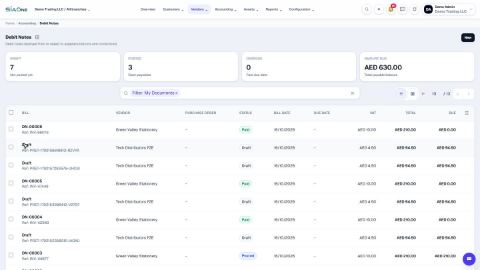 1:13
1:13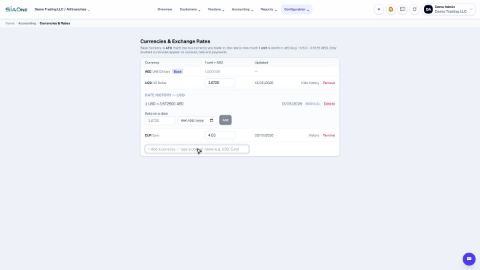 1:14
1:14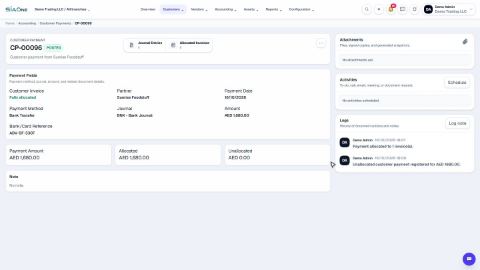 1:43
1:43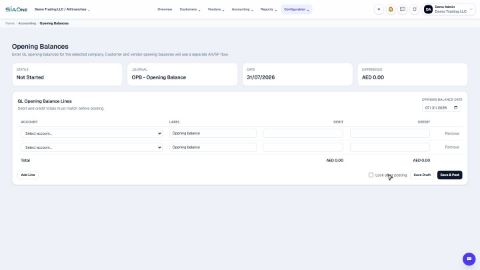 1:13
1:13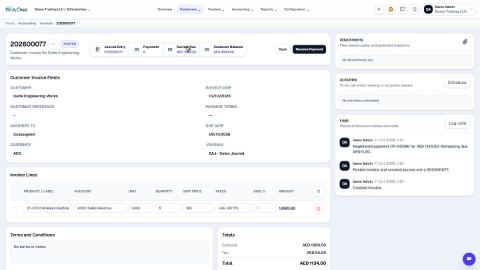 1:14
1:14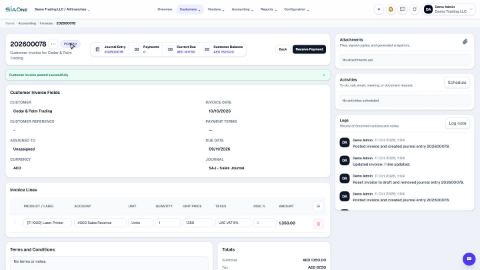 1:22
1:22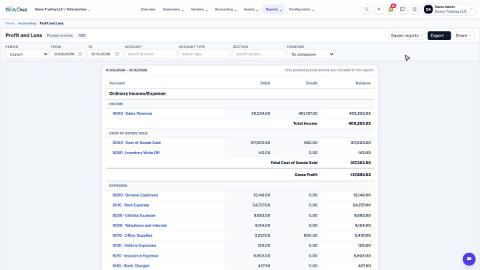 1:26
1:26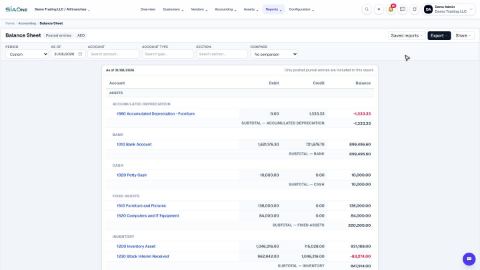 1:16
1:16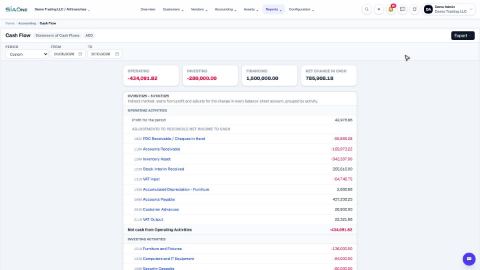 1:19
1:19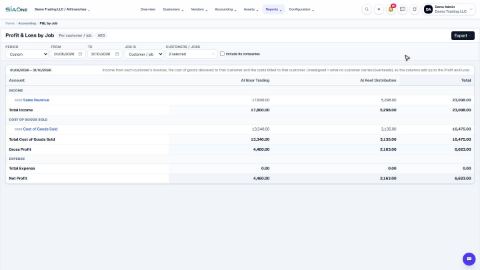 1:26
1:26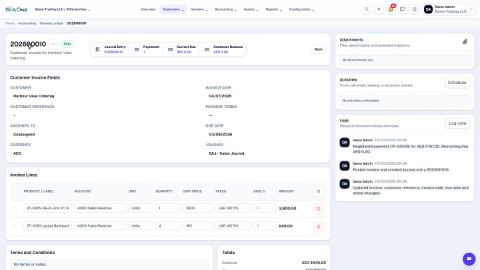 1:35
1:35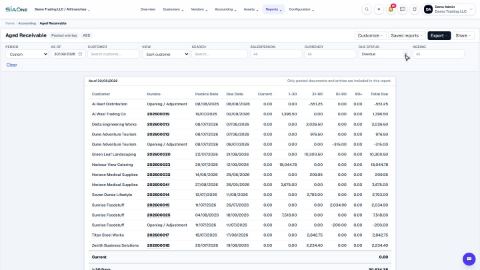 1:38
1:38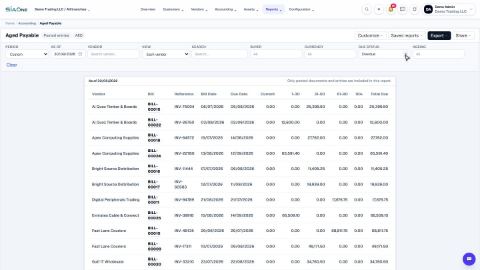 1:31
1:31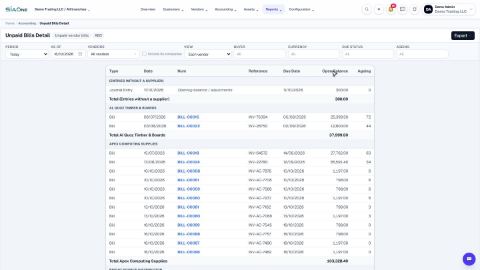 1:39
1:39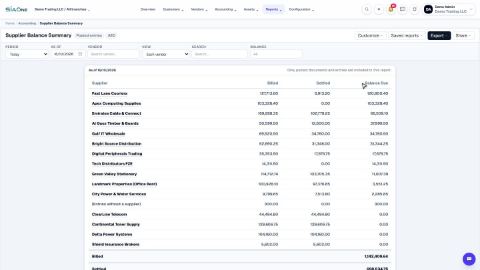 1:31
1:31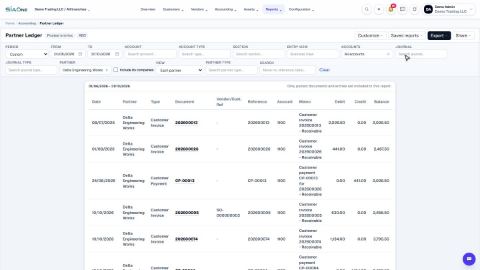 1:50
1:50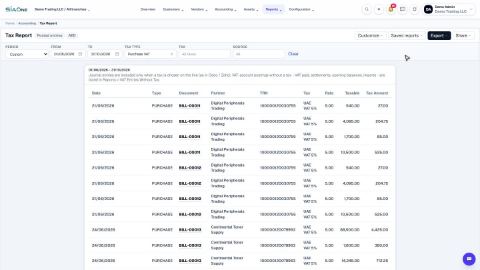 1:57
1:57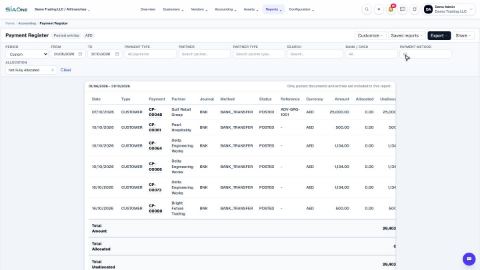 2:02
2:02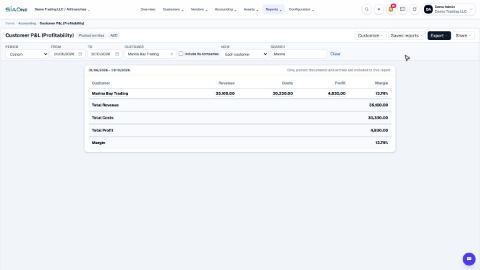 1:24
1:24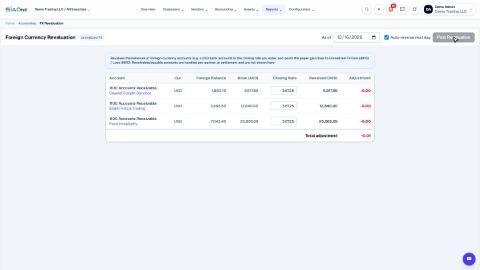 1:07
1:07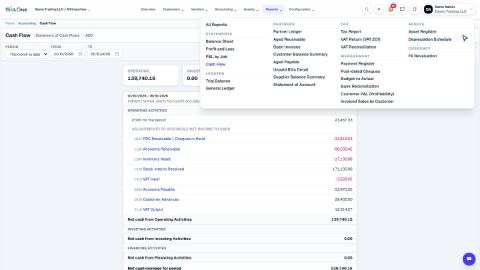 2:41
2:41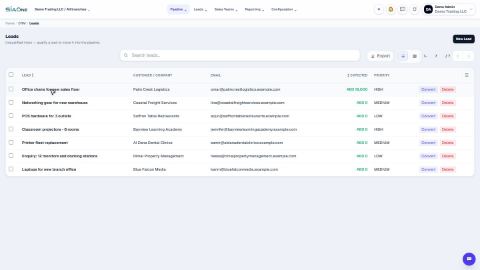 1:04
1:04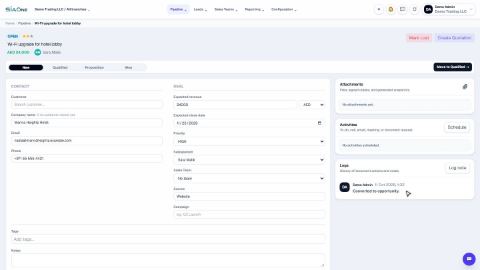 1:06
1:06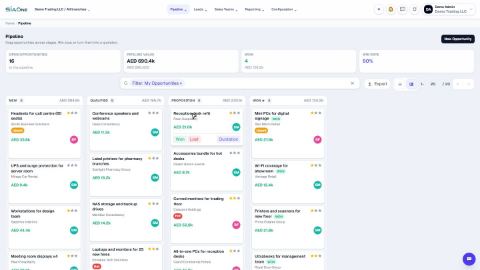 1:01
1:01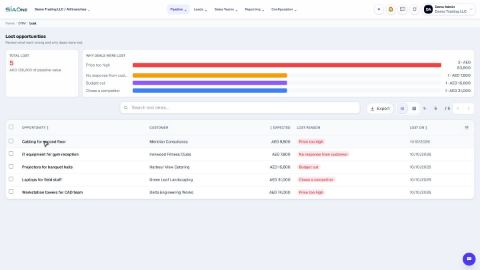 1:02
1:02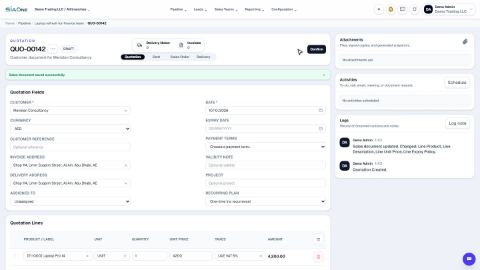 0:58
0:58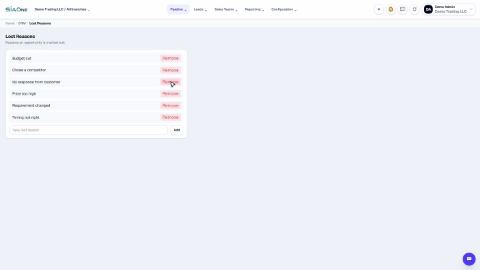 1:04
1:04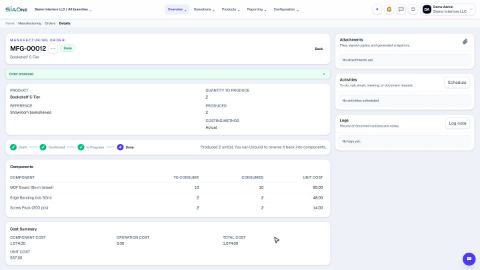 1:37
1:37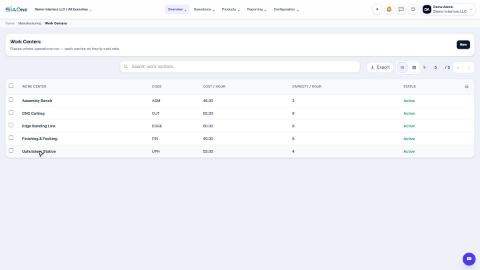 0:51
0:51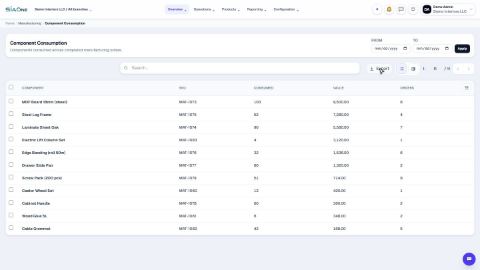 0:49
0:49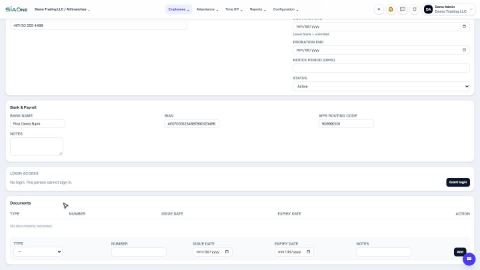 1:46
1:46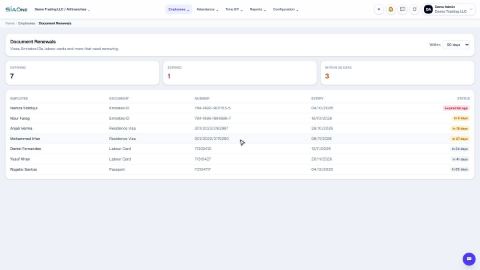 1:39
1:39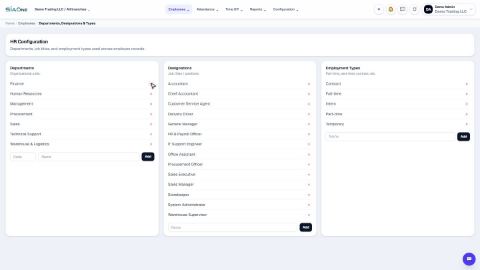 1:04
1:04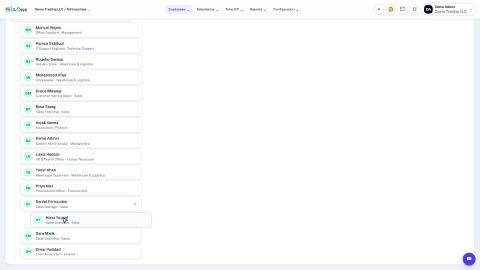 1:11
1:11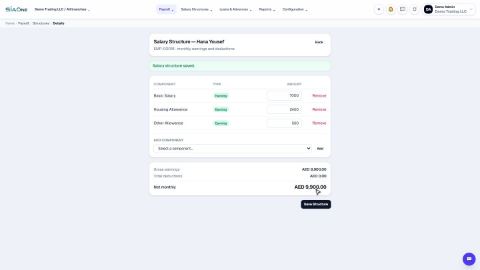 1:09
1:09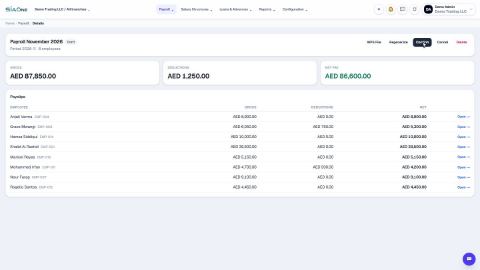 0:46
0:46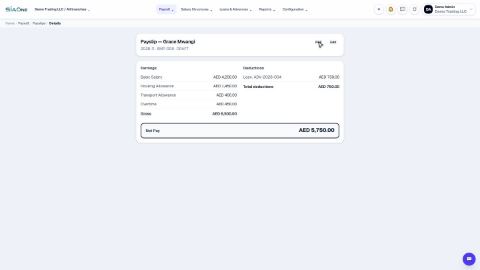 0:49
0:49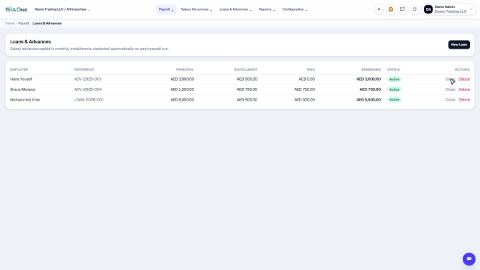 0:53
0:53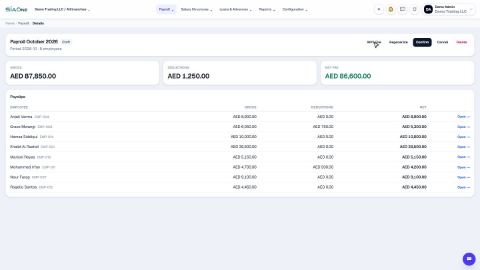 0:46
0:46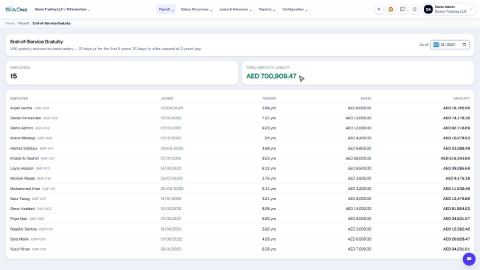 0:34
0:34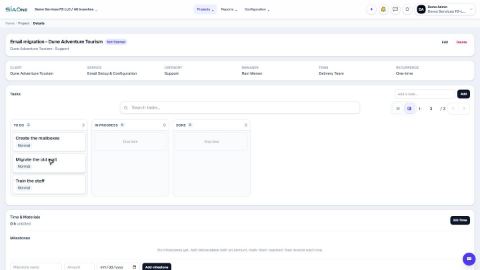 1:18
1:18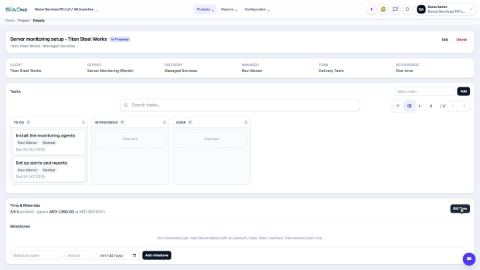 0:59
0:59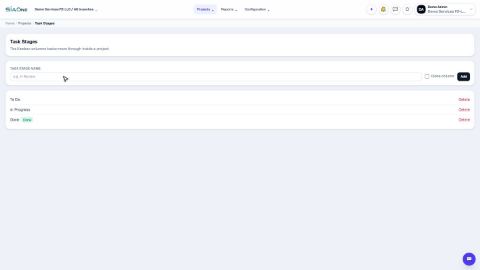 0:46
0:46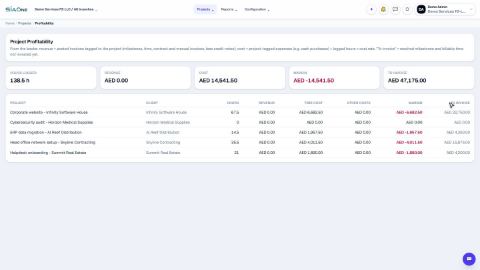 0:40
0:40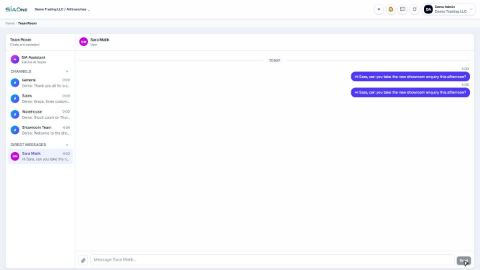 1:00
1:00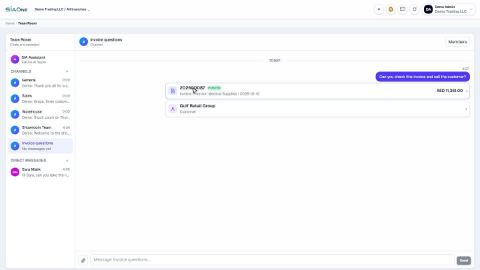 0:56
0:56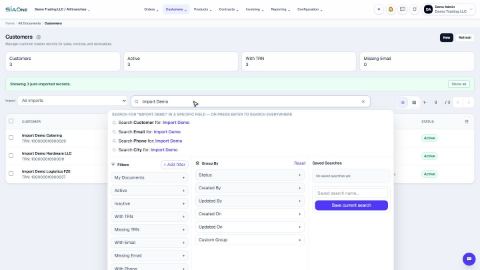 1:39
1:39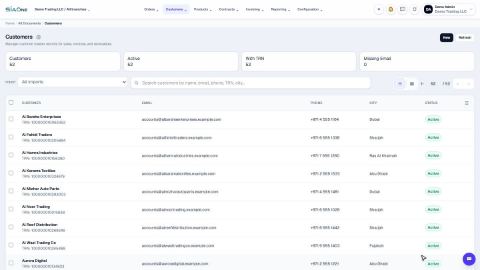 1:51
1:51 1:01
1:01 1:06
1:06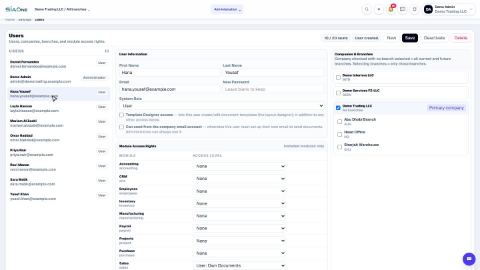 1:03
1:03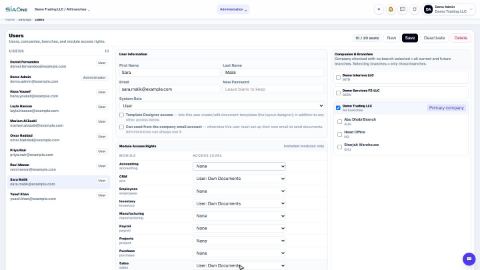 0:57
0:57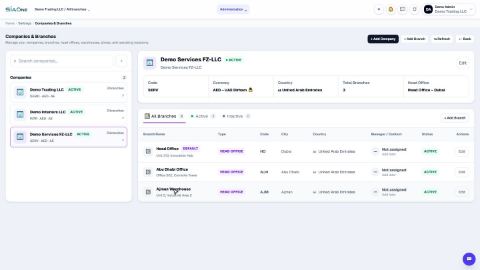 1:04
1:04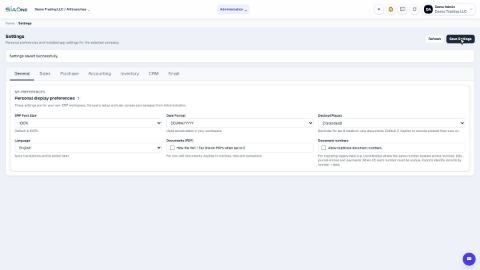 1:03
1:03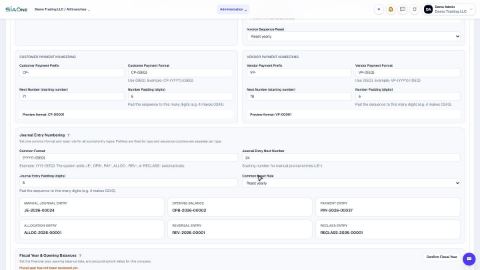 0:50
0:50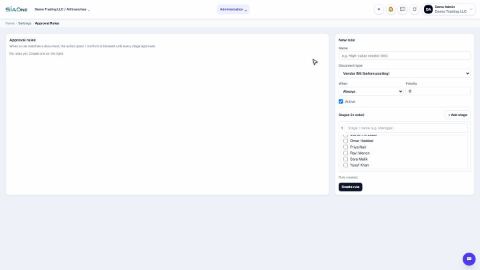 0:58
0:58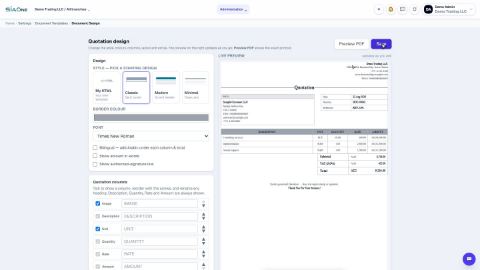 0:59
0:59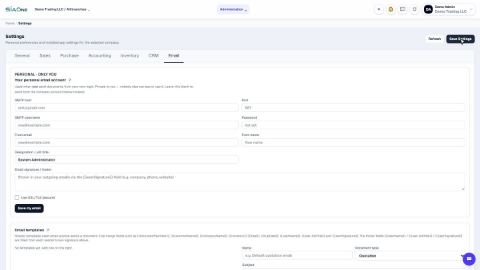 0:45
0:45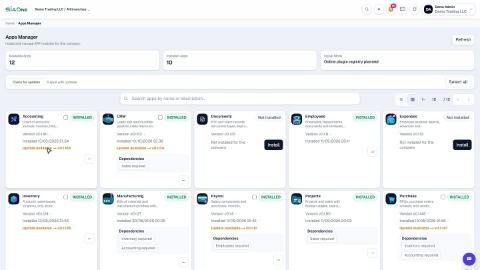 0:40
0:40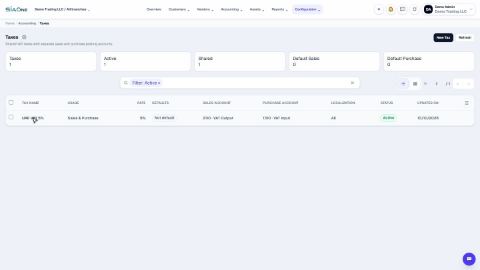 0:55
0:55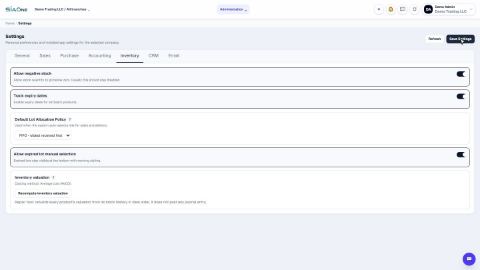 1:30
1:30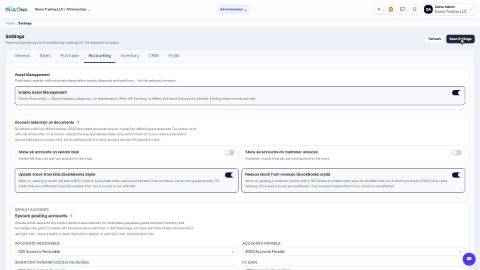 0:45
0:45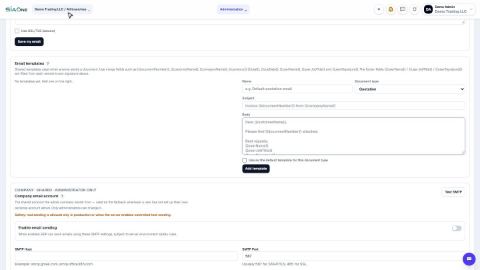 1:10
1:10