
Start a channel or a direct message
Create a shared channel for a group, or chat privately with one person.
Where to find it
Team Room
Steps
- Open Team Room. Channels are on the left, and direct messages are listed below them.
- Click the + next to Channels.
- Type a Channel name. Choose Public (anyone in the company can join) or Private (invite-only). Click Create.
- Write a message at the bottom and click Send.
- For a private chat, click the + next to Direct Messages and pick a person. You can search by name.
- Type your message and click Send. The conversation stays under Direct Messages.
Tip
Open a channel and click Members to see who is in it. A manager can add people there, or remove them.
Note
The chat icon at the top of every screen opens your messages without leaving the page you are working on.
What happens next
Put the real invoice or customer in the conversation: share an invoice, order or customer in a chat.
Was this lesson helpful?
Thank you for the feedback.
Keep learning
Sign in to SiaOne
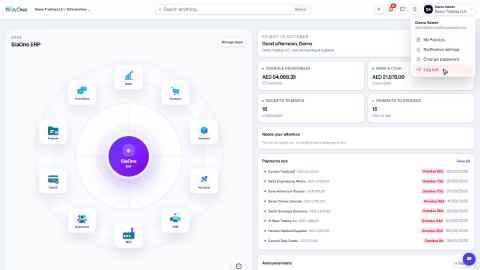
Open your company's SiaOne address, sign in with your email and password, and find where to log out.
Find your way around
The home screen, the app menu bar, breadcrumbs, lists and record pages - the five things every SiaOne screen is built from.
Switch company and branch
Choose which company and branch you are working in, and understand which company a new document is saved to.
 1:28
1:28 1:41
1:41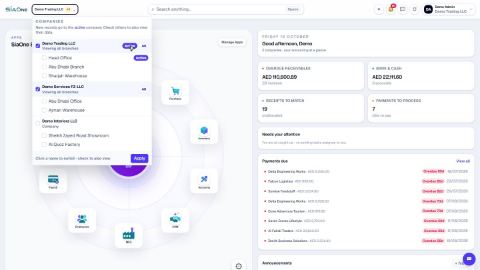 1:59
1:59