
Switch company and branch
Choose which company and branch you are working in, and understand which company a new document is saved to.
Where to find it
Top barCompany selector
How it works
The company selector in the top bar always shows your active company. New documents are saved to the active company and its selected branch. You can also tick extra companies to view their records at the same time - a +1 badge (or +2, and so on) shows how many extra companies you are viewing.
Steps
- Click the company name at the top left. The list shows every company you may use, with its branches underneath.
- Click a company name to work in that company with all its branches. Click a branch name to work in that branch only. The home screen reloads for the company you chose: the line under Good morning shows its name, and the overdue and payment figures are for that company.
- To look at several at once, open the list again, tick the companies or branches you want and click Apply. A ticked company with no branch ticked means all its branches.
- New records are created in the Active company (the first one selected), and in its branch. Open the list and look for the Active tag if you are not sure.
Note
Switching only changes what you see. Other users keep their own choice, and nothing is moved or copied between companies.
Important
Before you create a quotation, invoice or bill, check the company name in the top bar. A document belongs to the company that was active when it was created.
What happens next
Now find things quickly with Search anything.
Was this lesson helpful?
Thank you for the feedback.
Keep learning
Sign in to SiaOne
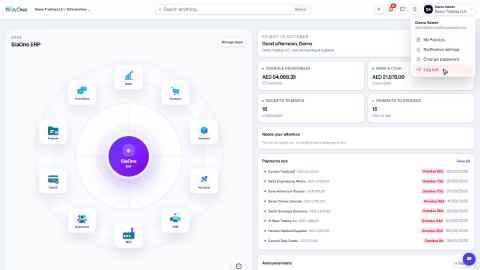
Open your company's SiaOne address, sign in with your email and password, and find where to log out.
Work with lists - search, filters, group by and saved searches
Find records quickly on any list - type to search, filter, group, and save a view you use often.
Choose columns, sort and export a list to Excel
Show only the columns you need, sort the list, and download exactly what you see as an Excel file.
 1:28
1:28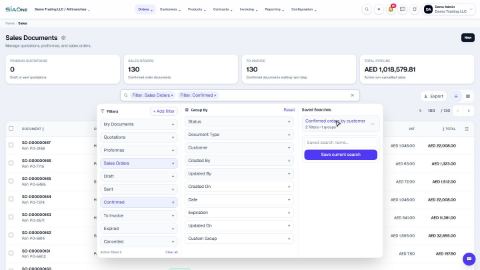 2:17
2:17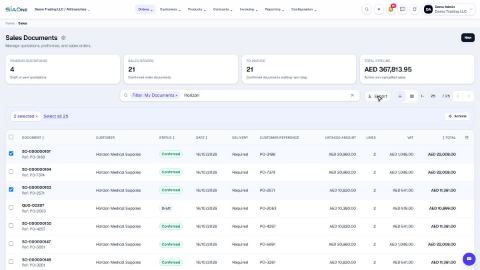 1:42
1:42