
Add an employee
Create the record for a new team member - personal details, job, manager, bank account and joining date.
Where to find it
EmployeesEmployeesNew Employee
Before you start
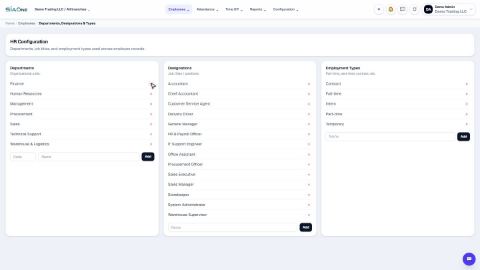
- The Department, Job Title and Employment Type come from lists. If one is missing, add it first under Departments, designations and employment types.
- The Manager is chosen from people already in the directory, so add managers first.
Steps
- Open Employees, point at the Employees menu and choose New Employee.
- Type the First Name and Last Name. Leave Employee ID empty - SiaOne numbers the employee for you.
- Fill in the personal details: Date of Birth, Gender, Nationality, Marital Status, and the Personal Email and Personal Phone.
- Choose the Department, Job Title, Employment Type and Manager.
- Add the Work Email and Work Phone, and the Join Date and Contract Start.
- Fill in the bank details that payroll and the WPS file will use: Bank Name, IBAN and WPS Routing Code.
- Click Save. The record opens. Scroll down to Documents to add the visa, Emirates ID, labour card and passport.
Tip
Only First Name is required. You can save a short record now and come back to finish it later.
Note
The Manager you pick decides where the person appears on the org chart.
What happens next
Add the identity documents and keep an eye on their dates: track visa, Emirates ID and other document renewals.
Was this lesson helpful?
Thank you for the feedback.
Keep learning
Set up departments, designations and employment types
Keep the three lists that employee records choose from - departments, job titles (designations) and employment types.
See who reports to whom (org chart)
See who reports to whom, open anyone's record from the chart, and change a reporting line.
Sign in to SiaOne
Open your company's SiaOne address, sign in with your email and password, and find where to log out.
 1:04
1:04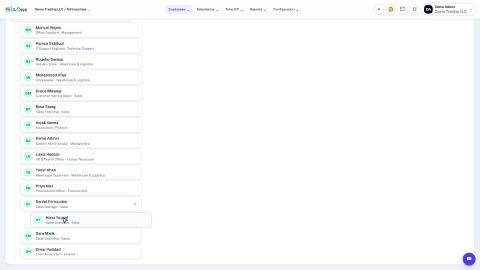 1:11
1:11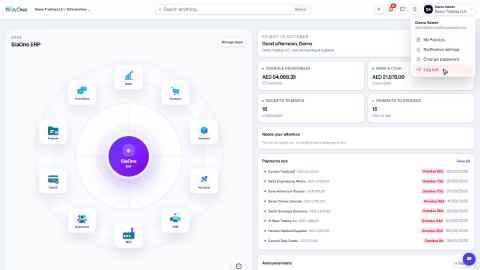 1:16
1:16