
Create a project and add tasks
Start a client project, then break the work into tasks you can assign and track.
Where to find it
ProjectsProjectsNew Project
Before you start
- The client must exist as a customer.
- A service product helps: it fills in the project Category for you.
Steps
- Open Projects, point at the Projects menu and choose New Project.
- Type a Project Name, then pick the Client and the Service (Product). The Category fills in from the service.
- Choose the Manager and the Team who will deliver the work.
- Set the Start Date and the Deadline.
- Click Create Project. The project opens.
- Under Tasks, type a task name and click Add. Repeat for each piece of work.
- Each task is a card in the To Do column. Click a card to assign it, set a deadline or log time.
Tip
Set Recurrence to Monthly, Quarterly or Yearly for work that repeats, such as monthly accounting for a client.
Note
You can drag a task card to In Progress or Done as the work moves on.
What happens next
Record the hours people work: log timesheets.
Was this lesson helpful?
Thank you for the feedback.
Keep learning
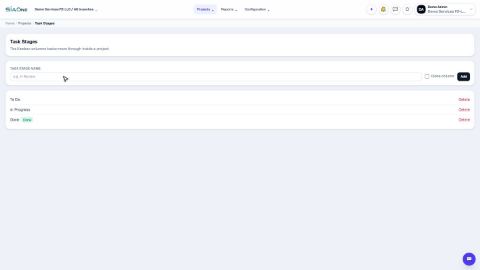
Set up project and task stages
Choose the columns your project board and your task boards use, and which column means finished.
See what a project earned (project profitability)
See what each project earns, what it costs in staff time, and what is still waiting to be invoiced.
Sign in to SiaOne
Open your company's SiaOne address, sign in with your email and password, and find where to log out.
 0:46
0:46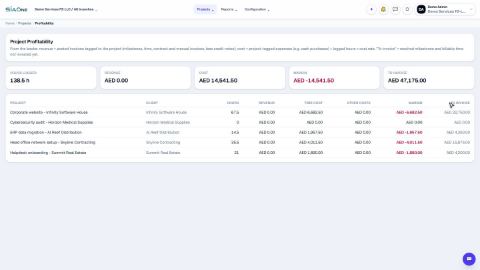 0:40
0:40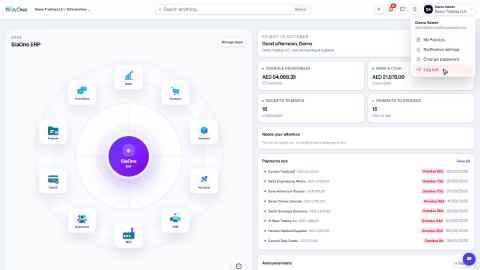 1:28
1:28