
Import customers from Excel
Bring a list of customers in from an Excel or CSV file. Download the template, match your columns, check the file and import it.
Before you start
Put your customers in an Excel (.xlsx) or CSV file with one customer per row and the column names in the first row. The file can be up to 20 MB. You do not need to copy the template layout exactly: SiaOne matches your columns to its fields for you (step 4).
Steps
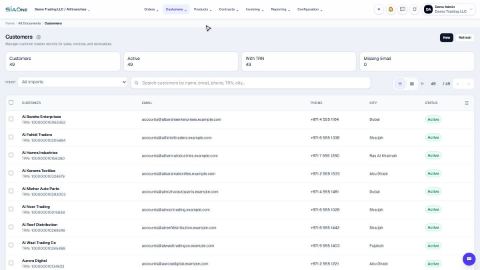
- Open Sales, go to Customers, click the gear button next to the page title and choose Import.
- Click Download Template to get an Excel file with the right columns and two sample rows. Copy your own data into it, or use it to see which columns SiaOne understands: Name, Email, Phone, Tax Registration Number, Address, City, State, Country, Status, Company, Reference, Credit Limit, Credit Days, Currency and a few more.
- Click the upload box and choose your file - Excel (.xlsx) or CSV. SiaOne reads the first row as the column headings.
- In Match your columns, check where each column of your file goes. SiaOne guesses from the names. If a column was not guessed - for example Mobile or VAT Number - open its box and choose the right field, such as Phone or Tax Registration Number. Choose Don't import to skip a column. The yellow note lists the fields that will stay empty.
- Click Validate. SiaOne checks every row and shows a preview, then counts: Total Rows, Valid Rows, Create, Update, Skip, Errors and Warnings. Nothing is saved yet.
- When it says everything is okay, click Import. A green message says how many records were imported.
- Click Done. Type a name in the search box to find the new customers in the list.
Tip
Made a mistake? You can remove everything an import created in one step. See Undo an import.
Note
A customer name that already exists is not imported again: validation stops with an error. To update an existing customer instead, add its External Id to the file. Rows with errors are never imported - see Match your columns and fix import errors.
Note
The same Import choice is in the gear menu of the Vendors list, and on lists such as Customer Invoices, Vendor Bills and On-hand Quantities. Each list has its own template.
What happens next
Use the list's Import box to review or undo the import: Undo an import.
 1:01
1:01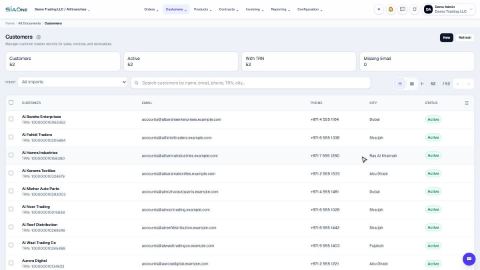 1:06
1:06 1:28
1:28