
Export customers to Excel
Download a list of customers as an Excel file, choosing which fields to include and the order of the columns.
Where to find it
SalesCustomersgear buttonExport
Steps
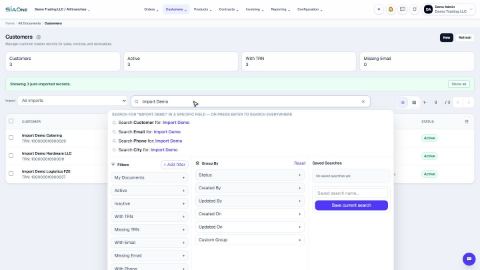
- Open Sales and go to Customers. Search or filter first if you want only some customers: the export contains the customers shown in the list.
- Click the gear button next to the page title and choose Export. The window says how many records will be exported.
- Under Available Fields, tick the fields you want in the file and untick the others. For example untick Phone, and tick Tax Registration Number and City. Name is always included.
- The list on the right, Selected Fields / Sequence, is the column order of the file. Click the up and down arrows to move a field.
- Click Export. SiaOne downloads an Excel file named customers-export.xlsx.
Tip
The Vendors list has the same Export choice. For other lists, and for choosing columns and sorting, see Choose columns, sort and export a list to Excel.
Note
You can bring a corrected file back in with Import. Include the External ID field in the export if you want the import to update the same customers instead of adding new ones. See Import customers from Excel.
What happens next
Reports have their own PDF and XLSX buttons at the top - see Accounting Reports.
Was this lesson helpful?
Thank you for the feedback.
Keep learning
Import customers from Excel
Bring a list of customers in from an Excel or CSV file. Download the template, match your columns, check the file and import it.
Match your columns and fix import errors
Check a file before it is imported: match its columns to SiaOne fields, read the errors, fix the file and try again.
Sign in to SiaOne
Open your company's SiaOne address, sign in with your email and password, and find where to log out.
 1:39
1:39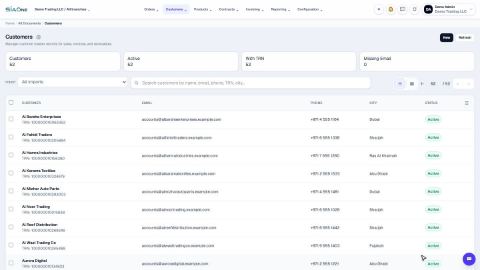 1:51
1:51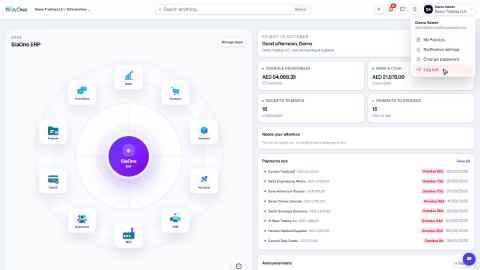 1:28
1:28