
Overview
Imports & Exports move data in and out of SiaOne without retyping it. Bring a list in from Excel or CSV, check it before anything is saved, and undo it if it was the wrong file. Take any list out as an Excel file.
Download the template > Upload your file > Match your columns > Validate > Import (and Delete import if you need to undo it)
Import and export are not a separate menu. Every list that supports them has a gear button next to its title, with Import and Export. Nothing is saved until you click Import, and Validate shows exactly what will be created, updated or skipped.
| Feature | Where | What it is |
|---|---|---|
| Import | List page › gear button › Import | Upload an Excel (.xlsx) or CSV file, match its columns to SiaOne fields, validate it and import it. Download Template gives you a file with the right columns. |
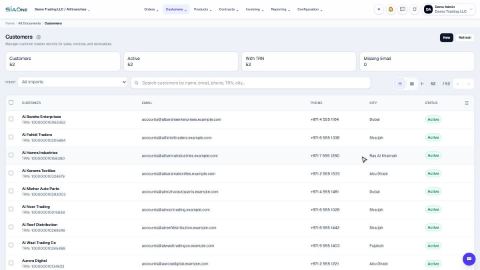
| Export | List page › gear button › Export | Choose the fields and their order and download an Excel file of the list you see. |
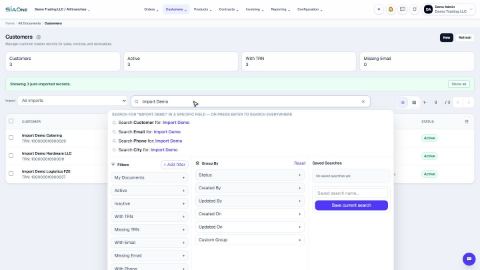
| Import box | Top left of the list, after an import | Filter the list to one import, and Delete import to remove everything that import created. |
| Lists with import and export | Sales › Customers, Purchase › Vendors, Accounting › Customer Invoices, Accounting › Vendor Bills, Inventory › On-hand Quantities | Each list has its own template and its own fields. |
| Report export | Accounting › Reports | Every report has PDF and XLSX buttons at the top. |
Tasks in Imports & Exports
Importing
Import customers from Excel
Bring a list of customers in from an Excel or CSV file. Download the template, match your columns, check the file and import it.
Match your columns and fix import errors
Check a file before it is imported: match its columns to SiaOne fields, read the errors, fix the file and try again.
Undo an import
Remove every record that one import created, in a single step, when you imported the wrong file.
 1:39
1:39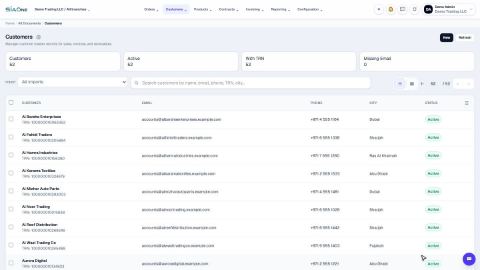 1:51
1:51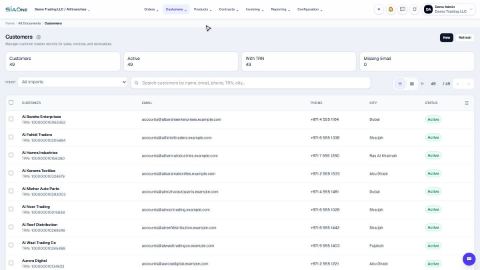 1:01
1:01Exporting
 1:06
1:06Coming soon
These lessons are being written and recorded.
- Import opening stock
- Import invoices, bills and orders