
Match your columns and fix import errors
Check a file before it is imported: match its columns to SiaOne fields, read the errors, fix the file and try again.
Where to find it
SalesCustomersgear buttonImport
Steps
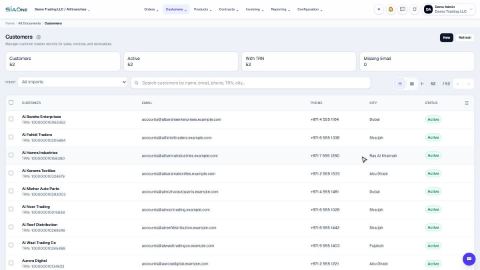
- Open Sales, go to Customers, click the gear button and choose Import.
- Click the upload box and choose your file. SiaOne reads the first row as column headings.
- Match your columns shows each heading of your file and the SiaOne field it will go into. Open a box to choose a different field, or choose Don't import to skip a column. The yellow note lists the fields that will stay empty, and any columns of your file that will be skipped.
- Click Validate. Nothing is saved yet: SiaOne only checks the rows. Look at Valid Rows and Errors in the counts.
- Click the Errors tab above the result table to show only the rows with a problem. Read the Errors / Notes column. For example: Name is required, Email ... format is invalid, or A customer named ... already exists.
- Click Download error log to keep the list of problems. Fix them in your file: fill in the missing value, correct the email, or give the new customer a different name. To change a customer that already exists, add its External Id to the row. Then upload the file again and click Validate.
- While any row has an error, Import stays off. When every row is valid, click Import. To leave without importing, click Cancel.
Tip
Fix one problem at a time and validate again - a clean file shows Everything is okay at the bottom of the window.
Note
Valid rows in a file that also has errors are not imported until the whole file is clean. Nothing is saved while you are validating.
What happens next
When the file is clean, finish the import: Import customers from Excel.
Was this lesson helpful?
Thank you for the feedback.
Keep learning
Export customers to Excel
Download a list of customers as an Excel file, choosing which fields to include and the order of the columns.
Sign in to SiaOne
Open your company's SiaOne address, sign in with your email and password, and find where to log out.
Find your way around
The home screen, the app menu bar, breadcrumbs, lists and record pages - the five things every SiaOne screen is built from.
 1:06
1:06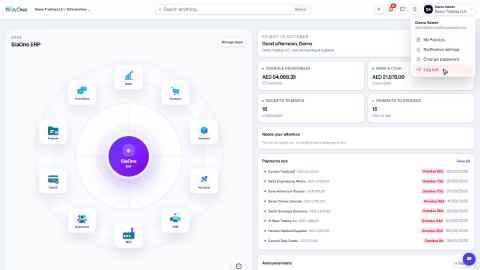 1:28
1:28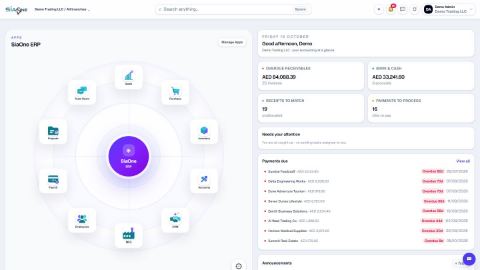 1:41
1:41