
Add a customer
Create a customer once, with its name, email, phone and TRN, so every quotation, order and invoice can use it.
Where to find it
SalesCustomersCustomers
Steps
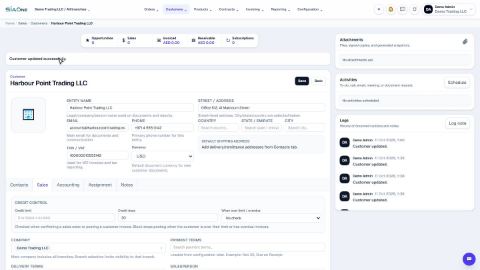
- Open Sales, point at Customers in the menu bar and choose Customers. Click New.
- Type the Entity Name - the legal or trading name that should appear on documents and reports.
- Add the Email and Phone that documents are sent to, and the TRN / VAT number. The TRN is printed on tax invoices.
- Type the Street / Address. Leave Currency on Company default unless this customer is billed in another currency. Country, State / Emirate and City are pick-lists under the address.
- Click Save. The customer is created, and Customer created. appears in the Logs on the right.
Tip
There is a shortcut: type new customer in Search anything on the home screen and choose Create Customer.
Note
The Company box on the Sales tab decides which companies can see the customer. A new customer belongs to the company you are working in.
What happens next
Add the people and places that go with the customer: Add contact people and delivery addresses.
Was this lesson helpful?
Thank you for the feedback.
Keep learning
Set a customer's default currency and credit days
Make new quotations and invoices for a customer start in the right currency, and record how many days the customer has to pay.
Set a credit limit for a customer
Warn your team, or stop them, when a customer owes more than you agreed or has overdue invoices.
Give a customer or vendor its own receivable or payable account
Post one customer's invoices, or one vendor's bills, to a separate account instead of the shared Accounts Receivable or Accounts Payable.
 1:03
1:03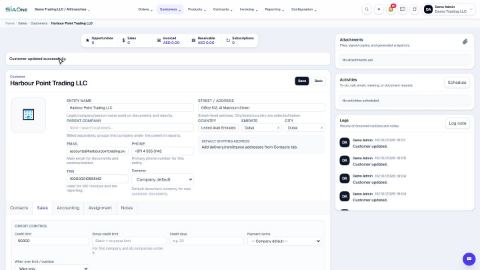 0:59
0:59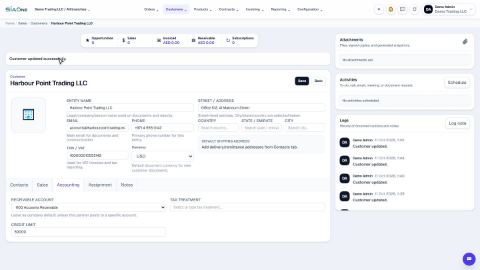 0:48
0:48