
Add contact people and delivery addresses
Keep the people you deal with, and the places you invoice and deliver to, on the customer or vendor record.
Where to find it
SalesCustomersCustomersContacts tab
One customer often has several people to talk to and several places to deliver to. Keep them all on the customer's Contacts tab. Vendors work the same way.
Steps
- Open the customer. The Contacts tab shows Related Contacts & Addresses. Click Add Related Contact.
- Choose the type at the top: Contact (a person), Invoice Address, Delivery Address or Other. For a person, type the Name, Role / Job Title, Email and Phone.
- Click Save & Close. The person is added to the list under Related Contacts & Addresses.
- Click Add Related Contact again and choose Delivery Address. Type a Name for the place - for example "Warehouse - Jebel Ali" - and its Address.
- Click Save & Close again. Both entries are now in the list.
- Click Save at the top right of the customer.
Important
Save & Close only adds the entry to the list on the screen. Finish with Save on the customer, then reopen the customer and check that the entries are still there.
Tip
Use Edit on a line to change it later. The same window is used for invoice addresses and other addresses.
What happens next
Decide how this customer pays: Set a customer's default currency and credit days.
Was this lesson helpful?
Thank you for the feedback.
Keep learning
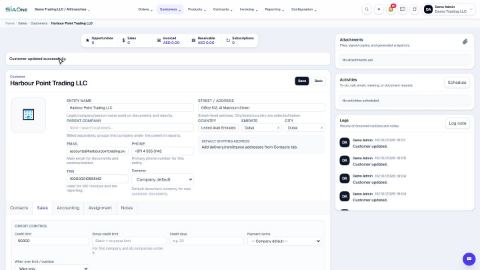
Set a credit limit for a customer
Warn your team, or stop them, when a customer owes more than you agreed or has overdue invoices.
Give a customer or vendor its own receivable or payable account
Post one customer's invoices, or one vendor's bills, to a separate account instead of the shared Accounts Receivable or Accounts Payable.
See what a customer owes from their record
Open a customer and see what they bought, what was invoiced and what is still unpaid - then compare with every other customer.
 0:59
0:59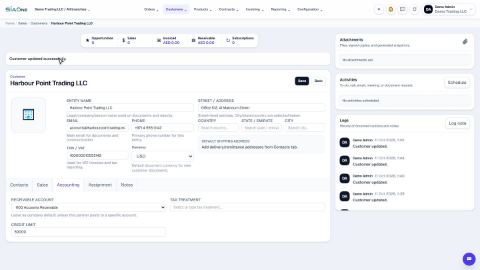 0:48
0:48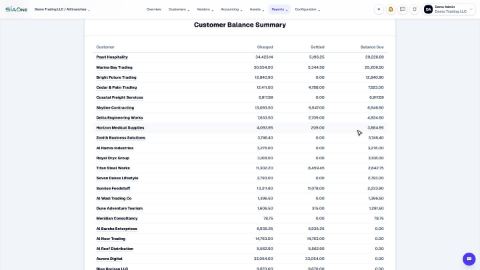 1:40
1:40