
See what you owe each vendor (Vendor Due Summary)
See how much you owe each vendor, and how late each amount is.
Where to find it
AccountingVendorsVendor Due Summary
The page opens with the title Vendor Aging. It looks at posted and partly paid vendor bills.
Steps
- Open Accounting, point at Vendors in the menu bar and choose Vendor Due Summary.
- The cards at the top add up Total Billed, Total Paid and Total Due.
- The next row splits the amount due by age: Not Due, 0-30 days, 31-60 days, 61-90 days and 90+ days.
- Below, each vendor with an open balance has its own line with the same columns. Type a name in Search vendor to find one.
- To pay a vendor, click Vendor Bills, open the bill and register the payment.
Tip
The older the amount, the further right it sits. A vendor with money under 61-90 needs paying first.
What happens next
For the same figures with more detail, use Accounting > Reports > Aged Payable.
Was this lesson helpful?
Thank you for the feedback.
Keep learning
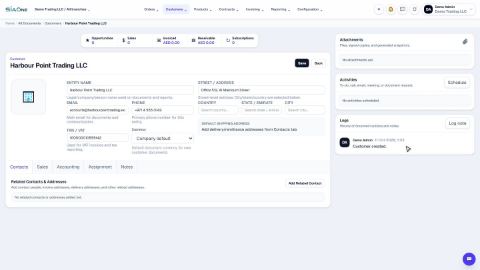
Add a customer
Create a customer once, with its name, email, phone and TRN, so every quotation, order and invoice can use it.
Add contact people and delivery addresses
Keep the people you deal with, and the places you invoice and deliver to, on the customer or vendor record.
Set a customer's default currency and credit days
Make new quotations and invoices for a customer start in the right currency, and record how many days the customer has to pay.
 1:02
1:02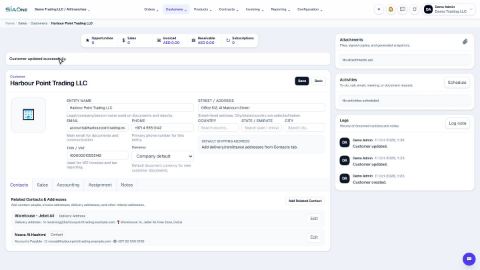 2:08
2:08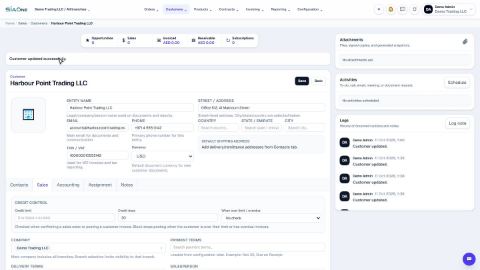 1:03
1:03