
Post payroll to the accounts
Turn on GL posting once, then send each confirmed payroll run to Accounting as a journal entry for salaries and deductions.
Where to find it
PayrollConfigurationGL Posting
Before you start
You need a Confirmed payroll run. See run payroll for the month. Ask your accountant which accounts to use for salary expense and salaries payable.
Steps
- Open Payroll, point at Configuration and choose GL Posting.
- Tick Enable GL posting for payroll runs.
- Choose the Payroll journal, the Salary expense account (Dr) and the Salaries payable account (Cr). The Deductions payable account (Cr) is optional: it takes loan instalments and other deductions.
- Click Save. A green message says the settings are saved. You only do steps 1 to 4 once.
- Open Payroll Runs and click the confirmed run.
- Click Post to Accounting.
- The run now shows Posted to GL. If you made a mistake, Unpost takes the entry out again.
- In Accounting, open Journal Entries. The payroll entry is there.
Note
The entry debits the salary expense account with the gross pay. It credits salaries payable with the net pay and deductions payable with the deductions. When the salaries are paid, record the bank payment in Accounting against Salaries Payable.
Important
Post a run once. If the run must change, click Unpost first, then Reset to Draft, fix it, confirm it and post it again.
What happens next
Pay the staff through the bank: download the WPS file.
Was this lesson helpful?
Thank you for the feedback.
Keep learning
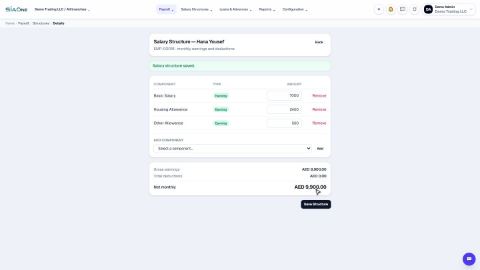
Set up salary components and salary structures
Define the earnings and deductions that appear on a payslip, then set each employee's fixed monthly pay.
Run payroll for the month
Generate the payslips for a month, check them, and move the run from Draft to Confirmed to Paid.
Adjust and print payslips
Add an overtime line or change an amount on a draft payslip, then download it as a PDF to print or email.
 1:09
1:09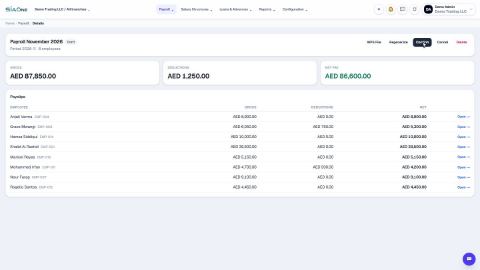 0:46
0:46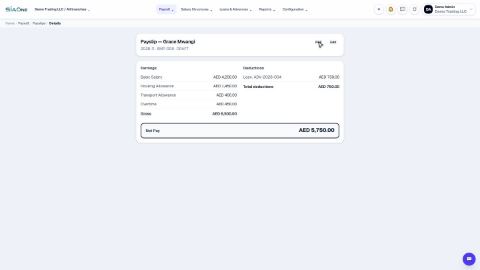 0:49
0:49