
Create a vendor bill from a purchase order
Turn a received purchase order into the vendor bill. The lines come across, you only add the supplier's invoice number.
Where to find it
PurchaseOrders
Before you start
The goods should be received first. See Receive goods from a vendor. Have the supplier's invoice to hand, so you can copy its number.
Steps
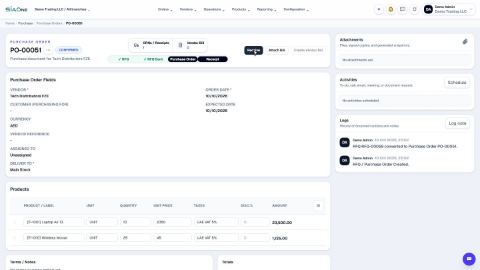
- Open Purchase. Click the search box, choose the To Bill filter, and search for the order number. The list shows only orders that are waiting for a bill.
- Click the purchase order, then click Create Vendor Bill.
- The bill opens as a draft. The vendor and every line, with its quantity, price and tax, are already filled in from the order. Check them against the supplier's invoice.
- Type the supplier's invoice number in Vendor Reference. This is what you will look for when the supplier asks about the payment.
- Pick the Payment Terms, or set the Due Date yourself.
- Click Confirm. The bill is posted to the books and gets a number such as BILL-00053. The Pay button now appears.
Tip
The bill shows a Purchase Order link at the top, and the order shows a Vendor Bill link. Use them to jump between the two.
Note
If the supplier already sent a bill that you entered by hand, do not create a second one. Use Attach Bill on the order to link the existing bill.
What happens next
When the money leaves the bank, pay the vendor bill.
Was this lesson helpful?
Thank you for the feedback.
Keep learning
Create a purchase order
Start a request for quotation (RFQ) for a vendor, add the products, then confirm it into a purchase order.
Correct a confirmed purchase order
Wrong quantity or price? Move the order back to draft, fix it, and confirm it again.
Email an RFQ to a supplier
Send the request for quotation to the supplier by email, with the PDF attached.
 1:25
1:25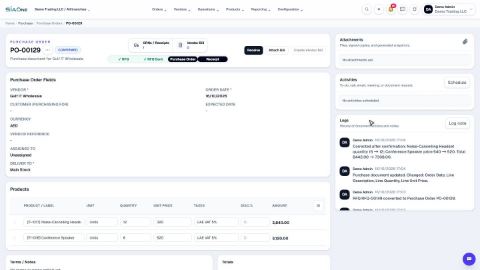 1:23
1:23 1:09
1:09