
Create a purchase order
Start a request for quotation (RFQ) for a vendor, add the products, then confirm it into a purchase order.
Where to find it
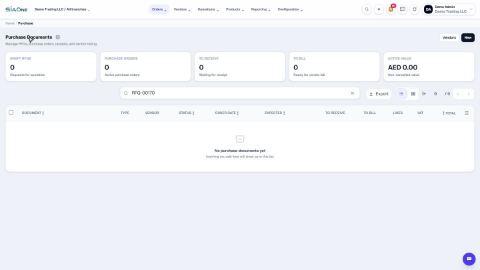
PurchaseOrders
Before you start
- The vendor should exist under Purchase > Vendors > Vendors.
- The products you are buying should exist under Purchase > Products > Products.
Steps
- Open Purchase and click New. A new, empty RFQ opens.
- Choose the Vendor. Type a few letters of the name and pick it from the list.
- Check Deliver To (the stock location where the goods will arrive) and the Expected Date. Deliver To lists only the stock locations of your own company.
- Add a line: type a few letters of the product name, its code, or paste it as it appears in a list (for example [IT-1001] Laptop Air 13), and pick it. The Unit, Unit Price and tax fill in from the product, and you can change them. Then type the Quantity.
- Click Add a product for each extra line. The Totals at the bottom update as you type.
- Click Create RFQ. The request gets its number and stays in draft, so you can still change anything.
- Open the actions menu (⋯) next to the number. Print / PDF downloads the RFQ and Email RFQ sends it to the vendor.
- When the vendor agrees, click Confirm. The RFQ becomes a Purchase Order with its own number, and its status changes to Confirmed.
Note
Every purchase document starts as an RFQ. Nothing is ordered, and nothing reaches stock or the accounts, until you click Confirm.
Tip
Buying the same things again? Open an old order, open the actions menu and choose Duplicate.
Tip
If a product can be bought in more than one unit, the Unit column offers them all. See Buy in a different unit.
What happens next
When the goods arrive, receive them. Orders that are still waiting are listed under Purchase > Orders > To Receive: see Find orders waiting to be received or billed.
Was this lesson helpful?
Thank you for the feedback.
Keep learning
Cancel an order or delete a draft RFQ
Cancel an order you no longer need and keep the record, or delete a draft RFQ for good.
Edit the details of a confirmed purchase order
Add the vendor's reference, set the expected date, choose the buyer or add a note on a confirmed order. Quantities, prices and stock stay as they are.
Print an RFQ or a purchase order
Make a PDF of an RFQ or a purchase order to send to the vendor or keep on file.
 1:54
1:54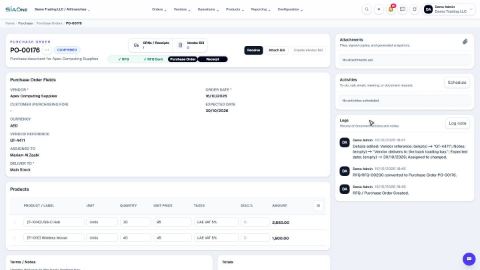 1:32
1:32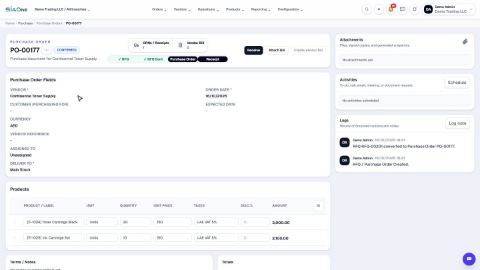 1:37
1:37