
Bill an order in parts
Bill only the goods that have arrived. Each vendor bill covers what was received since the last one.
Where to find it
PurchaseOrders
Before you start
Part of the order must be received. See Receive part of an order.
Steps
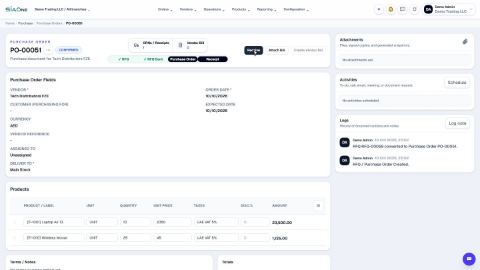
- Open Purchase, click the To Bill box at the top, search for the order number and click the order. A partly received order shows Partially Received.
- Click Create Vendor Bill. The bill opens as a draft. Look at Quantity: it holds only the goods received so far, not the whole order.
- Type the supplier's invoice number in Vendor Reference and click Confirm. The first bill is posted.
- When the rest of the goods arrive, go back to the order. The Purchase Order link at the top of the bill takes you there. Click Receive, check Receive Qty and click Validate Receipt. The order is now Received.
- Click Create Vendor Bill again. The new draft holds the remaining quantity only, so nothing is billed twice.
- Type the second invoice number in Vendor Reference and click Confirm.
Tip
The Vendor Bill box at the top of the order shows the bills created from it. Once every unit is billed, the order leaves the To Bill list.
What happens next
Pay each bill when it is due. See Pay a vendor bill.
Was this lesson helpful?
Thank you for the feedback.
Keep learning
Create a purchase order
Start a request for quotation (RFQ) for a vendor, add the products, then confirm it into a purchase order.
Correct a confirmed purchase order
Wrong quantity or price on an order you have already confirmed? Use Correct order. The order stays confirmed, and stock, bills and payments follow.
Cancel an order or delete a draft RFQ
Cancel an order you no longer need and keep the record, or delete a draft RFQ for good.
 1:54
1:54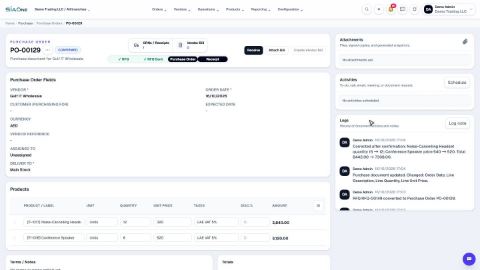 1:29
1:29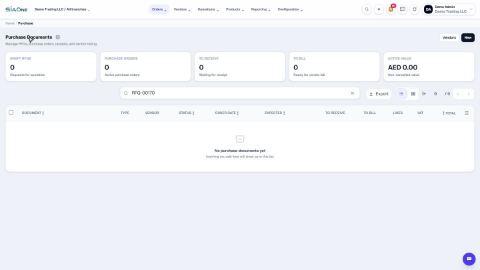 1:54
1:54