
Overview
Purchase mirrors Sales for buying: the same straight-line flow, ending in a vendor bill you can pay. A purchase document starts as an RFQ (a request for quotation) and becomes a Purchase Order when you confirm it. The boxes at the top of the Purchase page count what needs attention: draft RFQs, orders waiting for goods (To Receive) and orders waiting for a bill (To Bill).
RFQ → Purchase Order → Goods Receipt → Vendor Bill → Payment
Mistakes are easy to fix: Correct order changes a confirmed order's quantities and prices (stock, bills and payments follow), and Edit details changes its reference, buyer, date or notes.
| Feature | Where | What it is |
|---|---|---|
| Purchase documents | Purchase › Orders | All Purchase Documents, RFQs, Purchase Orders, To Receive and To Bill. |
| Vendors and bills | Purchase › Vendors | Vendors, Vendor Bills, Debit Notes (returns) and Vendor Payments (shared with Accounting). |
| Receipts | Purchase › Operations › Receipts / GRNs | Goods received against orders, with the receipt PDF (GRN) and the Return button. |
| Lots and stock moves | Purchase › Operations | Product Lots and Stock Moves (shared with Inventory). |
| Products | Purchase › Products | Products, Product Categories and Product Variants. A product can have more than one unit. |
| Reporting | Purchase › Reporting | Purchase by Vendor, by Product and by Buyer, Purchase Detail (every line) and Purchase Price History. All Reports lists every report you can open. |
| Configuration | Purchase › Configuration | Purchase Workflow Settings, Taxes and Journals. |
Tasks in Purchase
Orders
Create a purchase order
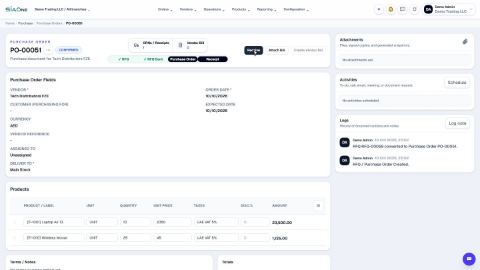
Start a request for quotation (RFQ) for a vendor, add the products, then confirm it into a purchase order.
Correct a confirmed purchase order
Wrong quantity or price on an order you have already confirmed? Use Correct order. The order stays confirmed, and stock, bills and payments follow.
Cancel an order or delete a draft RFQ
Cancel an order you no longer need and keep the record, or delete a draft RFQ for good.
Edit the details of a confirmed purchase order
Add the vendor's reference, set the expected date, choose the buyer or add a note on a confirmed order. Quantities, prices and stock stay as they are.
Print an RFQ or a purchase order
Make a PDF of an RFQ or a purchase order to send to the vendor or keep on file.
Email an RFQ to a supplier
Send the request for quotation to the supplier by email, with the PDF attached.
Buy in a different unit (by the kilogram or the box)
Count stock in pieces but buy by the kilogram or by the box. The quantity and the price convert for you, and stock stays in the product's own unit.
Find orders waiting to be received or billed
The Purchase page counts what needs attention. Click a box to see those orders, then work through them one by one.
Buy for a customer and mark the line billable
Buy something on a customer's behalf and flag the cost, so you can charge it on that customer's next invoice.
 1:54
1:54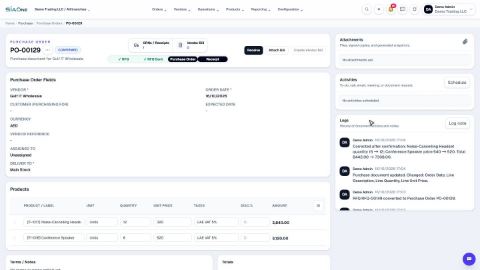 1:29
1:29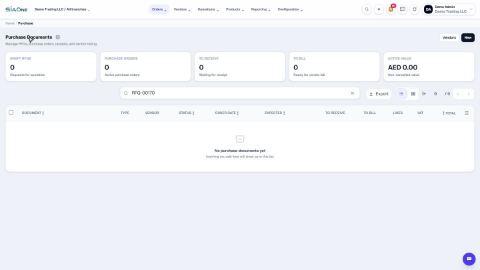 1:54
1:54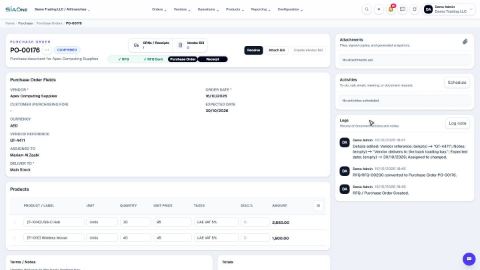 1:32
1:32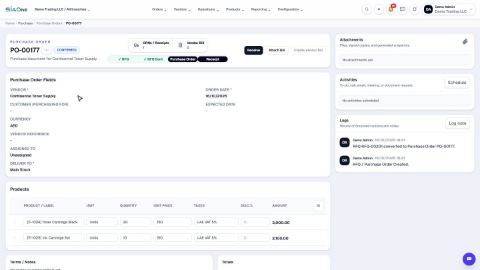 1:37
1:37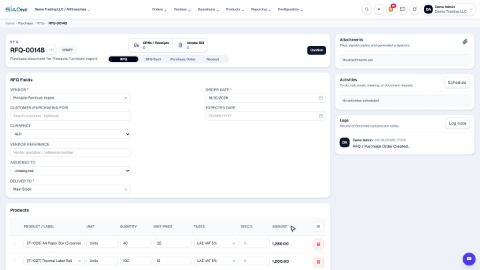 1:07
1:07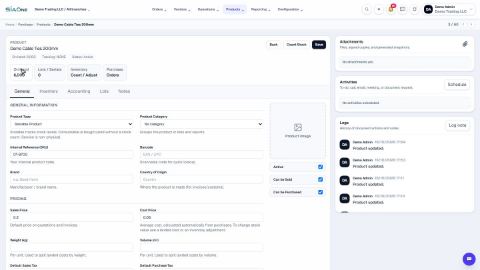 2:24
2:24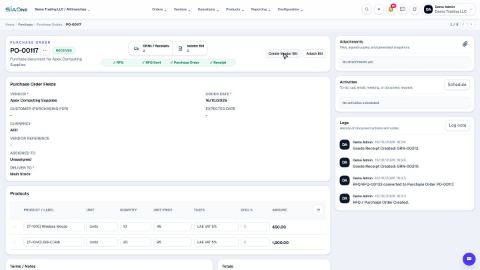 1:40
1:40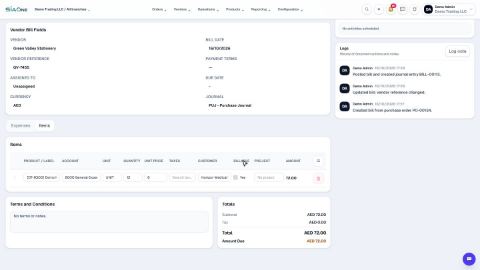 1:49
1:49Operations
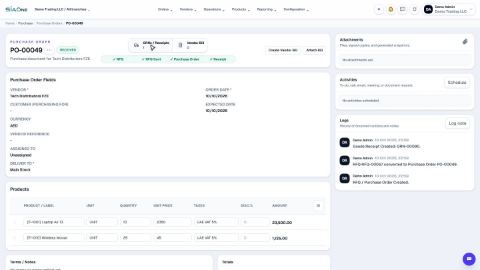
Receive goods from a vendor (GRN)
Record the goods that arrived against a purchase order. Stock goes up as soon as the receipt is validated.
Receive part of an order
When only some of the goods arrive, receive just what came. The order is marked Partially Received, and you receive the rest later from the same order.
Return goods to a vendor
Send damaged or wrong goods back. Stock goes down, and a debit note records what the vendor owes you.
 1:11
1:11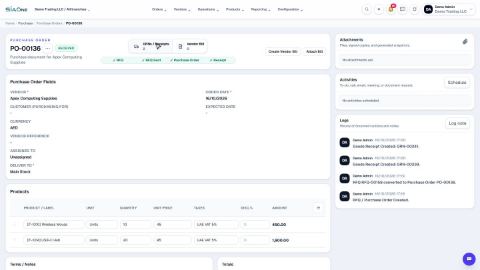 1:35
1:35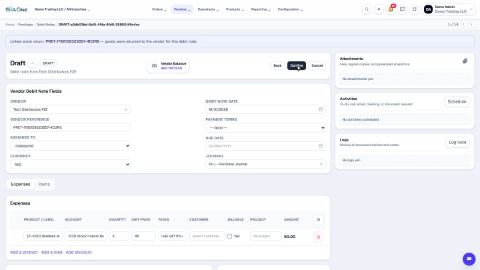 1:37
1:37Vendors
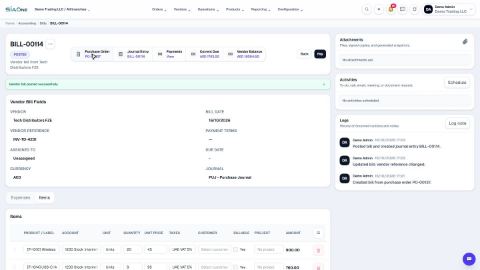
Create a vendor bill from a purchase order
Turn a received purchase order into the vendor bill. The lines come across, you only add the supplier's invoice number.
Attach an existing bill to an order
The supplier's invoice came before the order was linked? Attach the bill you already entered to its purchase order and check that they match.
Bill an order in parts
Bill only the goods that have arrived. Each vendor bill covers what was received since the last one.
 1:24
1:24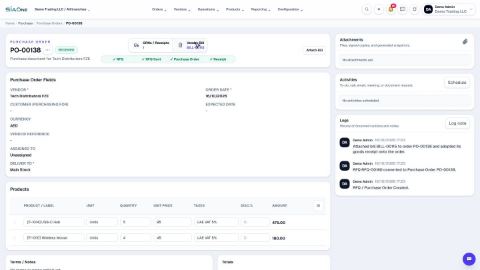 1:26
1:26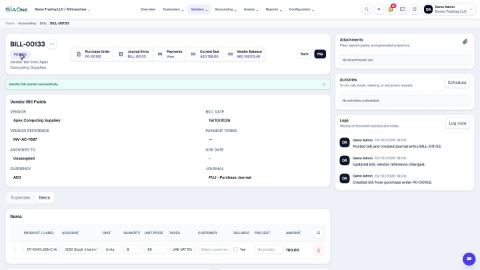 1:54
1:54Reporting
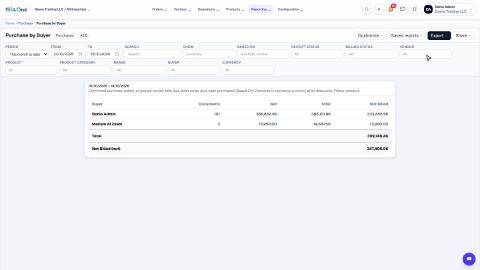
Run the purchase reports
See what you bought and how much you spent - by vendor, by product and by buyer. Pick the period, filter it, split it by month and save it as PDF, Excel or CSV.
See every purchase line (Purchase Detail)
One row for every line you bought, with its price, what was received and billed, and filters to find it fast. Open the order or bill behind any line.
See how a product's purchase price changed
Purchase Price History shows the first, last, lowest and highest price you paid for each product, so you can spot a vendor who is getting dearer.
 1:45
1:45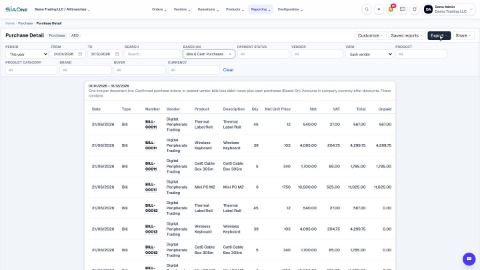 1:36
1:36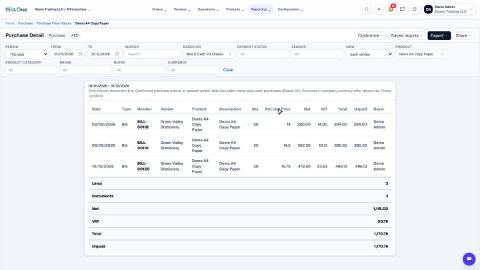 1:37
1:37