
Receive part of an order
When only some of the goods arrive, receive just what came. The order is marked Partially Received, and you receive the rest later from the same order.
Where to find it
PurchaseOrders
Before you start
The purchase order must be confirmed. See Create a purchase order.
Steps
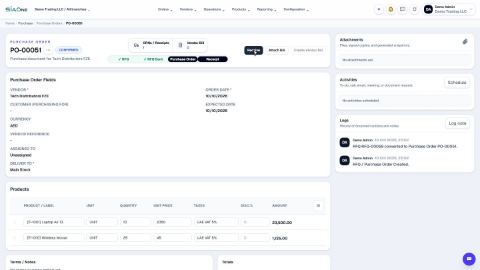
- Open Purchase, click the To Receive box at the top, find the order and click it.
- Click Receive. The goods receipt (GRN) for the order opens.
- In Receive Qty, type the quantity that really arrived. Next to it, Ordered, Received and Remaining show where the line stands.
- If a product did not arrive at all, untick the box at the start of its line. Selected Qty in the Receipt Summary shows the total you are about to receive.
- Click Validate Receipt. The stock for the lines you ticked goes up, and the order's status changes to Partially Received.
- When the rest arrives, open the order again and click Receive. A new receipt opens with the quantities still to come. Remaining shows what is left on each line.
- Check Receive Qty and click Validate Receipt again. The order is now Received, and GRNs / Receipts at the top shows two receipts.
Note
Each time you validate, a receipt is saved under GRNs / Receipts, and the stock goes up only by what you typed. You can bill what has arrived before the rest comes: see Bill an order in parts.
Tip
An order that is only partly received stays in the To Receive list until the last unit is in, so nothing gets forgotten.
What happens next
When the vendor's invoice arrives, create the vendor bill from the purchase order.
Was this lesson helpful?
Thank you for the feedback.
Keep learning
Create a purchase order
Start a request for quotation (RFQ) for a vendor, add the products, then confirm it into a purchase order.
Correct a confirmed purchase order
Wrong quantity or price on an order you have already confirmed? Use Correct order. The order stays confirmed, and stock, bills and payments follow.
Cancel an order or delete a draft RFQ
Cancel an order you no longer need and keep the record, or delete a draft RFQ for good.
 1:54
1:54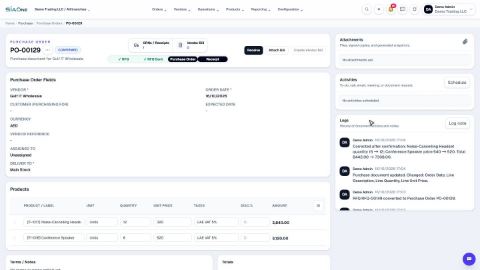 1:29
1:29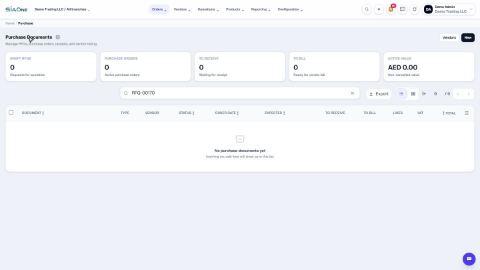 1:54
1:54