
Attach an existing bill to an order
The supplier's invoice came before the order was linked? Attach the bill you already entered to its purchase order and check that they match.
Before you start
You need two things: a confirmed purchase order, and a vendor bill for the same vendor that is not linked to any order. See Create a purchase order and Record a vendor bill.
Steps
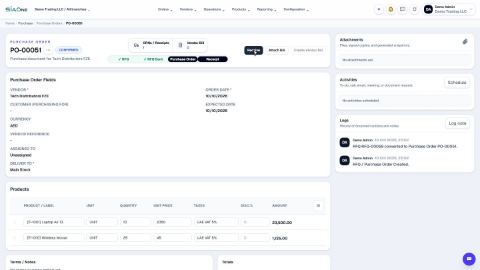
- Open Purchase and open the purchase order. Vendor Bill at the top shows 0, so no bill is linked yet.
- Click Attach Bill.
- Pick the bill from the list. Type its number in the search box to find it quickly.
- SiaOne compares the items on the order and on the bill. Matched means they agree on the quantity and the price.
- Click Attach. The bill is now linked to the order, and its number shows under Vendor Bill.
Note
If the quantities, prices or totals differ, the list shows the differences and asks you to confirm before it attaches. Check the bill with your vendor first if you are not sure.
Important
A bill for stock products can receive the goods into stock when it is posted. When you attach such a bill, SiaOne moves that goods receipt onto the order and marks the order Received. The stock does not go up a second time.
What happens next
The bill keeps its link to the order. Pay it as usual: see Pay a vendor bill.
 1:54
1:54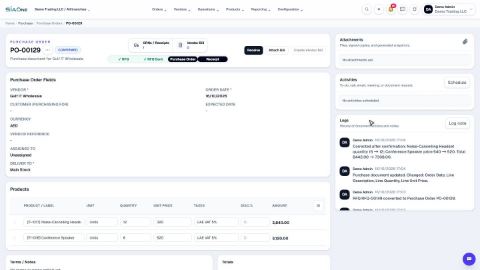 1:29
1:29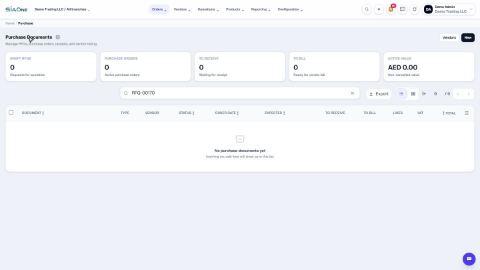 1:54
1:54