
Pay a vendor bill
Record the money you sent to a vendor, straight from the bill it pays - in full or in part.
Where to find it
AccountingVendorsVendor Bills
Before you start
The bill must be confirmed (status Posted). A draft bill cannot be paid.
Steps
- Open Accounting > Vendors > Vendor Bills and open the bill you want to pay.
- Click Pay. Current Due at the top shows what is still unpaid on this bill.
- Check the Amount and the Payment Date. The amount starts as the full balance. For a part payment, type the amount you sent - the bill stays open for the rest.
- Choose the Payment Method (Cash, Bank Transfer, Cheque, Card...) and the Journal - the bank or cash account the money leaves from.
- Type the Bank/Card Reference if you have one, and click Save Payment.
- SiaOne opens the new payment. It is already Posted and linked to the bill. Click the bill number to go back: the bill now shows Paid (or Partially Paid).
- Money that is not for one bill - an advance to a vendor, for example? Go to Vendors > Vendor Payments and click New. Choose the Vendor, the Amount, the Payment Journal and the Payment Method, then click Save Payment. The money stays on the vendor's account until you use it against a bill.
Tip
To pay by a cheque dated in the future, choose a cheque method in step 4 - see Issue a post-dated cheque to a vendor.
Note
Made a mistake? Open the payment, open the actions menu (⋯) and choose Reset to Draft. The bill becomes unpaid again.
What happens next
What you owe this vendor goes down by the amount paid. The payment also appears in Reports > Payment Register.
Was this lesson helpful?
Thank you for the feedback.
Keep learning
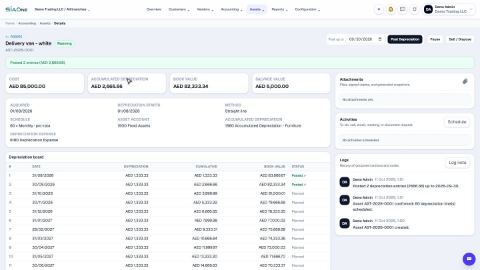
Register a fixed asset and run depreciation
Add an asset such as a vehicle, see its depreciation board, confirm it, and post the depreciation each month.
Create a customer invoice
Create a tax invoice for a customer, save it as a draft, then confirm it so it is posted to the accounts.
Record a manual journal entry
Post your own debit and credit lines for something no invoice, bill or payment covers - such as a bank charge or a correction.
 2:18
2:18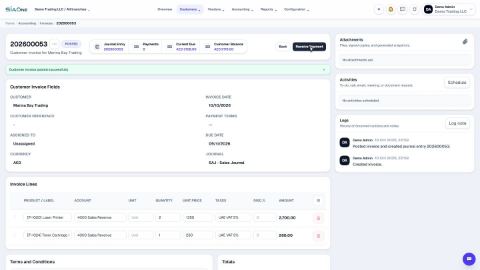 1:33
1:33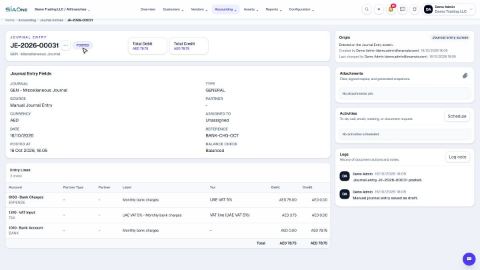 1:38
1:38