
Buy for a customer and mark the line billable
Buy something on a customer's behalf and flag the cost, so you can charge it on that customer's next invoice.
Before you start
You need a vendor, a customer and a product. For items that are not kept in stock, use a Consumable or a Service product. See Product types.
Steps
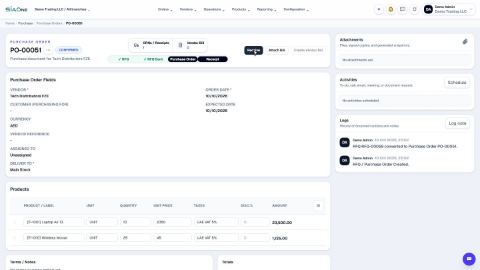
- Open Purchase and click New. Choose the Vendor.
- In Customer (Purchasing For), choose the customer you are buying for.
- Add the product, the Quantity and the Unit Price.
- Click Create RFQ, then click Confirm to turn it into a purchase order.
- Click Create Vendor Bill. The bill opens as a draft with the items filled in, and the Customer is already on the line. Type the supplier's invoice number in Vendor Reference.
- On the item line, tick Billable.
- Click Confirm. The bill is posted, and the line is kept as a cost to charge to the customer.
Important
Customer (Purchasing For) on the order records who the purchase is for, and it carries over to the bill lines. It does not mark anything billable. The Billable box is on the vendor bill line, so tick it there. Leave it unticked for a cost you will not charge on.
Note
When you later create an invoice for that customer, SiaOne offers the billable costs so you can add them to the invoice: see Add billable expenses to a customer invoice. Goods you keep in stock are received first: see Receive goods from a vendor.
What happens next
Finish the bill: see Pay a vendor bill.
 1:54
1:54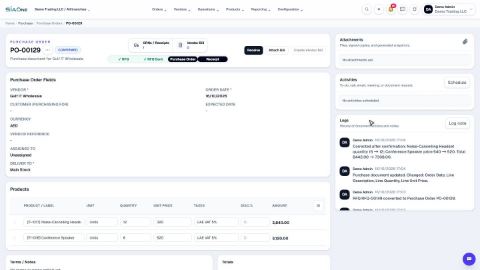 1:29
1:29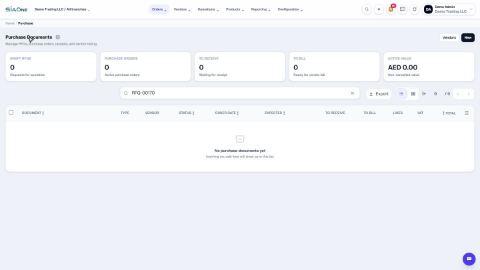 1:54
1:54