
Read a record page: status bar, smart buttons and actions menu
How every document and record is laid out - the status bar, the next-step buttons, smart buttons, the actions menu and the side panels.
Where to find it
Any record (for example SalesOrdersSales Orders)
Quotations, orders, invoices, bills, customers and products all open on the same kind of page. This example is a sales order.
Steps
- Open a record from its list. The number is at the top left, with its status next to it - for example Confirmed.
- The status bar under the number shows the stages the document goes through: Quotation, Sent, Sales Order, Delivery. The ticked stages are done and the dark one is where the document is now.
- The buttons on the top right are the next steps for this record, for example Attach Invoice and Delivery. They change as the document moves on.
- The smart buttons in the middle, such as Delivery Notes and Invoices, show how many related records exist. Click one to open them.
- Click the actions menu (...) next to the number for Print / PDF, Duplicate and other actions that fit this document. On a confirmed order it also has Correct order and Edit details.
- The details and the lines are on the left. On the right are Attachments, Activities and Logs.
Note
A draft document can still be changed. After it is confirmed or posted, some fields lock - use the actions menu (for example Reset to Draft) to unlock it.
What happens next
Use the panels on the right: Attach files to a record, Schedule an activity and Add a note and read the history of a record.
Was this lesson helpful?
Thank you for the feedback.
Keep learning
Sign in to SiaOne
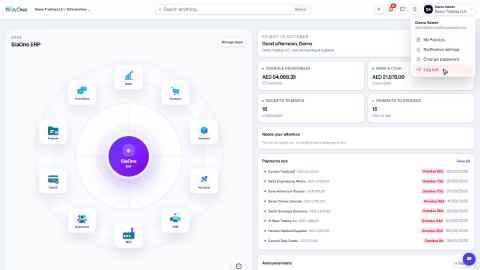
Open your company's SiaOne address, sign in with your email and password, and find where to log out.
Find your way around
The home screen, the app menu bar, breadcrumbs, lists and record pages - the five things every SiaOne screen is built from.
Switch company and branch
Choose which company and branch you are working in, and understand which company a new document is saved to.
 1:28
1:28 1:41
1:41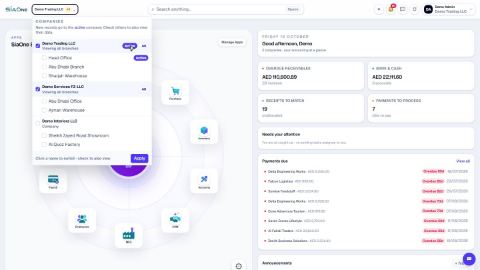 1:59
1:59