
Overview
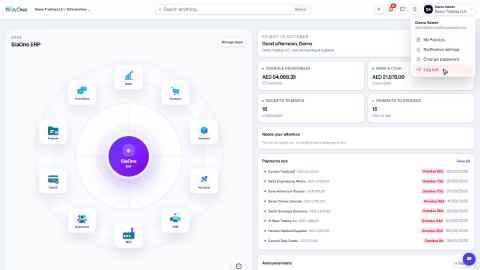
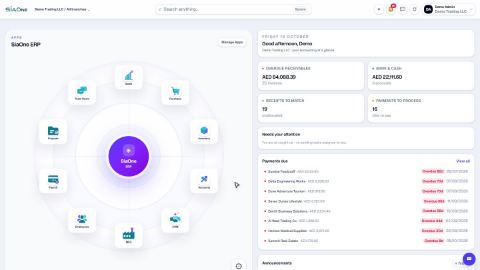
The home screen shows the apps installed for your company and what needs your attention. Every app has a dark menu bar across the top, and every list and record works the same way - so once you know one screen you know them all.
New to SiaOne? Watch the full tour first, then come back here for the basics.
| Feature | Where | What it is |
|---|---|---|
| Home screen | Click the SiaOne logo | One tile for every app, plus overdue invoices, payments due and your tasks. |
| Company and branch | Top left | The company and branch you work in. New records are saved there. |
| Search anything | Home screen, top bar | Finds customers, vendors, bills, payments and orders - or jumps to a list or Create Customer. |
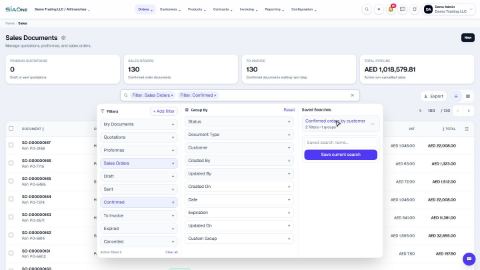
| Lists | Any list | Search box with Filters, Group By and Saved Searches, column picker and Export. |
| Record page | Click any row | Status bar, next-step buttons, smart buttons and the actions menu (...). |
| Attachments, Activities, Logs | Right side of a record | Files, follow-ups and the history of the record. |
| Your account | Top right, your name | Change password and Log out. |
| Theme | Top bar, sun / moon button | Switches between the light and the dark theme. |
Tasks in Getting Started
First steps
Sign in to SiaOne
Open your company's SiaOne address, sign in with your email and password, and find where to log out.
Find your way around
The home screen, the app menu bar, breadcrumbs, lists and record pages - the five things every SiaOne screen is built from.
Switch company and branch
Choose which company and branch you are working in, and understand which company a new document is saved to.
Search anything from the top bar
Find a customer, vendor, invoice, bill, product or payment in seconds, or jump straight to a list or a new record.
 1:16
1:16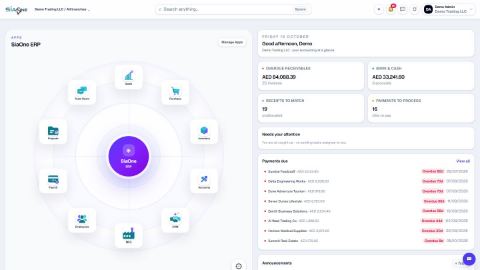 1:14
1:14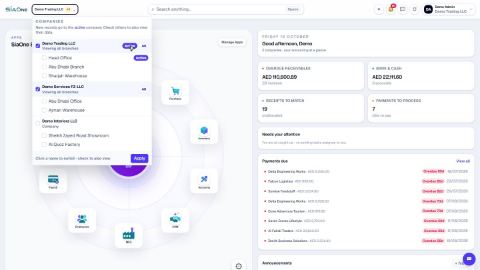 1:14
1:14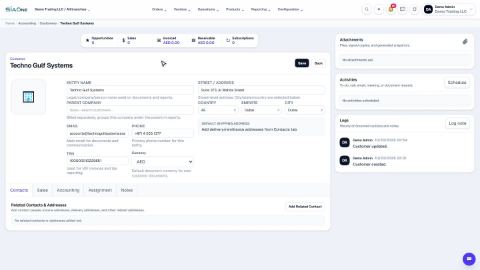 1:33
1:33Lists and records
Work with lists - search, filters, group by and saved searches
Find records quickly on any list - type to search, filter, group, and save a view you use often.
Choose columns, sort and export a list to Excel
Show only the columns you need, sort the list, and download exactly what you see as an Excel file.
Read a record page: status bar, smart buttons and actions menu
How every document and record is laid out - the status bar, the next-step buttons, smart buttons, the actions menu and the side panels.
Attach files to a record
Keep the signed copy, a receipt or a supplier invoice on the record it belongs to, so anyone can find it later.
Schedule an activity and follow up
Plan a call, to-do, email, meeting or document request on a record, and tick it off when it is done.
Add a note and read the history of a record
See who did what and when on any record, and leave an internal note for your team.
 1:12
1:12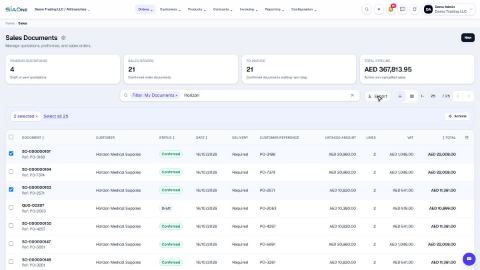 1:05
1:05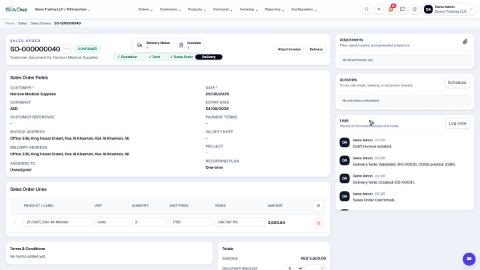 1:15
1:15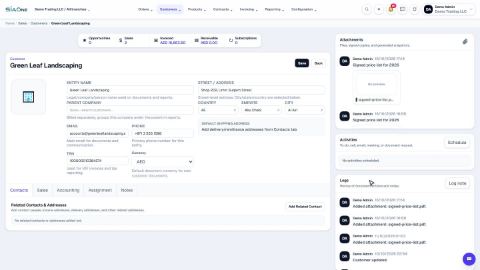 0:51
0:51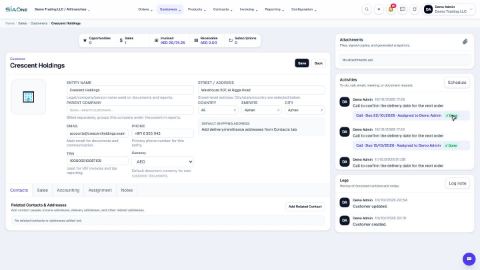 0:58
0:58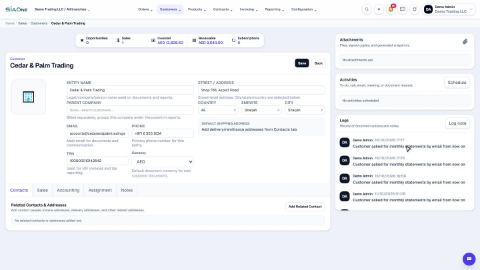 0:54
0:54Your account
 1:28
1:28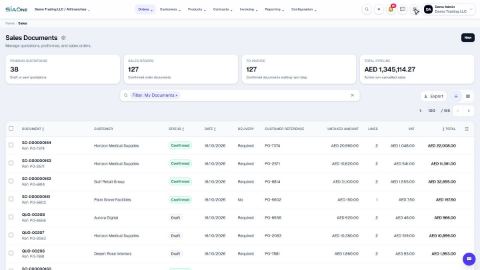 0:47
0:47Coming soon
These lessons are being written and recorded.
- Ask Sia AI a how-to question