
Understand access levels: None, Own Documents, Manager
What None, User: Own Documents and Manager mean for each app, and how they differ from the Administrator role.
Where to find it
SettingsAdministrationUsers
Every user has a System Role and, for each app, an access level.
The levels
| Level | What the user can do |
|---|---|
| None | The app is hidden and blocked. |
| User: Own Documents | Create records and work on their own, or those assigned to them. |
| Manager | See all records, use the reports, delete, and change the app's configuration. |
An Administrator has full access to every app, plus Settings. For an administrator the levels are greyed out.
Steps
- Open Settings > Administration > Users. Click a user in the list.
- Look at System Role. An Administrator shows the message that they have full access to all modules.
- For a User, Module Access Rights lists every installed app with one Access Level each.
- Click an Access Level to see the three choices: None, User: Own Documents and Manager. Pick one, then click Save.
- Check the result by asking the person to sign in: apps set to None are not on their home screen.
Tip
Give most people User: Own Documents. Give Manager to the head of each team, and None for apps a person never needs.
Important
Access is enforced by SiaOne itself, not just hidden on screen.
What happens next
Create a login with the right levels: Add a user and set access rights.
Was this lesson helpful?
Thank you for the feedback.
Keep learning
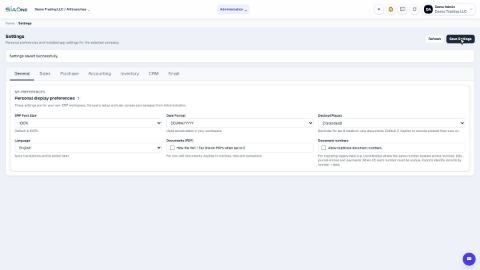
Change the date format and decimal places
Show dates and amounts the way you read them - day first or month first, and how many decimals.
Change document and journal numbering
See how quotation, order, invoice, bill, payment and journal numbers are built, and where to change the prefix, format and starting number.
Create an approval rule
Hold documents - for example large vendor bills - until the right person approves them.
 1:03
1:03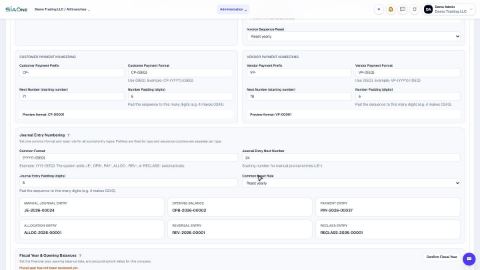 0:50
0:50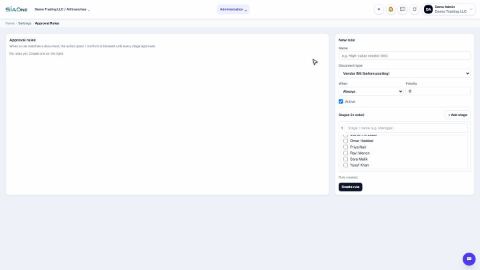 0:58
0:58