
Add a branch
Add a head office, branch, warehouse, store or office to a company, so users and documents can be tied to a location.
Where to find it
SettingsAdministrationCompanies & Branches
Steps
- Open Settings, point at Administration and choose Companies & Branches.
- Click a company on the left - for example Demo Services FZ-LLC. Its branches are listed on the right.
- Click Add Branch. The company is already filled in. Choose the Branch Type: Head Office, Branch, Warehouse, Store, Office or Other.
- Type the Branch Name and a short Code, then the City and the Address.
- Click Create Branch. The branch joins the list. It can now be picked in the company selector at the top left and when you give a user access.
Note
This lesson adds a branch to an existing company. A new company starts without apps and is set up by your SiaOne administrator, so it is not covered here.
Tip
Give each branch a short, unique Code - it appears next to the branch name in lists and in the user settings.
What happens next
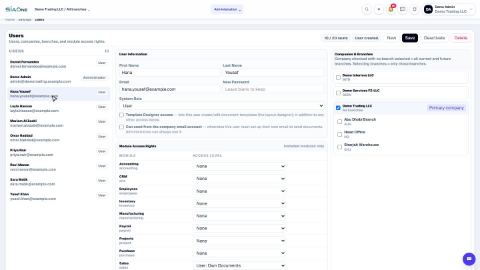
Let a colleague work in the new branch: Add a user and set access rights.
Was this lesson helpful?
Thank you for the feedback.
Keep learning
Add a user and set access rights
Create a login for a colleague, choose the companies they can work in, and set their access level for each app.
Change document and journal numbering
See how quotation, order, invoice, bill, payment and journal numbers are built, and where to change the prefix, format and starting number.
Create an approval rule
Hold documents - for example large vendor bills - until the right person approves them.
 1:03
1:03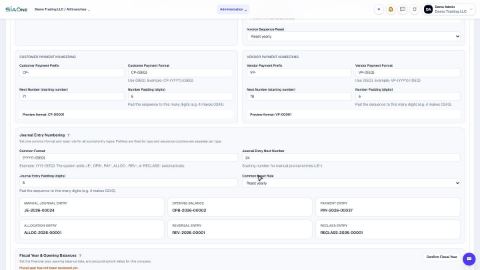 0:50
0:50 0:58
0:58