
Set up email so documents can be sent
Connect your mailbox so quotations, invoices and statements can be emailed from SiaOne.
Where to find it
SettingsEmail
Before you start
Ask your IT contact for the SMTP details of the mailbox: the host name, the port, the user name and the password.
Steps
- Open Settings and click the Email tab. It has three parts: your personal email account, email templates and the company email account.
- Your personal email account is your own mailbox. Fill in the SMTP host, Port, SMTP username, Password and From email. Add your From name, Designation / job title and an Email signature / footer if you like. Click Save Settings.
- Email templates are the subject and body used when you send each type of document. Choose the Document type, write the Subject and Body, and tick Use as the default template for this document type.
- Company email account is one shared mailbox, for example accounts@, for users who are allowed to send from it. It has the same fields, plus an optional Reply-To Email.
- Once an account is saved, open a document and choose Send by Email in its actions menu.
Note
Port 587 normally uses STARTTLS and port 465 uses SSL - turn Use SSL/TLS on only for 465. A saved password is never shown again; leave the box blank to keep it.
Important
Users send from the company account only if the administrator ticked Can send from the company email account on their user.
What happens next
Try it from a document: open the actions menu (...) of a quotation and choose Send by Email.
Was this lesson helpful?
Thank you for the feedback.
Keep learning
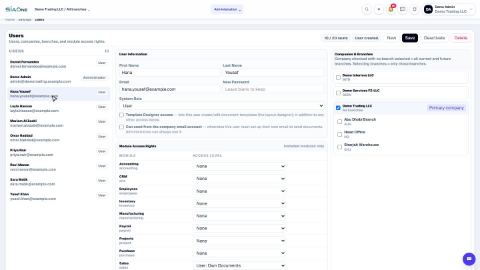
Add a user and set access rights
Create a login for a colleague, choose the companies they can work in, and set their access level for each app.
Understand access levels: None, Own Documents, Manager
What None, User: Own Documents and Manager mean for each app, and how they differ from the Administrator role.
Add a branch
Add a head office, branch, warehouse, store or office to a company, so users and documents can be tied to a location.
 1:03
1:03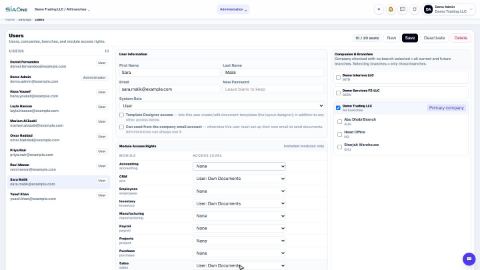 0:57
0:57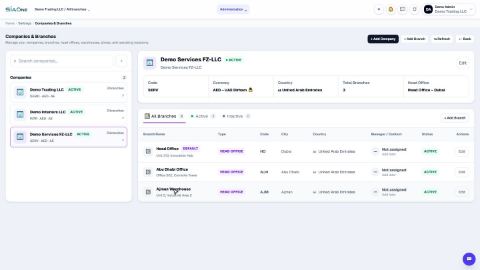 1:04
1:04