
Email templates and merge fields
Write an email once and let SiaOne fill in the document number, customer name, total and sender for every message.
Where to find it
SettingsEmail
Before you start
Set up your mailbox first: Set up email so documents can be sent. Templates are shared - everyone in the company who sends a document can use them.
Steps
- Open Settings, click the Email tab and scroll down to Email templates. The list on the left says No templates yet until someone adds one.
- The text under the heading explains merge fields. These are words in double curly brackets that SiaOne replaces with real values when the email is sent. For example {{documentNumber}} becomes the real quotation or invoice number and {{customerName}} becomes the customer's name. The others are {{companyName}}, {{currency}}, {{total}}, {{dueDate}}, {{userName}}, {{userJobTitle}} and {{userSignature}}.
- Type a Name for the template and choose the Document type it is for, such as Quotation, Sales Order or Customer Invoice.
- In Subject, write the subject line and add merge fields, for example
Quotation {{documentNumber}} from {{companyName}}. - In Body, write the message. For example start with
Dear {{customerName}},. End with{{userName}}and{{userSignature}}so the email is signed by the person who sends it. - Tick Use as the default template for this document type to make it the default for that type of document, then click Add template to save it.
Note
{{userSignature}} is filled from Email signature / footer in Your personal email account, higher up on the same tab. Each sender has their own, so each email carries the sender's own signature.
Tip
Type merge fields exactly as shown, with two curly brackets on each side and no spaces, and check one real email before you rely on a new template.
What happens next
Send a document with your template: Send a quotation by email.
Was this lesson helpful?
Thank you for the feedback.
Keep learning
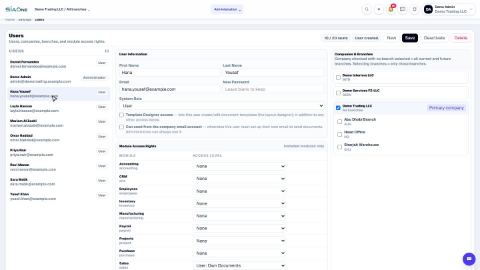
Add a user and set access rights
Create a login for a colleague, choose the companies they can work in, and set their access level for each app.
Understand access levels: None, Own Documents, Manager
What None, User: Own Documents and Manager mean for each app, and how they differ from the Administrator role.
Add a branch
Add a head office, branch, warehouse, store or office to a company, so users and documents can be tied to a location.
 1:01
1:01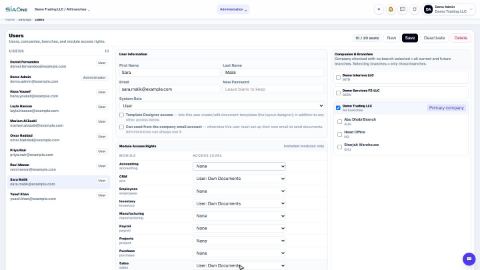 0:55
0:55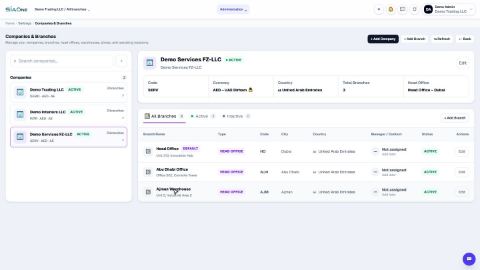 1:04
1:04