
Create an approval rule
Hold documents - for example large vendor bills - until the right person approves them.
Where to find it
SettingsAdministrationApproval Rules
Steps
- Open Settings, point at Administration and choose Approval Rules. Rules you have created are listed on the left. A new rule is made on the right.
- Type a Name and choose the Document type - for example Vendor Bill (before posting). You can also choose a customer invoice, vendor payment, sales order or quotation, purchase order or expense report.
- In When, choose Always, By amount or When over credit limit. For By amount, choose the Operator and type the Threshold - for example bills of 250,000 or more.
- Under Stages, name the first stage - for example Finance Manager - and tick who may approve it. Click + Add stage for a second stage.
- Click Create rule. The rule appears on the left and is active straight away.
- Use Edit to change a rule, or Delete to remove it.
Important
While a rule is active, a matching document is blocked from posting or confirming until every stage has approved. Test a new rule with a small threshold before you use it for real.
Tip
Priority decides which rule applies first when two rules match the same document.
What happens next
Make your printed documents look right: Customise a document template.
Was this lesson helpful?
Thank you for the feedback.
Keep learning
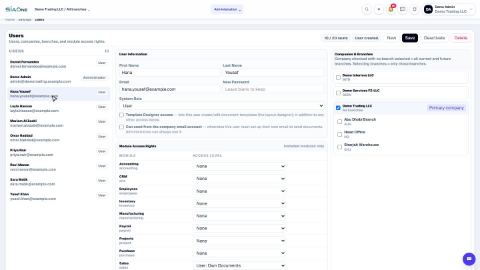
Add a user and set access rights
Create a login for a colleague, choose the companies they can work in, and set their access level for each app.
Understand access levels: None, Own Documents, Manager
What None, User: Own Documents and Manager mean for each app, and how they differ from the Administrator role.
Add a branch
Add a head office, branch, warehouse, store or office to a company, so users and documents can be tied to a location.
 1:03
1:03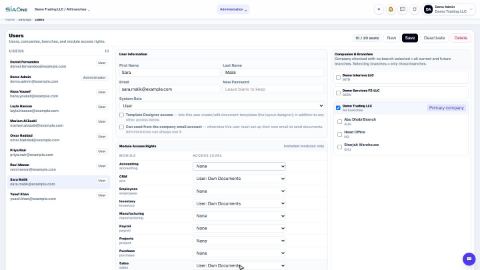 0:57
0:57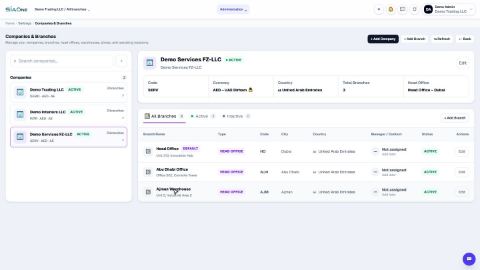 1:04
1:04