
Confirm a quotation into a sales order
Turn an accepted quotation into a confirmed sales order with one click. Confirming also prepares the delivery note for the warehouse.
Before you start
You need a saved quotation. See Create a quotation.
Steps
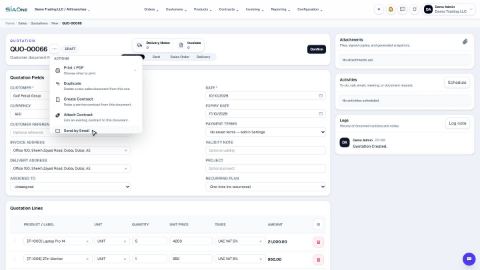
- Open Sales > Orders > Quotations and click the quotation the customer accepted.
- Check the lines, the Delivery Address and the Payment Terms one last time. While the quotation is a draft you can still change anything.
- Click Confirm, once. The quotation becomes a Sales Order: it gets a new number that starts with SO, its status changes to Confirmed, and the status bar moves on to Delivery.
- A delivery note is created for the warehouse. Click Delivery Notes at the top of the order to open it. It is in Ready status, waiting to be delivered.
Note
The status bar at the top of the page shows where the document is: Quotation › Sent › Sales Order › Delivery. Steps that are finished get a tick. You do not have to send the quotation by email first - Confirm works straight from a draft.
Note
If the customer has overdue invoices or is over the credit limit, and credit control on the customer is set to block, SiaOne stops the confirmation and tells you why. Collect the overdue amount, or ask a manager to review the customer's credit settings.
Tip
Confirmed the wrong thing? As long as nothing has been delivered, open the actions menu (⋯) and choose Reset to Draft. The order goes back to a draft, its delivery note is cancelled, and you can change it and confirm again.
What happens next
Create Invoice stays grey until the goods are delivered. Continue with Deliver a sales order and create the invoice.
 1:11
1:11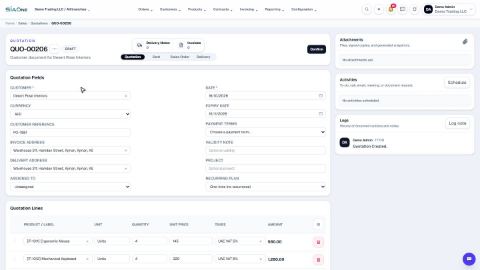 1:05
1:05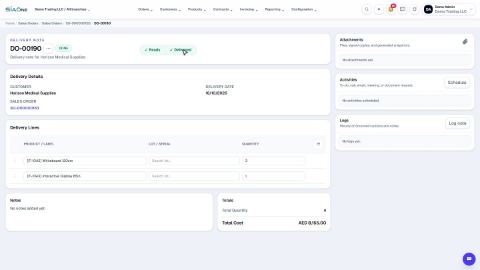 1:06
1:06