
Create a service contract
Record an agreement with a customer - what you will do, what it is worth, when it starts and ends, and whether it renews.
Before you start
Service contracts must be switched on for your company. If Contracts is missing from the Sales menu, ask an administrator to switch it on in Settings.
Steps
- Open Sales > Contracts > Contracts and click New Contract.
- Type a Title (for example Annual IT Support) and choose the Customer.
- Set the Start date and the End date. Tick Auto-renew if the contract should run again when it ends. A Renew every (months) box then appears.
- Under Contract lines, click the product box and pick a product or service. Type the Quantity and the Unit price. In the example, 12 months at 600 each gives a Contract Value of 7,200.
- Write the Scope of Work - what is included - and the Payment Terms in plain words.
- Click Create contract. It opens as a Draft, so you can still change anything.
Note
Retainer is the default billing type. It means every invoice bills the full contract lines. Blanket / call-off is the other choice.
Tip
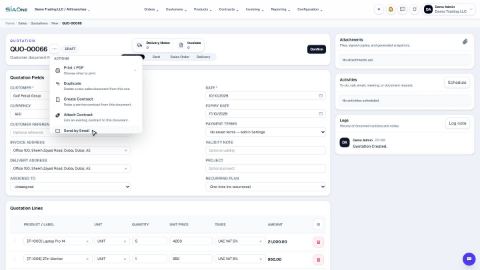
Click Activate when the work starts. The screen explains that activating starts the contract and creates a project to deliver it. Click Create Invoice to bill the customer against the contract at any time. You can also turn a quotation or an order into a contract from its actions menu - Create Contract.
What happens next
For charges that repeat on a schedule, see Set up a subscription.
 1:26
1:26 2:12
2:12 1:40
1:40