
Deliver a sales order and create the invoice
Mark the goods as delivered on the delivery note, then create the customer invoice from the sales order.
Where to find it
SalesOrdersSales Orders
Before you start
- The sales order must be confirmed. See Confirm a quotation into a sales order.
- The products must be in stock. SiaOne does not let stock go below zero unless negative stock is allowed in the Inventory settings.
Steps
- Open Sales > Orders > Sales Orders and click the order.
- Click Delivery at the top right of the order. Its delivery note opens, in Ready status.
- Check the Quantity on each line. It is the quantity you are handing over now.
- Click Deliver, then click Deliver again in the message to confirm. Stock leaves the warehouse, the cost of the goods is posted to the accounts, and the status bar of the note moves to Delivered.
- Go back to the sales order - click its number under Sales Order on the delivery note. Click Create Invoice, then Create Invoice again in the message.
- A draft customer invoice opens with the delivered lines and quantities. Nothing is posted yet, so you can still check and change it.
Note
Create Invoice is grey until something has been delivered. If your company invoices before delivery, an administrator can switch on Allow invoice before delivery in Settings > Sales.
Tip
Delivering less than the customer ordered? Change the quantity before you click Deliver - see Deliver part of an order and keep a backorder. To deliver everything and create the invoice with one button, see Deliver and invoice in one step.
What happens next
Review the draft invoice and click Confirm to post it - see Create a customer invoice. Orders that still need an invoice are listed under Sales > Orders > To Invoice.
Was this lesson helpful?
Thank you for the feedback.
Keep learning
Create a quotation
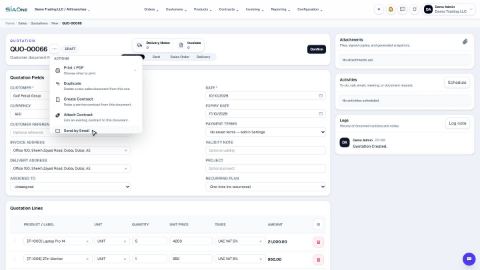
Prepare a quotation for a customer, add products and prices, then print it or send it by email.
Print a quotation, proforma or order
Make a PDF of a quotation, a proforma or a sales order to send to the customer or keep on file.
Send a quotation by email
Email a quotation to the customer as a PDF attachment, straight from the document.
 1:11
1:11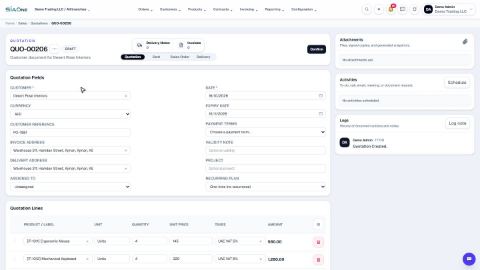 1:05
1:05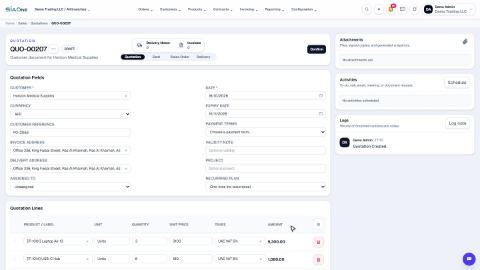 1:08
1:08