
Overview
Sales takes a deal from quotation to a paid invoice. Each step creates the next, and stock and accounting follow automatically. A confirmed order can still be corrected, and the reports show what you sold and what you made on it.
Quotation → Sales Order → Delivery → Customer Invoice → Payment
| Feature | Where | What it is |
|---|---|---|
| Sales documents | Sales › Orders | All Sales Documents, Quotations, Proformas, Sales Orders and To Invoice. |
| Customers | Sales › Customers | Customers, Credit Notes and Customer Payments (shared with Accounting). |
| Products | Sales › Products | Products, Product Variants and Product Categories (shared with Inventory). |
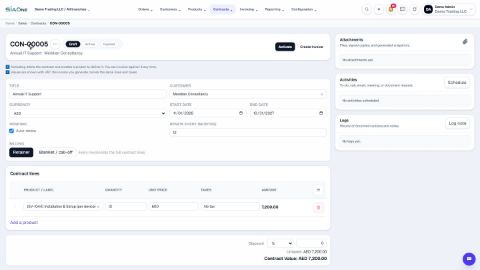
| Contracts | Sales › Contracts › Contracts | Service contracts: scope of work, value and term. |
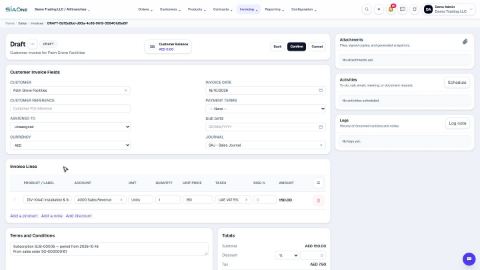
| Invoicing | Sales › Invoicing | Subscriptions (recurring invoices) and Customer Invoices. |
| Reporting | Sales › Reporting | All Reports, Sales by Customer, Sales by Product, Sales by Salesperson, Gross Profit, Sales Detail and Inactive Customers - each with filters and PDF, Excel and CSV export. |
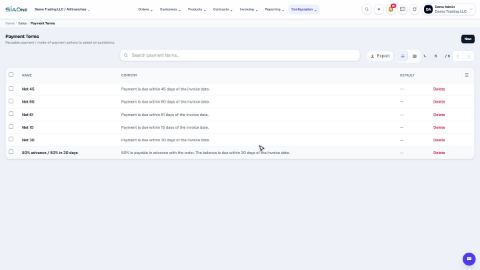
| Configuration | Sales › Configuration | Sales Teams, Payment Terms, Terms & Conditions. |
Tasks in Sales
Orders
Create a quotation
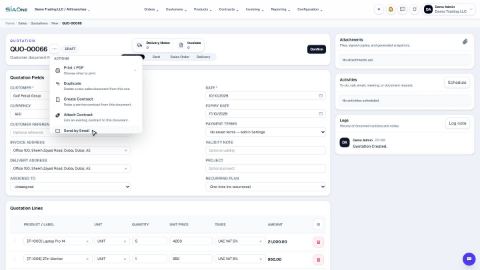
Prepare a quotation for a customer, add products and prices, then print it or send it by email.
Sell by the piece or by the box
When a product has more than one unit, choose the unit on each quotation line - SiaOne fills in the right price and keeps the stock in the product's own unit.
Print a quotation, proforma or order
Make a PDF of a quotation, a proforma or a sales order to send to the customer or keep on file.
Send a quotation by email
Email a quotation to the customer as a PDF attachment, straight from the document.
Confirm a quotation into a sales order
Turn an accepted quotation into a confirmed sales order with one click. Confirming also prepares the delivery note for the warehouse.
Correct a confirmed order
Wrong quantity or price on a confirmed sales order? Correct it in place - invoices, payments and stock follow, and you do not start again.
Edit details on a confirmed order
Change the reference, salesperson, delivery address or other details of a confirmed order without touching its amounts or its stock.
Invoice a percentage or an advance (progress invoicing)
Bill part of an order now - a percentage or a fixed amount - and bill the rest later.
Attach an existing invoice to an order
Already invoiced the customer by hand? Link that invoice to the sales order and check that the two match.
Create an RFQ from a sales order
Need to buy what a customer ordered? Raise the purchase request straight from the sales order, with the customer and the quantities already filled in.
 1:26
1:26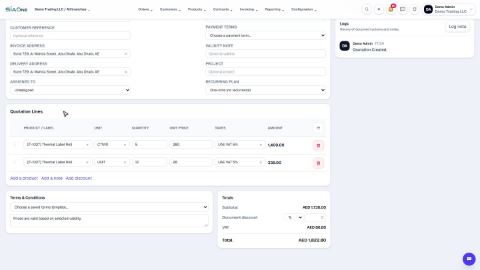 2:12
2:12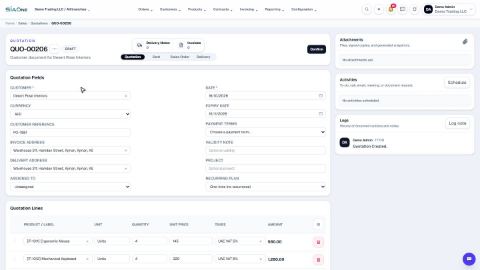 1:40
1:40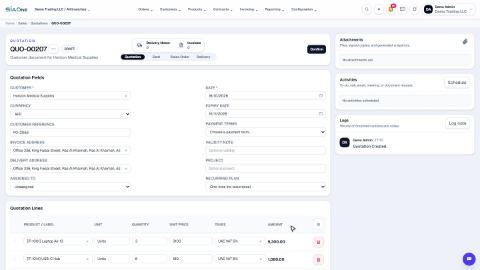 1:47
1:47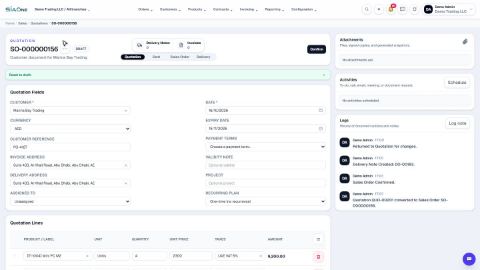 1:32
1:32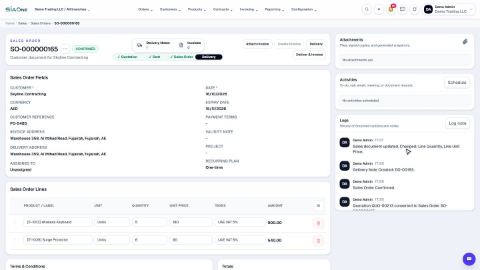 1:49
1:49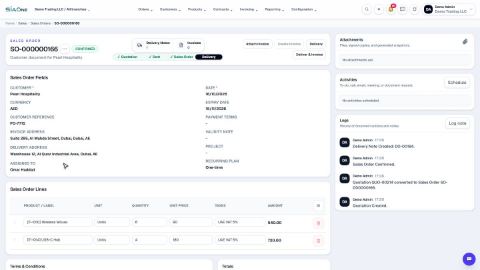 2:00
2:00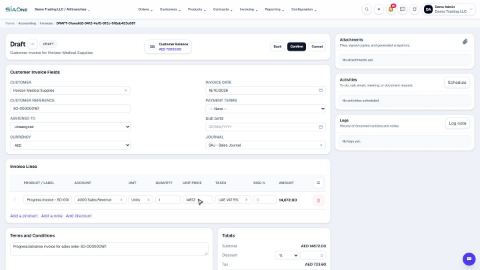 2:04
2:04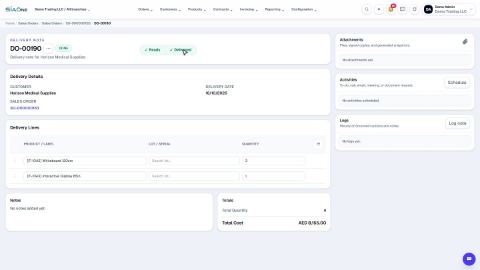 1:27
1:27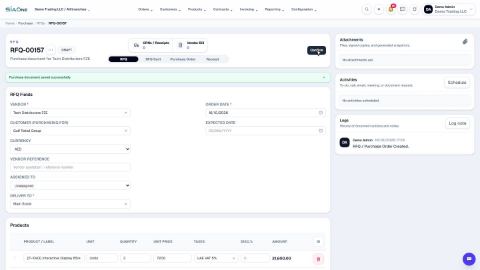 1:37
1:37Deliveries
Deliver a sales order and create the invoice
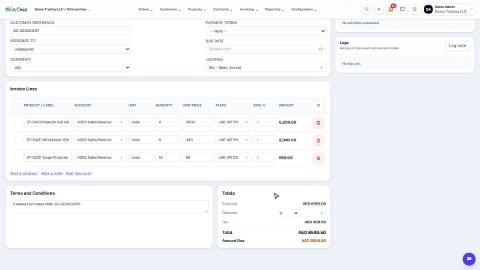
Mark the goods as delivered on the delivery note, then create the customer invoice from the sales order.
Deliver part of an order and keep a backorder
Send only some of the goods now, and keep the rest open on a new delivery note called a backorder.
Deliver and invoice in one step
Use one button on the sales order to deliver all the goods and create the draft customer invoice together.
Return goods from a customer
Take delivered goods back into stock from the delivery note, and prepare a credit note so the customer is not charged for them.
 1:37
1:37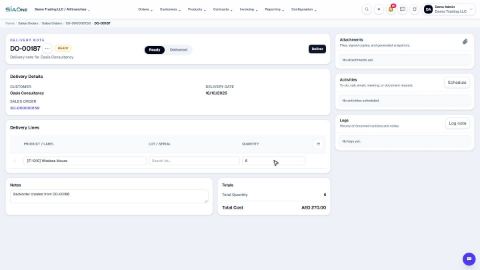 1:34
1:34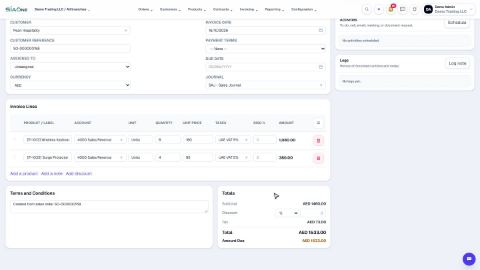 1:08
1:08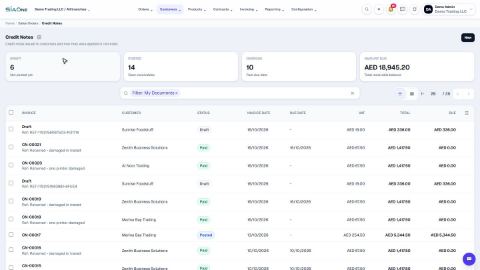 1:33
1:33Subscriptions
 1:38
1:38Contracts
 1:35
1:35Configuration
 2:29
2:29Reports
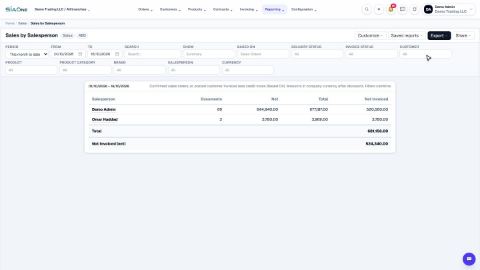
Run the sales reports by customer, product and salesperson
See how much you sold, to whom, which products sold best and who made the sales - for any period, with filters, month by month or as a file.
Gross Profit report
See what you sold, what it cost you and how much you made - by product, customer, salesperson or month.
See every order or invoice line (Sales Detail)
One report with a line for every product on every order or invoice - filter it, export it, and click through to the document behind a line.
Find customers who stopped buying
The Inactive Customers report lists customers whose last invoice is old, or who were never invoiced - the people to call.
 1:52
1:52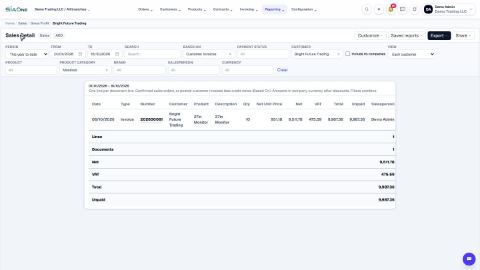 1:31
1:31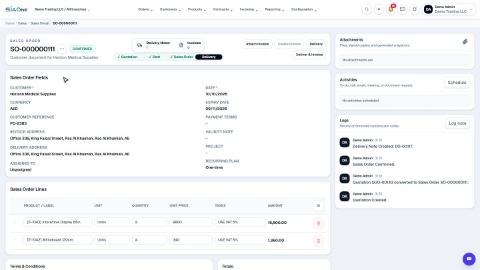 2:16
2:16 1:13
1:13