
Set up a subscription
Bill a service every month, quarter or year by setting a recurring plan on a quotation. SiaOne then creates each invoice for you.
Where to find it
SalesInvoicingSubscriptions
Before you start
The quotation needs at least one service product, such as an installation or support fee. Only service lines are billed again and again. Physical products on the same order are delivered and invoiced once, with the order.
Steps
- Open Sales > Orders > Quotations and click a quotation that has a service line. You can also start a new quotation - see Create a quotation.
- In Recurring Plan, choose how often to bill: Monthly, Quarterly or Yearly. A note under the field reminds you that only service lines recur.
- Click Save, then click Confirm. The quotation becomes a sales order and a subscription is created from it.
- Open Sales > Invoicing > Subscriptions. The new subscription is in the list with the status Running, its Next Invoice date and the amount Per Month.
- Click the subscription. Check the Billing frequency, Start date and the Plan lines. You can set an End date, or leave it empty to run until you close it. Tick Post & send automatically if invoices should be posted without you reviewing them first. Click Save if you change anything.
- Click Generate invoice now to make the first invoice yourself. A draft customer invoice for the period opens, ready to check and confirm.
Tip
Left unticked, Post & send automatically makes each new invoice a draft, so you can review it before it goes to the customer.
What happens next
Review each draft invoice and click Confirm to post it - see Create a customer invoice. Every invoice made by the subscription is listed under Generated invoices at the bottom of the subscription.
Was this lesson helpful?
Thank you for the feedback.
Keep learning
Create a quotation
Prepare a quotation for a customer, add products and prices, then print it or send it by email.
Sell by the piece or by the box
When a product has more than one unit, choose the unit on each quotation line - SiaOne fills in the right price and keeps the stock in the product's own unit.
Print a quotation, proforma or order
Make a PDF of a quotation, a proforma or a sales order to send to the customer or keep on file.
 1:26
1:26 2:12
2:12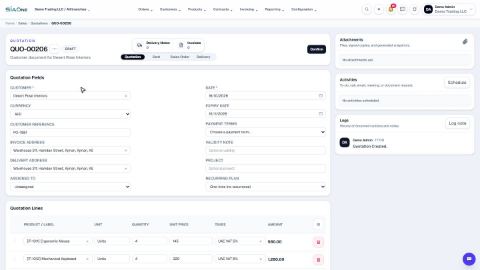 1:40
1:40