
Set up payment terms and terms & conditions
Save your standard payment terms and your terms and conditions once, then pick them on any quotation instead of typing them again.
Where to find it
SalesConfigurationPayment Terms
Steps
- Open Sales > Configuration > Payment Terms and click New.
- Type a Name (for example Net 60) and the Content - the sentence that customers will read. Under Installments, set the days. One line of 100 % due in 60 days means "Net 60". Click Create.
- Open Sales > Configuration > Terms & Conditions, click New, type a Name and your wording in Content, then click Create.
- Open a quotation (Sales > Orders > Quotations). In Payment Terms, choose your new term.
- Scroll down to Terms & Conditions. Open Choose a saved terms template and pick yours. The wording is copied into the box below, where you can still change it for this quotation.
- Click Save. The terms are printed on the quotation PDF.
Tip
Tick Set as default (auto-selected on new documents) when you create a term or a template to have it filled in on every new document.
Tip
Need a split such as half in advance and half later? Click Add line under Installments and give each part its percentage and days.
Note
Click Delete next to a term or template to remove it. A window asks Delete "Net 60"? - click Delete to confirm or Cancel to keep it. The video ends on this window and cancels it.
What happens next
Was this lesson helpful?
Thank you for the feedback.
Keep learning
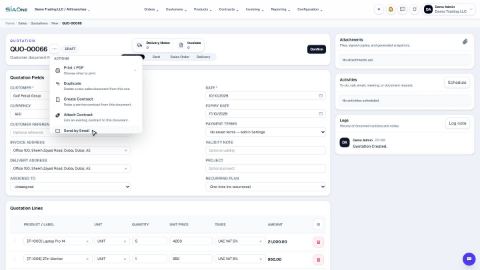
Create a quotation
Prepare a quotation for a customer, add products and prices, then print it or send it by email.
Sell by the piece or by the box
When a product has more than one unit, choose the unit on each quotation line - SiaOne fills in the right price and keeps the stock in the product's own unit.
Print a quotation, proforma or order
Make a PDF of a quotation, a proforma or a sales order to send to the customer or keep on file.
 1:26
1:26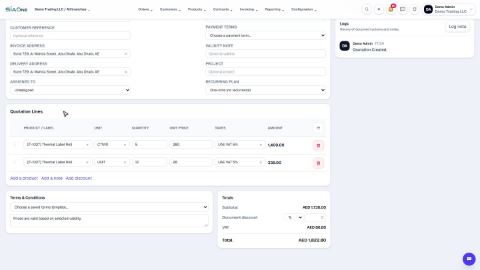 2:12
2:12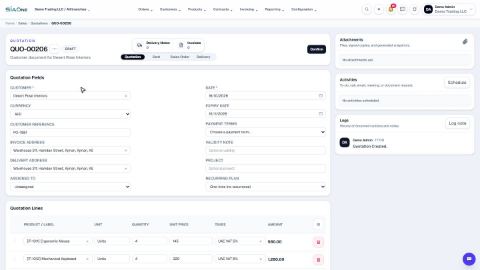 1:40
1:40