
Create a quotation
Prepare a quotation for a customer, add products and prices, then print it or send it by email.
Where to find it
SalesOrdersQuotations
Before you start
- The customer should exist under Sales > Customers.
- The products you are quoting should exist under Sales > Products.
Steps
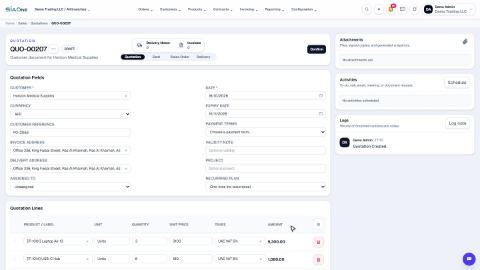
- Open Sales, go to Orders > Quotations and click New.
- In Customer, type a few letters of the name and pick the customer. The Invoice Address and Delivery Address fill in from the customer's record.
- Check the Date, the Validity (how long the offer stands - the Expiry Date follows it) and the Payment Terms.
- Under Quotation Lines, type a few letters of the product and pick it, then type the Quantity. The unit price and the tax come from the product.
- Click Add a product for each further line. The Totals at the bottom update as you type.
- Click Create. The quotation gets its number (for example QUO-00009) and stays in Draft, so you can still change anything.
- Click the actions menu (⋯) next to the number and choose Print / PDF to download it, or Send by Email to email it to the customer.
Tip
Need a similar quotation for another customer? Open the actions menu and choose Duplicate, then change the customer.
Note
The bar under the number shows where the document is: Quotation › Sent › Sales Order › Delivery.
What happens next
When the customer accepts, confirm the quotation into a sales order.
Was this lesson helpful?
Thank you for the feedback.
Keep learning
Send a quotation by email
Email a quotation to the customer as a PDF attachment, straight from the document.
Confirm a quotation into a sales order
Turn an accepted quotation into a confirmed sales order with one click. Confirming also prepares the delivery note for the warehouse.
Invoice a percentage or an advance (progress invoicing)
Bill part of an order now - a percentage or a fixed amount - and bill the rest later.
 1:08
1:08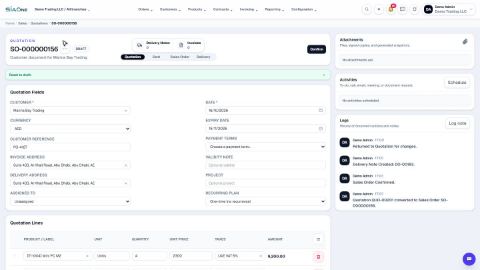 0:53
0:53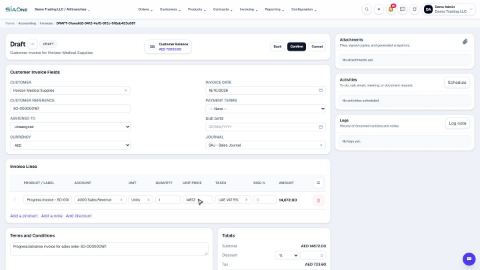 1:56
1:56