
Print a quotation, proforma or order
Make a PDF of a quotation, a proforma or a sales order to send to the customer or keep on file.
Where to find it
SalesOrdersQuotations
Steps
- Open Sales > Orders > Quotations and click the document. Use the search box if you cannot see it. Quotations, proformas and sales orders all open the same way.
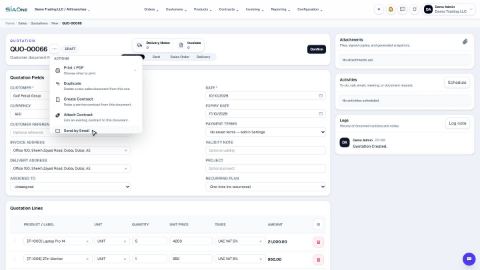
- Click the three dots (Document actions) next to the document number.
- Click Print / PDF. A short list shows what you can print: Quotation and Proforma. Once the quotation is confirmed, Sales Order is added to the list.
- Click the one you want. The PDF is made in a few seconds and opens in a new browser tab. Print it or save it from there.
Tip
A Proforma has the same lines and totals as the quotation, but it is headed "Proforma". Customers often ask for one to arrange payment or an import permit before the goods are delivered.
Note
If nothing seems to happen, your browser may have blocked the new tab. Allow pop-ups for the SiaOne address and try again.
Note
The terms and conditions typed on the document are printed on the PDF. See Payment terms and terms and conditions.
What happens next
Send the PDF to the customer. When they accept, confirm the quotation into a sales order.
Was this lesson helpful?
Thank you for the feedback.
Keep learning
Create a quotation
Prepare a quotation for a customer, add products and prices, then print it or send it by email.
Confirm a quotation into a sales order
Turn an accepted quotation into a confirmed sales order with one click. Confirming also prepares the delivery note for the warehouse.
Correct a confirmed order
Wrong quantity or price on a confirmed sales order? Correct it in place - invoices, payments and stock follow, and you do not start again.
 1:26
1:26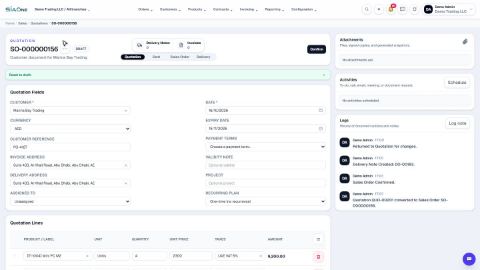 1:32
1:32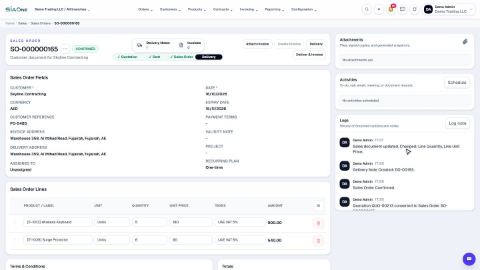 1:49
1:49