
Send a quotation by email
Email a quotation to the customer as a PDF attachment, straight from the document.
Where to find it
SalesOrdersQuotations
Before you start
- Save the quotation first - see Create a quotation.
- The customer needs an email address on their record, or you can type one in the message window.
- Email sending must be switched on in Settings and the mail server (SMTP) set up by an administrator.
Steps
- Open Sales > Orders > Quotations and click the quotation.
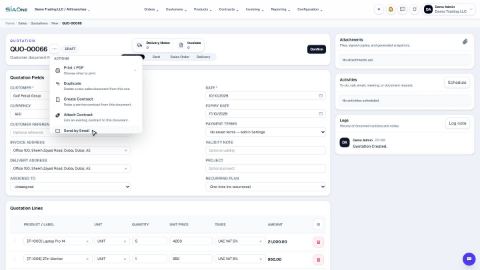
- Click the three dots (Document actions), then click Send by Email. The Send Quotation window opens.
- Check the To box. The customer's email address is filled in. Type another address and press Enter to add more people. Use CC and BCC for copies.
- Change the Subject or the Message if you want. A short, polite message is already written for you.
- Keep Attach PDF document ticked so the customer gets the quotation as a PDF, then click Send Email.
Note
If you click Send Email and see "Email sending is disabled in Settings", ask your administrator to switch email on and enter the mail server details. Until then, print the quotation as a PDF and send it from your own email.
What happens next
When the customer says yes, confirm the quotation into a sales order.
Was this lesson helpful?
Thank you for the feedback.
Keep learning
Create a quotation
Prepare a quotation for a customer, add products and prices, then print it or send it by email.
Sell by the piece or by the box
When a product has more than one unit, choose the unit on each quotation line - SiaOne fills in the right price and keeps the stock in the product's own unit.
Correct a confirmed order
Wrong quantity or price on a confirmed sales order? Correct it in place - invoices, payments and stock follow, and you do not start again.
 1:26
1:26 2:12
2:12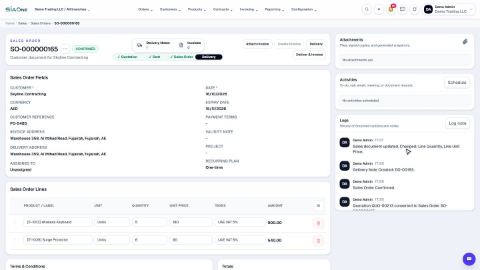 1:49
1:49