
Get notified in the bell and choose what you hear about
Read your notifications from the bell in the top bar, and choose which ones reach you in the bell, in your browser or by email.
Where to find it
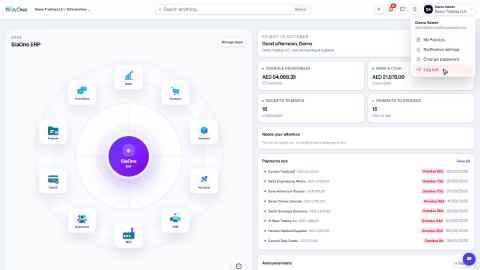
Top barBell, or your nameNotification settings
SiaOne tells you when something needs you: an activity or a document is assigned to you, someone mentions you in a note, an approval is waiting, invoices are overdue, or stock is low. You see it in the bell at the top right of every screen.
Steps
- Look at the bell in the top bar. The red number is how many notifications are new.
- Click the bell. The list shows what happened and how long ago. Click a notification to open the record or the list it is about.
- Click Notification settings at the bottom of the list. You can also open it from the menu under your name.
- Each line is one kind of notification, for example Someone mentions you in a note or Morning summary: your overdue invoices and bills. Three columns say where it reaches you: In the bell, Browser & phone and Email.
- Tick a box to switch a notification on in that place, and untick it to switch it off. Every change is saved at once - you will see Saved at the top of the table.
- The This browser box at the top says whether your browser may show pop-up notifications. If it says Blocked, click the icon to the left of the address bar, open the site settings, set Notifications to Allow and reload the page. Phones get notifications once you are signed in on the SiaOne mobile app.
Tip
Mark all read at the top of the bell list clears the red number. Do it when you have read everything.
Note
These settings are only yours. Other users choose their own.
What happens next
Plan your own follow-ups with Schedule an activity and follow up.
Was this lesson helpful?
Thank you for the feedback.
Keep learning
Sign in to SiaOne
Open your company's SiaOne address, sign in with your email and password, and find where to log out.
Find your way around
The home screen, the app menu bar, breadcrumbs, lists and record pages - the five things every SiaOne screen is built from.
Switch company and branch
Choose which company and branch you are working in, and understand which company a new document is saved to.
 1:28
1:28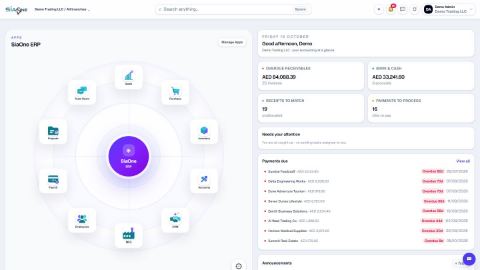 1:41
1:41 1:59
1:59