
Count stock
Count what is on the shelf, type it in, and let the system correct the quantity and the books.
Where to find it
InventoryOperationsInventory Adjustments
Before you start
Count the goods first, on paper or with a scanner. Then enter the numbers here.
Steps
- Open Inventory, then go to Operations > Inventory Adjustments. The page is called Physical Inventory. It lists every product with its On Hand quantity.
- Search for the product you counted, by name or by code, and press Enter.
- Type the quantity you counted in the Counted box. Difference shows how far it is from the system's number. A negative number means you have less than the system thinks.
- Click Apply at the end of the row. On Hand now matches your count, and the value of your stock is corrected too.
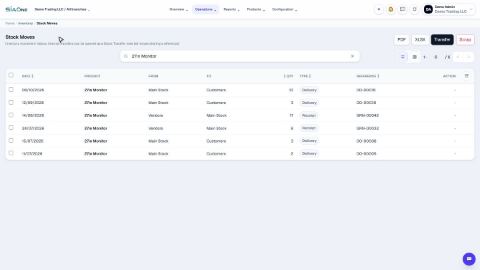
- To see the correction, open Operations > Stock Moves and search for the product. The move is listed as an Adjustment, with the reference Physical Inventory Count.
Tip
To apply many counts at once, type the counted quantity on each row and click Apply All at the top. You can also pick a date, and who the count is assigned to.
Note
Products tracked by lot or serial number are counted lot by lot on this page.
What happens next
To see what your stock is worth after the count, open Check stock on hand.
Was this lesson helpful?
Thank you for the feedback.
Keep learning
Check stock on hand
See how much of each product you have and what it is worth, find a product quickly, and see how its quantity got there.
Create a product
Add a stock item with its type, category, code and prices, so you can buy it, sell it and count it.
Choose a product type: storable, consumable or service
The Product Type decides whether SiaOne counts the stock, receives it, delivers it and values it.
 1:22
1:22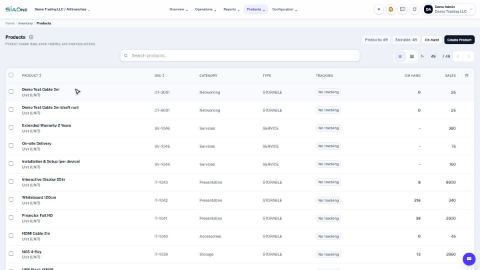 1:27
1:27 1:31
1:31