
Create product variants (size, colour)
Set up attributes such as Size and Colour once, then generate every combination of a product in one click.
Before you start
Create the product first. See Create a product. The product is the "parent": it holds the common details such as the name and the base price.
Steps
- Open Inventory and click Attributes & Variants.
- Type the name of an attribute, such as Size, in the box at the top right and click Add Attribute.
- In the new Size card, type each value and press Enter: Small, Medium and Large.
- Add a second attribute the same way. Here it is Colour, with the values Black and Blue.
- Open the product that comes in these versions (Inventory > Products > Products) and scroll down to the Variants section.
- Click the values this product comes in. A value turns blue when it is selected.
- If a value costs more, type the extra amount next to it in price +. Here Large costs 5 more.
- Click Generate variants. The list below shows one row for every combination, such as Large / Black, with its own Sales Price.
Tip
You can change the Sales Price of one combination directly in the list. A Save link appears next to the price you changed.
Note
Each combination is a product of its own, with its own price and its own stock. Attributes are shared, so the same Size and Colour can be used on any product. If you add a value later, open the product and click Generate variants again. Only the new combinations are created.
What happens next
The combinations can be chosen on quotations and purchase orders like any other product. To give stock to a combination, receive goods or count stock.
 1:22
1:22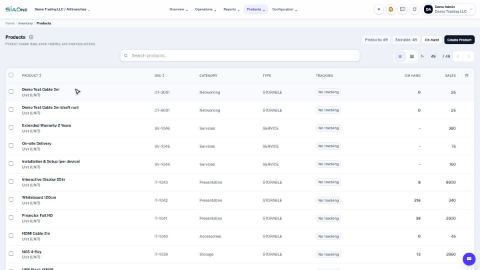 1:27
1:27 1:19
1:19