
Set a reordering rule
Set a minimum and a maximum for a product, and get a flag when stock runs low.
Where to find it
InventoryConfigurationReordering Rules
Steps
- Open Inventory, then go to Configuration > Reordering Rules. The list shows each rule with its Min, Max, the quantity On Hand and a Status.
- Click New Rule. A short form opens above the list.
- Type a few letters of the product in Product and pick it from the list.
- Choose the Location to watch, or leave All internal locations. Then type the Minimum quantity and the Maximum quantity. The minimum is the level at which you want to buy again. The maximum is how much you want to have after buying.
- Click Create rule. If the product is below its minimum, its Status shows Reorder with the quantity needed to reach the maximum. A product with enough stock shows OK.
- At the end of a flagged row, click Buy to start a new RFQ. See Create a purchase order.
Tip
The To Reorder tile on the Inventory overview page counts the products that are below their minimum.
Note
Use Pause at the end of a row to switch a rule off for a while, and Edit to change the numbers.
What happens next
Buy what is missing: create a purchase order.
Was this lesson helpful?
Thank you for the feedback.
Keep learning
Check stock on hand
See how much of each product you have and what it is worth, find a product quickly, and see how its quantity got there.
Create a product
Add a stock item with its type, category, code and prices, so you can buy it, sell it and count it.
Choose a product type: storable, consumable or service
The Product Type decides whether SiaOne counts the stock, receives it, delivers it and values it.
 1:22
1:22 1:27
1:27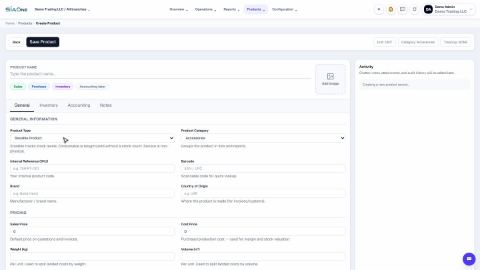 1:31
1:31