
Transfer stock between locations
Move goods from one stock location to another. The total stays the same; only the place changes.
Where to find it
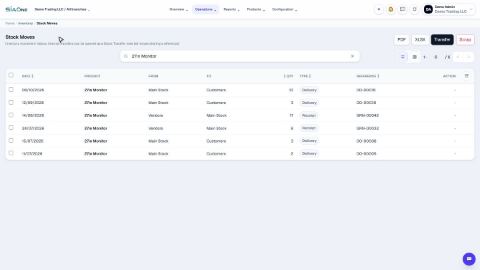
InventoryOperationsStock Moves
Before you start
You need at least two internal locations. See Add a stock location. The first location must have the stock in it.
Steps
- Open Inventory, go to Operations > Stock Moves and click Transfer. The Internal transfer form opens above the list.
- Type a few letters of the product in Product and pick it from the list. You can also paste the label exactly as other lists show it, such as [DT-9530] Demo Label Tape 12mm.
- Choose the From location and the To location.
- Type the Quantity to move. You can also choose who the transfer is assigned to, and add a Note.
- Click Transfer.
- The move now shows in the Stock Moves list, with the type Internal Transfer, from the first location to the second.
Note
A transfer does not change the total stock or its value. It only changes where the goods are kept.
What happens next
To check the stock afterwards, open Check stock on hand.
Was this lesson helpful?
Thank you for the feedback.
Keep learning
Check stock on hand
See how much of each product you have and what it is worth, find a product quickly, and see how its quantity got there.
Create a product
Add a stock item with its type, category, code and prices, so you can buy it, sell it and count it.
Choose a product type: storable, consumable or service
The Product Type decides whether SiaOne counts the stock, receives it, delivers it and values it.
 1:22
1:22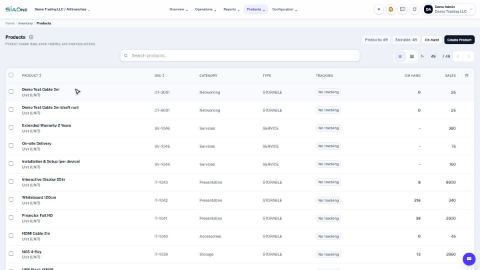 1:23
1:23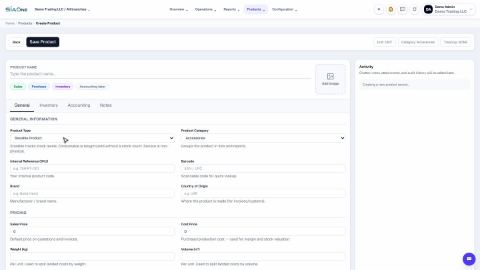 1:58
1:58