
Track lots, serial numbers and expiry dates
Track stock batch by batch or item by item. Receive goods with a lot number and an expiry date, then see every lot in one list.
Before you start
The product must be set up for tracking. On the product's Inventory tab, Tracking has three choices:
- No Tracking - stock is counted as one total. This is the normal choice.
- Lot / Batch - stock is counted per lot. Use it for goods that arrive in batches and may expire, such as ink, food or medicine.
- Serial Number - every unit has its own number, such as a phone or a laptop. Receive these one unit at a time.
Choose the tracking when you create the product, before any stock is received. See Create a product. Then buy the product on a confirmed purchase order: see Create a purchase order.
Steps
- Open the product and click its Inventory tab. Tracking is set to Lot / Batch.
- Open Purchase, choose the To Receive filter, search for the order, click it and click Receive.
- In Lot / Batch Number, type the lot printed on the goods and click it in the list. The Expiry Date fills in by itself. If the lot is new, type its number, choose Create, and type the Expiry Date in the same line.
- Click Validate Receipt. The stock is received into that lot.
- Open Inventory, go to Operations > Lots / Serials. Each lot has its own row with the Expiry date, the Status and the quantity On Hand.
Tip
Click the Expiry heading in Lots / Serials to sort the lots by expiry date. Use the search box to find a lot by its number, the product name or the SKU.
Note
A lot or serial number is required for a tracked product. SiaOne will not receive it without one. For a Serial Number product, receive one unit per line and give each its own number.
What happens next
To count a lot on the shelf, use Physical Inventory. See Count stock.
 1:22
1:22 1:27
1:27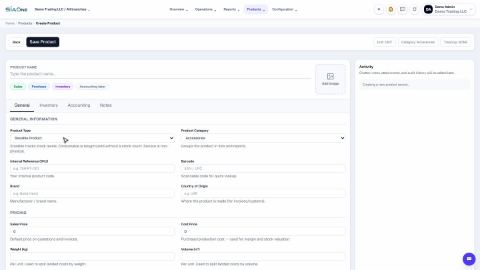 1:31
1:31