
Trace stock with the Stock Ledger and Movement Summary
See what came in and went out of each product over a period, and the full line-by-line history.
Where to find it
InventoryReports
Steps
- Open Inventory, then go to Reports > Stock Movement Summary.
- The report opens on the last few days only. Click the From date, type the first day of the period you want, for example 01/09/2026, and press Enter. Use To for the last day.
- For each product, read Opening (the quantity at the start), Received, Issued, Closing (the quantity at the end) and Value.
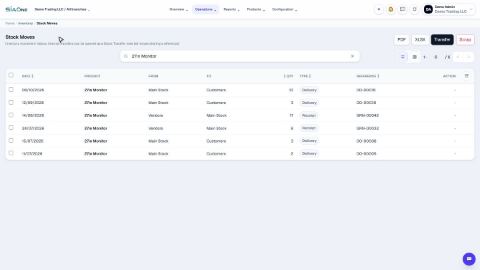
- For the detail behind a number, open Reports > Stock Ledger. Set the From date again. Each line is one movement, with its Date, Reference, Type, In, Out and the running Balance.
- Type a product name in Search to follow just that product.
- Click PDF or XLSX at the top to save the report.
Note
Both reports count completed stock moves only. A transfer between your own locations does not change the totals. Use Stock Valuation report to see what the stock is worth.
What happens next
To find stock that is not moving, see Aged and slow-moving stock.
Was this lesson helpful?
Thank you for the feedback.
Keep learning
Check stock on hand
See how much of each product you have and what it is worth, find a product quickly, and see how its quantity got there.
Create a product
Add a stock item with its type, category, code and prices, so you can buy it, sell it and count it.
Choose a product type: storable, consumable or service
The Product Type decides whether SiaOne counts the stock, receives it, delivers it and values it.
 1:22
1:22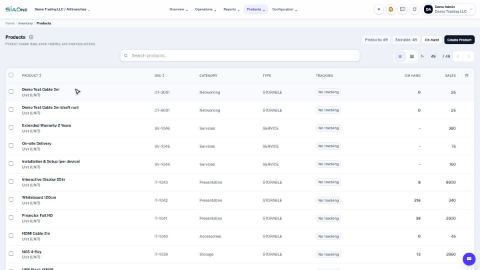 1:27
1:27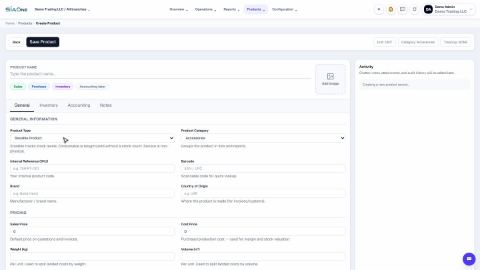 1:31
1:31