
Create a product
Add a stock item with its type, category, code and prices, so you can buy it, sell it and count it.
Where to find it
InventoryProductsProducts
Steps
- Open Inventory, go to Products > Products and click Create Product.
- Type the product name at the top of the form.
- Choose the Product Type and the Product Category. Choose Storable Product for goods you keep in stock, Consumable for items you buy and use without counting, and Service for work that has no stock.
- Type an Internal Reference (SKU), which is your own code for the product. Then enter the Sales Price and the Cost Price. The cost price is used to value your stock and to work out margin.
- Open the Inventory tab. Check the Unit of Measure (the unit you store and sell in) and Tracking. Leave tracking as No Tracking unless the product has lots or serial numbers.
- Click Save Product. You return to the list, and the new product is there with 0 on hand.
Tip
The Can be Sold and Can be Purchased boxes at the bottom of the General tab decide where the product shows up in a quotation or purchase order.
What happens next
A new product has no stock. Receive goods from a vendor or count stock to give it a quantity.
Was this lesson helpful?
Thank you for the feedback.
Keep learning
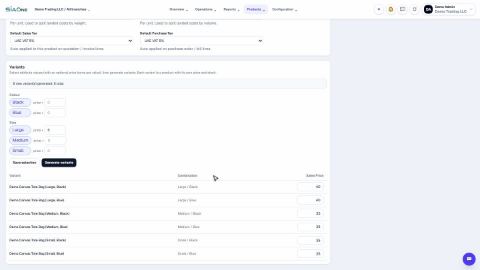
Create product variants (size, colour)
Set up attributes such as Size and Colour once, then generate every combination of a product in one click.
Buy by the box, sell by the piece (units of measure)
Define a box (or dozen, or kilogram) once, buy in it, and let stock stay counted in the product's own unit.
Count stock
Count what is on the shelf, type it in, and let the system correct the quantity and the books.
 1:38
1:38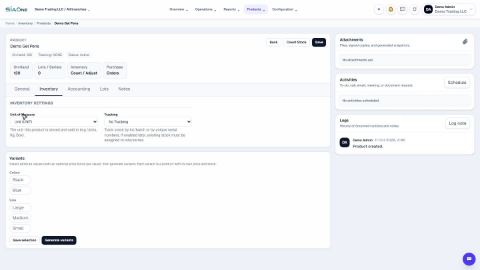 2:16
2:16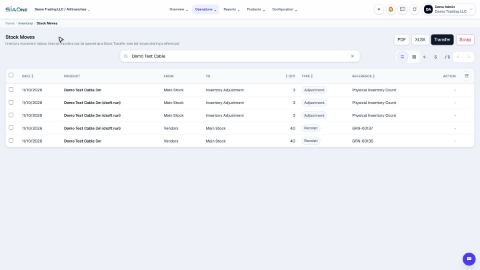 1:19
1:19