
Allow or block negative stock
Decide whether a delivery may take stock below zero. Find the setting and see what it does.
Before you start
This lesson only looks at the setting. Do not change it unless you are sure. It applies to the whole company, so it changes what everyone can do.
Steps
- Open Inventory, go to Configuration > Inventory Settings and click the Inventory tab.
- Find Allow negative stock. When it is off, SiaOne blocks a delivery that needs more stock than you have. When it is on, the delivery goes through and the stock goes below zero.
- To see the effect, open a sales order for a product that has no stock and click Delivery.
- Click Deliver, then confirm. Because negative stock is allowed here, the delivery goes through.
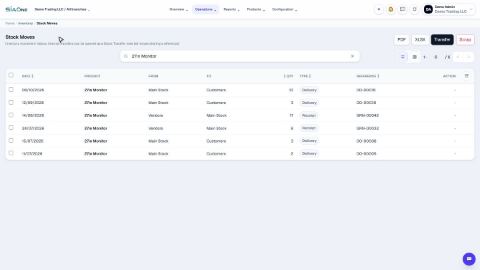
- Open the product. On Hand is now -5. Receive goods or count stock to bring it back to normal.
Note
When the setting is off and there is not enough stock, SiaOne stops the delivery and says how much is on hand and how much was requested. Receive the goods first, then deliver.
Tip
Turn it on if you often sell goods before the supplier delivery is entered, such as a shop that receives goods in the afternoon. Keep it off if you want the stock count to always be a real number.
Important
Negative stock means you have sold goods that are not yet recorded as received. Enter the purchase soon, and check Stock Valuation after you correct the quantity.
What happens next
Keep stock correct with reordering rules and stock counts.
 1:22
1:22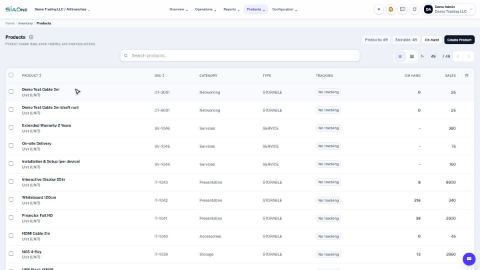 1:23
1:23 1:58
1:58