
Create a customer invoice
Create a tax invoice for a customer, save it as a draft, then confirm it so it is posted to the accounts.
Where to find it
AccountingCustomersCustomer Invoices
Before you start
- Invoices for goods you delivered are best created from the sales order - see Deliver a sales order and create the invoice. Use this lesson for an invoice that has no sales order.
- Check the active company in the top bar. The invoice is saved to that company.
Steps
- Open Accounting (the Accounts tile on the home screen), go to Customers > Customer Invoices and click New.
- Choose the Customer. Type a few letters of the name and pick it from the list.
- Check the Invoice Date and the Currency, and set the Due Date. If your company uses Payment Terms, pick one and the due date is worked out for you.
- Add a line: pick the product in Product / Label, type the Quantity and choose the tax under Taxes (for example UAE VAT 5%). The Account, the Unit and the Unit Price come from the product. You can change them.
- Click Add a product for each extra line. The Totals box at the bottom shows the subtotal, the tax and the total as you type.
- Click Save Draft. A draft has no effect on the accounts, so you can still change anything or come back to it later. Change a Quantity and the Totals follow at once.
- Click Confirm. The invoice gets its final number, its status changes to Posted, and the amount is added to what the customer owes you.
Tip
No product for what you are selling? Type a description in Product / Label instead and choose the income Account yourself.
Note
The actions menu (⋯) next to the invoice number has Print / PDF, Send by Email, Duplicate and Credit Note.
Important
A confirmed invoice is part of your books. To fix a mistake, use Reset to Draft in the actions menu (if you are allowed to) or issue a Credit Note - do not delete it.
What happens next
When the customer pays, click Receive Payment on the invoice - see Record a customer payment.
Was this lesson helpful?
Thank you for the feedback.
Keep learning
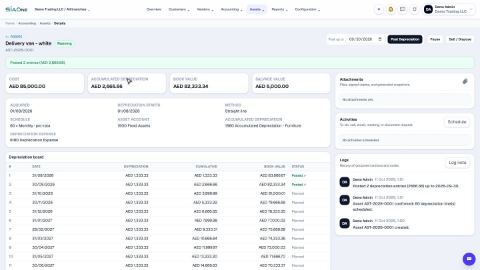
Register a fixed asset and run depreciation
Add an asset such as a vehicle, see its depreciation board, confirm it, and post the depreciation each month.
Record a manual journal entry
Post your own debit and credit lines for something no invoice, bill or payment covers - such as a bank charge with VAT, or a correction.
Record a vendor bill
Enter a bill you received from a supplier - for expenses or for products - and confirm it so it is posted.
 2:18
2:18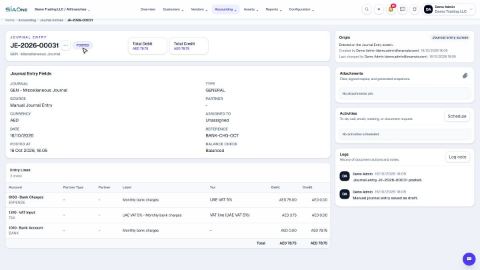 1:47
1:47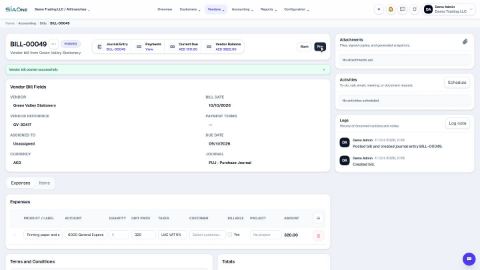 1:59
1:59